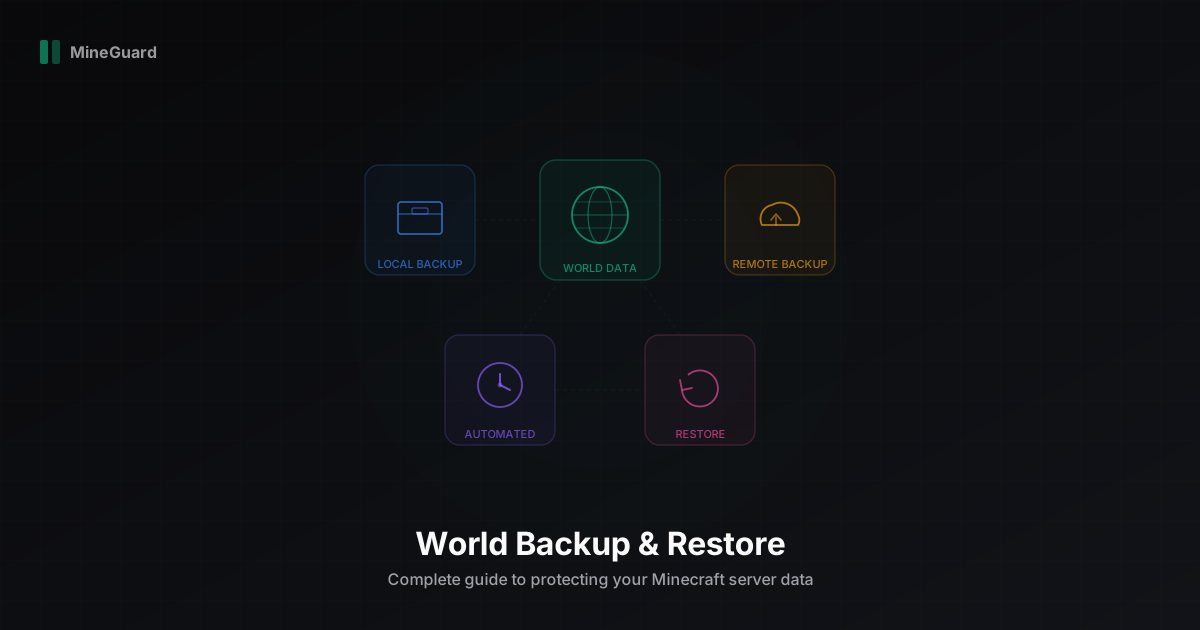
Minecraft Server World Backup and Restore: Complete Guide
Losing a Minecraft server world that players invested hundreds of hours into is one of the most painful situations any administrator can face. File corruption, failed updates, griefing, or disk failure can destroy everything in seconds. In this guide, we cover every method of protecting your server data: from simple file copying to fully automated solutions with remote storage.
Why Backups Matter
There are several common scenarios where a backup saves your server: World corruption. This can happen during sudden server shutdowns, low disk space, or plugin errors. Chunks become unreadable, and entire regions of your world turn into void. Griefing and player mistakes. Even with territory protection plugins, situations arise where someone gains access and destroys builds. A backup lets you roll back the world to a state before the incident. Failed updates. Updating your Minecraft version, Paper, or plugins can break the world. Without a backup, you are stuck with corrupted data and no way to roll back. Hardware failure. Disks fail. SSDs have limited write endurance. Without an external copy, losing a disk means losing everything.
Manual Backup: The Basics
The simplest way to create a backup is to copy the world folder. Before copying, always stop the server or run save-all and save-off to avoid copying files mid-write.
Copying with cp
# Disable autosave
screen -S minecraft -p 0 -X stuff "save-off\n"
screen -S minecraft -p 0 -X stuff "save-all\n"
sleep 5
# Copy the world
cp -r /opt/minecraft/world /opt/backups/world-$(date +%Y%m%d-%H%M%S)
# Re-enable autosave
screen -S minecraft -p 0 -X stuff "save-on\n"
Archiving with tar
To save disk space, use archiving:
tar -czf /opt/backups/world-$(date +%Y%m%d-%H%M%S).tar.gz
  -C /opt/minecraft world world_nether world_the_end
Gzip compression reduces a Minecraft world by roughly 3-5x. A 2 GB world becomes a 400-600 MB archive.
Automating Backups
Manual backups work for one-off situations, but reliable protection requires automation.
Cron
The classic approach is adding a crontab entry:
# Backup every 6 hours
0 */6 * * * /opt/minecraft/scripts/backup.sh >> /var/log/minecraft-backup.log 2>&1
Systemd Timer
A more modern approach with better logging:
# /etc/systemd/system/mc-backup.timer
[Unit]
Description=Minecraft World Backup Timer
[Timer]
OnCalendar=*-*-* 00/6:00:00
Persistent=true
[Install]
WantedBy=timers.target
# /etc/systemd/system/mc-backup.service
[Unit]
Description=Minecraft World Backup
[Service]
Type=oneshot
ExecStart=/opt/minecraft/scripts/backup.sh
User=minecraft
Enable it:
sudo systemctl enable --now mc-backup.timer
Backup Script with Rotation
A good backup script should not only create copies but also delete old ones:
#!/bin/bash
BACKUP_DIR="/opt/backups/minecraft"
MC_DIR="/opt/minecraft"
KEEP_DAYS=7
# Notify server
screen -S minecraft -p 0 -X stuff "save-off\n"
screen -S minecraft -p 0 -X stuff "save-all\n"
sleep 5
# Create backup
FILENAME="world-$(date +%Y%m%d-%H%M%S).tar.gz"
tar -czf "$BACKUP_DIR/$FILENAME" -C "$MC_DIR" world world_nether world_the_end
# Re-enable saving
screen -S minecraft -p 0 -X stuff "save-on\n"
# Remove backups older than N days
find "$BACKUP_DIR" -name "world-*.tar.gz" -mtime +$KEEP_DAYS -delete
echo "[$(date)] Backup created: $FILENAME"
Backup Plugins
If you prefer solutions without command-line work, there are excellent plugins available.
DriveBackupV2
The best plugin for automated backups with cloud upload support. Works with Google Drive, OneDrive, Dropbox, and FTP. Configuration example:
# config.yml (DriveBackupV2)
backups:
  backup-list:
    - path: "world"
      format: "%world%-%date%"
      create: true
    - path: "world_nether"
      format: "%world%-%date%"
      create: true
schedule:
  interval: 360  # minutes
The plugin handles saving, compression, and uploading automatically. Players receive a notification when a backup starts.
eBackup
A lightweight alternative that creates scheduled backups and uploads to FTP/SFTP. Fewer features but simpler to configure.
Remote Backups
A local backup will not protect you from disk failure or hosting problems. Remote storage solves this.
rsync
Sync with a remote server:
rsync -avz --delete
  /opt/backups/minecraft/
  backup-user@backup-server:/backups/minecraft/
rclone to S3 or Google Drive
rclone works with dozens of cloud providers:
# Configure (once)
rclone config
# Upload backup to S3
rclone copy /opt/backups/minecraft/ s3:my-mc-backups/
# Upload to Google Drive
rclone copy /opt/backups/minecraft/ gdrive:minecraft-backups/
To automate, add rclone to your backup script after creating the archive:
# Add to the end of backup.sh
rclone copy "$BACKUP_DIR/$FILENAME" s3:my-mc-backups/ --progress
S3 storage costs are minimal: 10 GB of backups will run about $0.23 per month.
Restoring from Backup
Creating a backup is not enough. You need to know how to restore it.
Step-by-Step Restore
# 1. Stop the server
screen -S minecraft -p 0 -X stuff "stop\n"
sleep 10
# 2. Rename the corrupted world
mv /opt/minecraft/world /opt/minecraft/world-corrupted-$(date +%Y%m%d)
# 3. Extract the backup
tar -xzf /opt/backups/minecraft/world-20260405-060000.tar.gz
  -C /opt/minecraft/
# 4. Fix permissions
chown -R minecraft:minecraft /opt/minecraft/world
# 5. Start the server
sudo systemctl start minecraft
Partial Region Restore
If only specific chunks are corrupted, you do not need to restore the entire world. Region files are stored in world/region/ using the format r.X.Z.mca. You can replace only the damaged files:
# Replace a specific region
cp /opt/backups/minecraft/world/region/r.0.0.mca
   /opt/minecraft/world/region/r.0.0.mca
Region coordinates are calculated as: region_x = floor(chunk_x / 32), region_z = floor(chunk_z / 32).
Testing Your Backups
A backup that has not been verified is not a backup. Regularly check integrity:
# Verify the archive
tar -tzf /opt/backups/minecraft/world-20260405-060000.tar.gz > /dev/null
echo $?  # 0 = archive is intact
Best practice: once a month, deploy a backup on a test server and confirm the world loads correctly. This takes 10 minutes but can save hours in an emergency.
Backup Schedule Recommendations
The optimal schedule depends on server activity:
- Small server (up to 20 players): backup every 12 hours, keep 7 days
- Medium server (20-100 players): backup every 6 hours, keep 14 days
- Large server (100+ players): backup every 2-4 hours, keep 30 days
- Before updates: always create an additional manual backup Send a remote copy at least once per day.
World Corruption Recovery
If you have no backup and the world is corrupted, there are several tools to attempt recovery:
Deleting corrupted chunks. A tool like MCA Selector lets you find and delete corrupted chunks. The server will regenerate them, but builds in those chunks will be lost.
Using --forceUpgrade. Starting the server with the --forceUpgrade flag can fix some compatibility issues after a version update.
NBT editors. For targeted data recovery, you can use NBTExplorer or NBT Studio to manually edit level files.
DDoS Protection and Data Integrity
One scenario that many people overlook deserves a separate mention. A DDoS attack can cause world corruption if it forces the server to crash while data is being written to disk. We at MineGuard regularly see cases like this: a server goes down under load, and some chunks end up corrupted. Our protection prevents these situations by blocking malicious traffic before it reaches your server, keeping it running stable even during an attack.
Conclusion
Setting up backups takes 30 minutes, while the absence of a backup can cost months of work from an entire community. Start with a simple script and cron, then add remote storage. Test your backups regularly. Your players will never know about the disasters you prevented, and that is exactly how it should be.
Protect Your Server from DDoS Attacks
Free protection with 5-minute setup. 1 TB bandwidth included.
Try for FreeRelated Articles
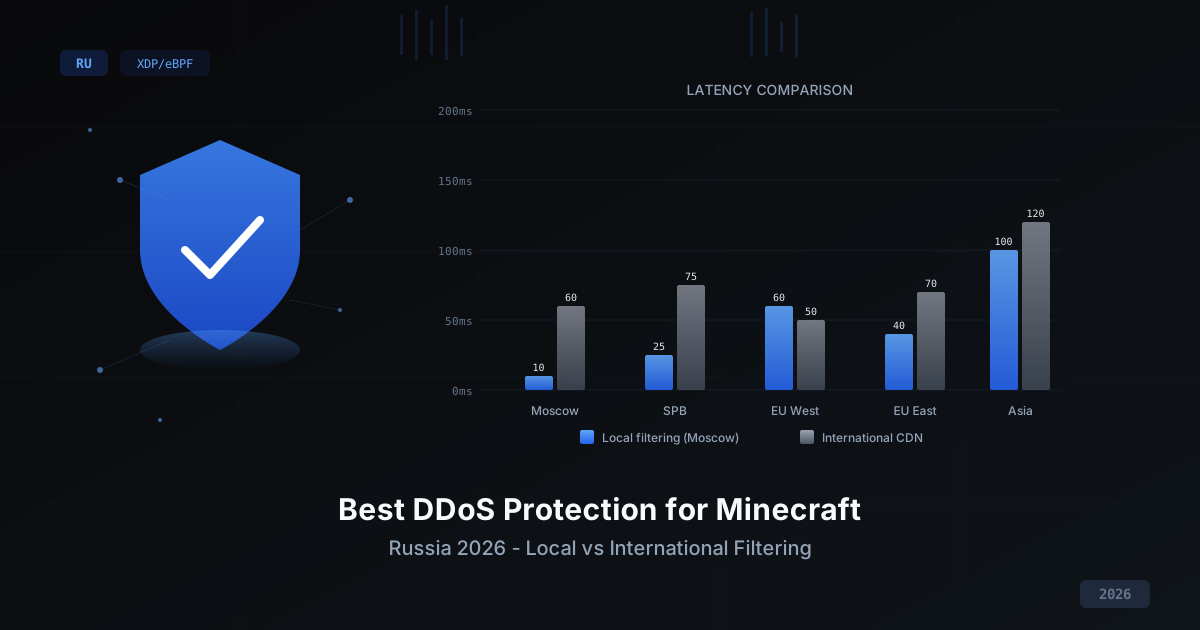
Best DDoS Protection for Minecraft in Russia 2026
Comparing DDoS protection approaches for Minecraft servers in 2026: international CDN vs local filtering, self-hosted vs managed, free vs paid. Selection criteria, XDP/eBPF technology breakdown, and why latency matters for PvP gameplay.
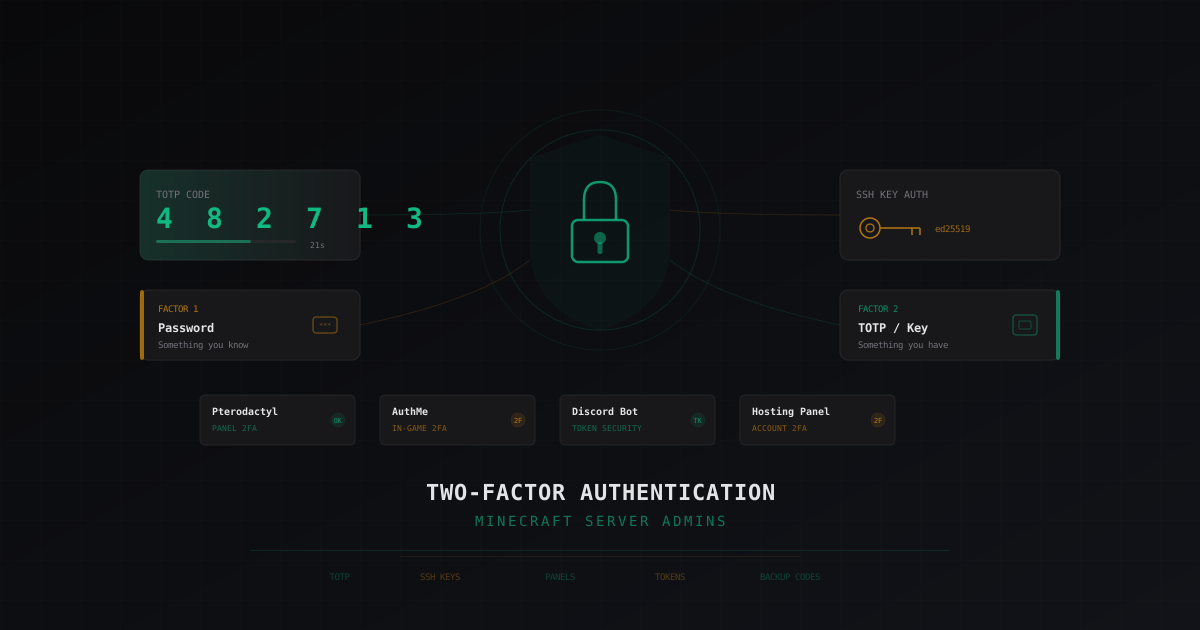
Two-Factor Authentication for Minecraft Server Admins: A Complete Guide
Why every Minecraft server admin needs 2FA, what happens when an admin account gets compromised, TOTP setup in AuthMe, panel access, and SSH. Protecting Discord bot tokens and backup codes.
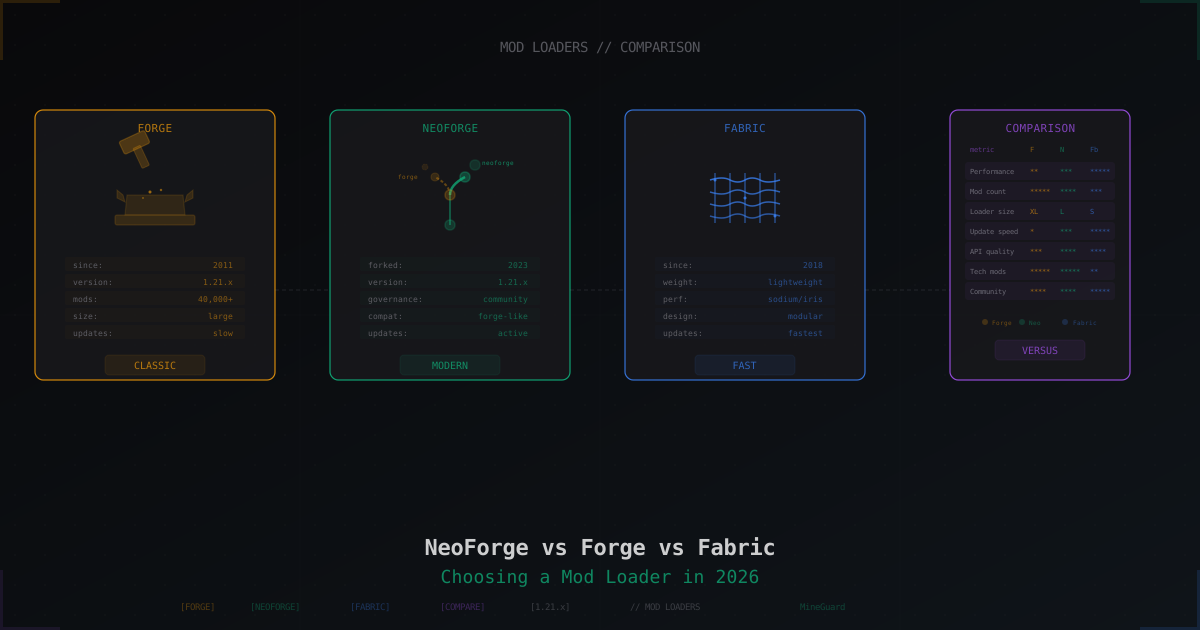
NeoForge vs Forge vs Fabric 2026: Which Mod Loader to Pick
Breaking down the three main Minecraft mod loaders in 2026. NeoForge fork history from Forge, Fabric performance with Sodium and Iris, mod compatibility and picking the right loader for your server type.