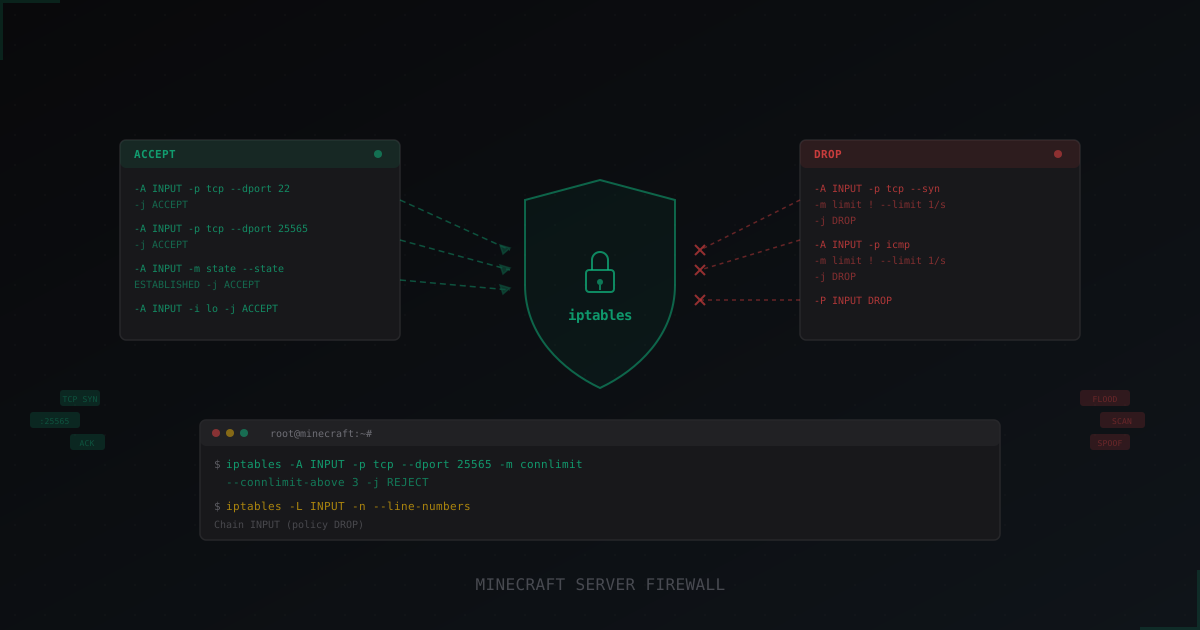
How to Set Up iptables for a Minecraft Server: Complete Guide
You rented a VPS, installed Paper, launched the server. Your friends connected, everything works. Then someone found your IP, and it all went downhill: port scans, SSH brute force attempts, and one fine day, a full-blown DDoS attack on port 25565.
Sound familiar? If not, you've been lucky so far. An exposed Minecraft server on the internet is a target. Bots scan IP ranges 24/7, and your server will be found sooner or later. The first line of defense is a firewall. On Linux, that means iptables.
Why Your MC Server Needs a Firewall
When you start a Minecraft server, it listens on port 25565 by default. But beyond that, your box typically has SSH (22) open, maybe a web panel (8080 or 8443), Dynmap (8123), RCON (25575), and who knows what else.
Every open port is a potential entry point. RCON with no password? Full console access. SSH with root/root? Welcome, attacker. Dynmap with no limits? Easy to crash the server with requests.
A firewall solves a simple problem: close everything that shouldn't be open, and restrict everything that should be. Sounds simple, but the devil is in the details.
iptables Basics: What You Need to Know
If you've never touched iptables before, here's the minimum theory.
Tables and Chains
iptables is organized into tables, each containing chains of rules. For protecting a Minecraft server, we care about the filter table (used by default) and three chains:
- INPUT - incoming traffic to the server
- OUTPUT - outgoing traffic from the server
- FORWARD - transit traffic (for routers, usually not needed)
How Rules Work
Rules are checked top to bottom. The first matching rule is applied, the rest are ignored. Order is critical: if you allow all traffic first, then try to block something, the block will never trigger.
Targets
- ACCEPT - let the packet through
- DROP - silently discard (sender gets no response)
- REJECT - discard and send an ICMP error back
- LOG - log the packet and pass it to the next rule
DROP vs REJECT: for external attacks, use DROP (gives the attacker no information). For internal services, use REJECT (the application gets an immediate error instead of waiting for a timeout).
Getting Started: Basic Setup
Before changing anything, check your current rules:
iptables -L -n -v --line-numbers
On a fresh server, you'll see three empty chains with ACCEPT policy. That means all traffic flows freely. Let's fix that.
Step 1: Allow Loopback and Established Connections
# Allow traffic on the loopback interface (localhost)
iptables -A INPUT -i lo -j ACCEPT

# Allow replies to already established connections
iptables -A INPUT -m state --state ESTABLISHED,RELATED -j ACCEPT
The ESTABLISHED rule is critical. Without it, the server can accept new connections but can't receive replies to its own requests (plugin updates, DNS queries, etc.).
Step 2: Allow SSH
# Allow SSH (port 22)
iptables -A INPUT -p tcp --dport 22 -j ACCEPT
WARNING: Add this rule BEFORE setting the DROP policy. Otherwise you will lock yourself out. I'm not joking - this is the most common mistake. People run iptables -P INPUT DROP and immediately lose SSH access. Then it's a call to the hosting provider and a VNC console to fix things.
If your SSH runs on a non-standard port (which it should), replace 22:
iptables -A INPUT -p tcp --dport 2222 -j ACCEPT
Step 3: Allow Minecraft Port
# Allow Minecraft Java Edition (TCP)
iptables -A INPUT -p tcp --dport 25565 -j ACCEPT
If you run a Bedrock server or Geyser, add UDP:
# For Bedrock/Geyser (UDP)
iptables -A INPUT -p udp --dport 19132 -j ACCEPT
Step 4: Allow ICMP (Ping)
# Allow ping (rate limited)
iptables -A INPUT -p icmp --icmp-type echo-request -m limit --limit 1/s --limit-burst 4 -j ACCEPT
Ping is useful for monitoring, but without a limit it can be used for ICMP flood. The rule above allows 1 ping per second with a burst of up to 4 packets.
Step 5: Set the Default Policy
# Block everything else
iptables -P INPUT DROP
iptables -P FORWARD DROP
iptables -P OUTPUT ACCEPT
We leave OUTPUT as ACCEPT because there's no reason to restrict outgoing traffic on a Minecraft server (unless you have specific requirements).
Complete Basic Setup Script
Everything together:
#!/bin/bash

# Flush existing rules
iptables -F
iptables -X

# Loopback
iptables -A INPUT -i lo -j ACCEPT

# Established connections
iptables -A INPUT -m state --state ESTABLISHED,RELATED -j ACCEPT

# SSH
iptables -A INPUT -p tcp --dport 22 -j ACCEPT

# Minecraft
iptables -A INPUT -p tcp --dport 25565 -j ACCEPT

# ICMP with rate limit
iptables -A INPUT -p icmp --icmp-type echo-request -m limit --limit 1/s --limit-burst 4 -j ACCEPT

# Default policy
iptables -P INPUT DROP
iptables -P FORWARD DROP
iptables -P OUTPUT ACCEPT
Save it as firewall.sh, run chmod +x firewall.sh, and execute. Now your server only accepts SSH, Minecraft, and ping. Everything else is silently dropped.
Rate Limiting: Beyond Basic Rules
Basic rules are good but not enough. You need to limit connection rates so a single IP can't open thousands of connections.
SYN Flood Protection
# Limit new TCP connections
iptables -A INPUT -p tcp --syn -m limit --limit 30/s --limit-burst 50 -j ACCEPT
iptables -A INPUT -p tcp --syn -j DROP
This allows a maximum of 30 new TCP connections per second with a burst up to 50. For a Minecraft server with 50-100 players, this is sufficient. For larger servers, increase the values.
Important: these rules must come BEFORE the port 25565 rule. Rule order in iptables is everything.
Per-IP Connection Limit (connlimit)
# Max 3 simultaneous connections from one IP to MC port
iptables -A INPUT -p tcp --dport 25565 -m connlimit --connlimit-above 3 -j REJECT --reject-with tcp-reset
Why? A legitimate player opens 1 connection. A bot attack can open hundreds from a single IP. A limit of 3 is enough even for multiple people behind the same NAT.
If you run a BungeeCord/Velocity network where backend servers connect from the proxy IP, add an exception:
# Exception for proxy server IP
iptables -I INPUT -s 10.0.0.1 -p tcp --dport 25565 -j ACCEPT
SSH Anti-Brute-Force
# Max 3 SSH attempts per 60 seconds
iptables -A INPUT -p tcp --dport 22 -m state --state NEW -m recent --set --name SSH
iptables -A INPUT -p tcp --dport 22 -m state --state NEW -m recent --update --seconds 60 --hitcount 4 --name SSH -j DROP
Every new SSH connection is recorded in the "SSH" list. If more than 4 attempts come from the same IP within 60 seconds, the rest are dropped. Simple and effective against automated brute force.
Port Scan Protection
Port scanning is the first step of any attack. Nmap sends packets to various ports to discover running services. You can make its job harder.
Block NULL Packets
# NULL packets (reconnaissance)
iptables -A INPUT -p tcp --tcp-flags ALL NONE -j DROP
Block XMAS Scanning
# XMAS packets (all flags set)
iptables -A INPUT -p tcp --tcp-flags ALL ALL -j DROP
Block Invalid Flag Combinations
# SYN-FIN (invalid)
iptables -A INPUT -p tcp --tcp-flags SYN,FIN SYN,FIN -j DROP

# SYN-RST (invalid)
iptables -A INPUT -p tcp --tcp-flags SYN,RST SYN,RST -j DROP

# FIN without ACK (invalid)
iptables -A INPUT -p tcp --tcp-flags FIN,ACK FIN -j DROP

# New connections must start with SYN
iptables -A INPUT -p tcp ! --syn -m state --state NEW -j DROP
These flag combinations don't occur in normal TCP traffic. Tools like Nmap use them to bypass simple firewalls.
Complete Production Script
Here's a complete, ready-to-deploy script:
#!/bin/bash

# === Minecraft Server iptables Firewall ===
SSH_PORT=22
MC_PORT=25565

# Flush
iptables -F
iptables -X
iptables -Z

# === Base Rules ===
iptables -A INPUT -i lo -j ACCEPT
iptables -A INPUT -m state --state ESTABLISHED,RELATED -j ACCEPT

# === Anomalous Packet Protection ===
iptables -A INPUT -p tcp --tcp-flags ALL NONE -j DROP
iptables -A INPUT -p tcp --tcp-flags ALL ALL -j DROP
iptables -A INPUT -p tcp --tcp-flags SYN,FIN SYN,FIN -j DROP
iptables -A INPUT -p tcp --tcp-flags SYN,RST SYN,RST -j DROP
iptables -A INPUT -p tcp --tcp-flags FIN,ACK FIN -j DROP
iptables -A INPUT -p tcp ! --syn -m state --state NEW -j DROP
iptables -A INPUT -f -j DROP

# === SYN Flood Protection ===
iptables -A INPUT -p tcp --syn -m limit --limit 30/s --limit-burst 50 -j ACCEPT
iptables -A INPUT -p tcp --syn -j DROP

# === SSH with Anti-Brute-Force ===
iptables -A INPUT -p tcp --dport $SSH_PORT -m connlimit --connlimit-above 3 -j DROP
iptables -A INPUT -p tcp --dport $SSH_PORT -m state --state NEW -m recent --set --name SSH
iptables -A INPUT -p tcp --dport $SSH_PORT -m state --state NEW -m recent --update --seconds 60 --hitcount 4 --name SSH -j DROP
iptables -A INPUT -p tcp --dport $SSH_PORT -j ACCEPT

# === Minecraft ===
iptables -A INPUT -p tcp --dport $MC_PORT -m connlimit --connlimit-above 3 -j REJECT --reject-with tcp-reset
iptables -A INPUT -p tcp --dport $MC_PORT -j ACCEPT

# === ICMP ===
iptables -A INPUT -p icmp --icmp-type echo-request -m limit --limit 1/s --limit-burst 4 -j ACCEPT

# === Logging + Default Drop ===
iptables -A INPUT -m limit --limit 5/min -j LOG --log-prefix "iptables-dropped: " --log-level 4

# === Default Policy ===
iptables -P INPUT DROP
iptables -P FORWARD DROP
iptables -P OUTPUT ACCEPT

echo "Firewall rules applied."
iptables -L -n --line-numbers
Saving Rules: iptables-persistent
Here's what many people forget: iptables rules don't survive a reboot. Server restarts, rules are gone. You need to persist them.
# Install iptables-persistent
apt install iptables-persistent

# Save current rules
netfilter-persistent save

# Or directly
iptables-save > /etc/iptables/rules.v4
ip6tables-save > /etc/iptables/rules.v6

# Enable the service
systemctl enable netfilter-persistent
After a reboot, verify with iptables -L -n --line-numbers.
UFW: The Simple Alternative
UFW (Uncomplicated Firewall) is a wrapper around iptables with a human-friendly interface. If you don't need fine-grained control, it works great.
# Install
apt install ufw

# Default policy
ufw default deny incoming
ufw default allow outgoing

# Allow SSH (MUST do this before enabling!)
ufw allow ssh

# Allow Minecraft
ufw allow 25565/tcp

# Rate limit SSH
ufw limit ssh

# Enable
ufw enable

# Check
ufw status verbose
UFW automatically saves and restores rules on reboot. For a simple server, this is enough.
But UFW has limitations. You can't configure connlimit, complex rules with the recent module, or fine-tune rule ordering. For advanced protection, you'll still need raw iptables.
Common Mistakes
1. DROP Before Allowing SSH
The most common and most painful mistake. Someone runs iptables -P INPUT DROP and their SSH session dies. Then it's a call to the hosting provider and a VNC console.
Safety net: use at to auto-reset rules:
echo "iptables -F; iptables -P INPUT ACCEPT" | at now + 5 minutes
If something goes wrong, rules reset in 5 minutes automatically.
2. Wrong Rule Order
# WRONG - allow all first, then try to block
iptables -A INPUT -j ACCEPT
iptables -A INPUT -s 1.2.3.4 -j DROP  # This rule will never trigger

# RIGHT - block first, then allow the rest
iptables -A INPUT -s 1.2.3.4 -j DROP
iptables -A INPUT -j ACCEPT
3. Forgot ESTABLISHED,RELATED
Without this rule, the server can't receive replies to its own requests. Plugin updates, DNS, NTP - nothing will work.
4. Forgot to Save Rules
Built a perfect firewall, didn't save it, server rebooted, rules gone.
5. Forgot IPv6
If IPv6 is enabled on your server and you only configured iptables (IPv4), an attacker can bypass your firewall entirely through IPv6. Configure ip6tables with the same rules, or disable IPv6 if you don't need it.
When iptables Isn't Enough
Let's be honest: iptables is baseline protection. It handles closed ports, IP-level rate limiting, simple attacks, and scan protection well.
But against a serious DDoS attack, iptables is helpless. When 10 Gbps of traffic hits your server, the firewall simply can't process that volume of packets. The pipe is flooded before iptables even sees the first packet.
For real DDoS protection, you need network-level filtering before your server. Services like MineGuard filter traffic on their infrastructure and only pass legitimate connections to you. iptables remains an important layer, working as the last line of defense to catch anything that shouldn't get through.
For more on hiding your server IP and why it matters, check out How to Hide Your Minecraft Server IP. And if you're hosting at home, the home server protection guide covers the specifics of NAT and router configs.
Monitoring: Verify Your Firewall Works
Setting up a firewall is half the battle. You need to verify it actually works.
# Check packet counters
iptables -L -n -v

# From another server, test a closed port
nc -zv your-server-ip 3306   # Should hang (DROP) or refuse (REJECT)
nc -zv your-server-ip 25565  # Should connect

# Watch dropped packets in real time
tail -f /var/log/kern.log | grep "iptables-dropped"
Pre-Deployment Checklist
Before applying rules on a production server:
- SSH rule exists BEFORE the DROP policy
- ESTABLISHED,RELATED is allowed
- Loopback is allowed
- Minecraft port (25565 TCP) is open
- Bedrock/Geyser UDP port is open (if needed)
- Dynmap/web panel ports are open with limits (if needed)
- Rules are saved via iptables-persistent
- IPv6 is configured (or disabled)
- Safety net via
atis in place
A firewall is not a "set and forget" solution. Check logs periodically, update rules, add blocks for new threats. But even the basic setup from this article will stop 90% of attacks that hit an average Minecraft server.
For a broader overview of Minecraft server protection, see our beginner's guide to Minecraft server protection.
Protect Your Server from DDoS Attacks
Free protection with 5-minute setup. 1 TB bandwidth included.
Try for FreeRelated Articles
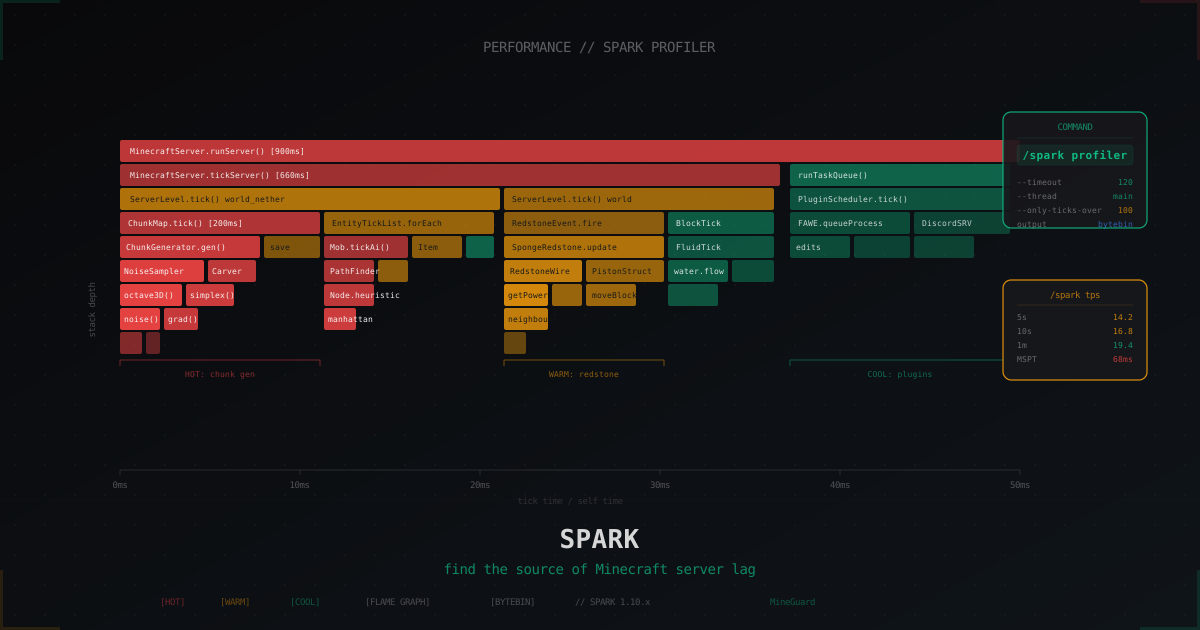
Spark profiler: how to find Minecraft server lag source in 2026
Spark replaced Timings after 1.21. Install the plugin, run /spark profiler, read flame graphs and pinpoint who eats your tick: chunk gen, GC, a bad plugin or runaway redstone.
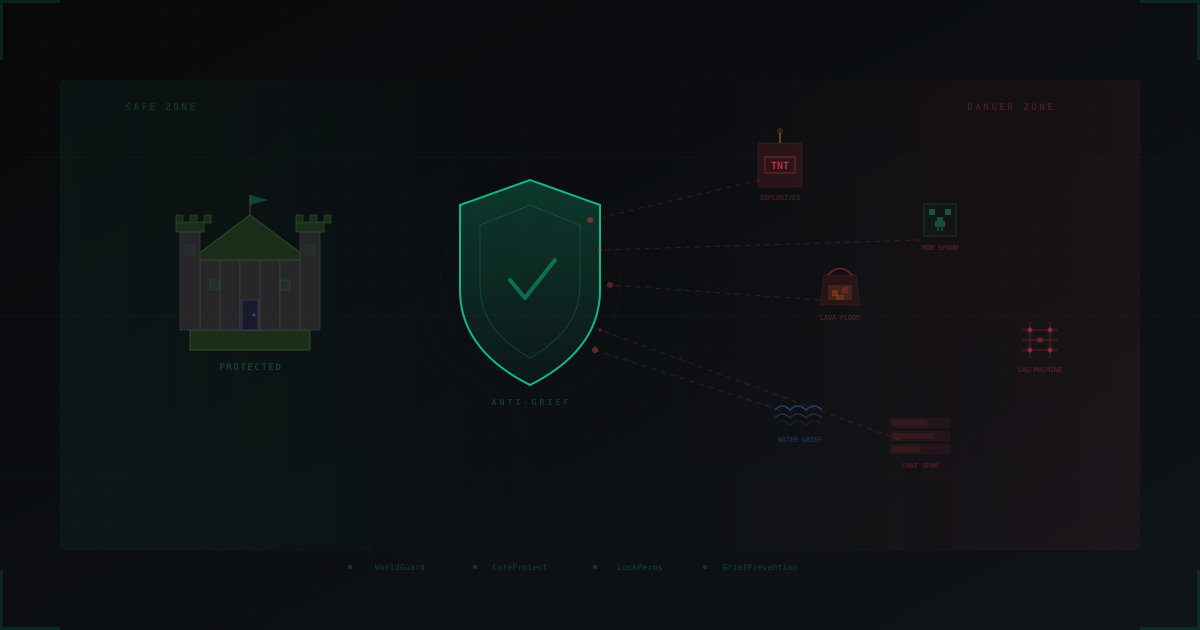
Anti-Grief Protection: Complete Guide for Minecraft Server Admins
All types of griefing and how to stop them: land claim plugins, permission systems, damage rollback, chat protection, anti-cheat, moderation and automated detection. Practical guide with config examples.
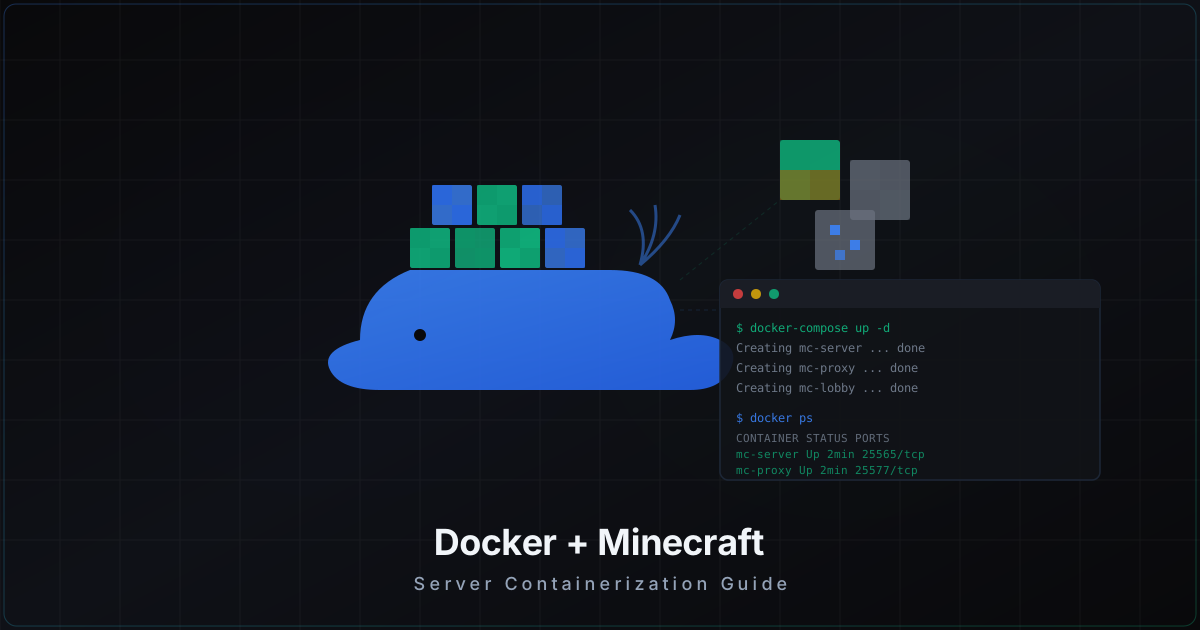
Docker for Minecraft Servers: Pros, Cons, and Pitfalls
Practical guide to containerizing Minecraft servers: the itzg/minecraft-server image, docker-compose for multi-server setups, volume configuration, host vs bridge networking, memory and CPU limits, backups, and when Docker is not the right choice.