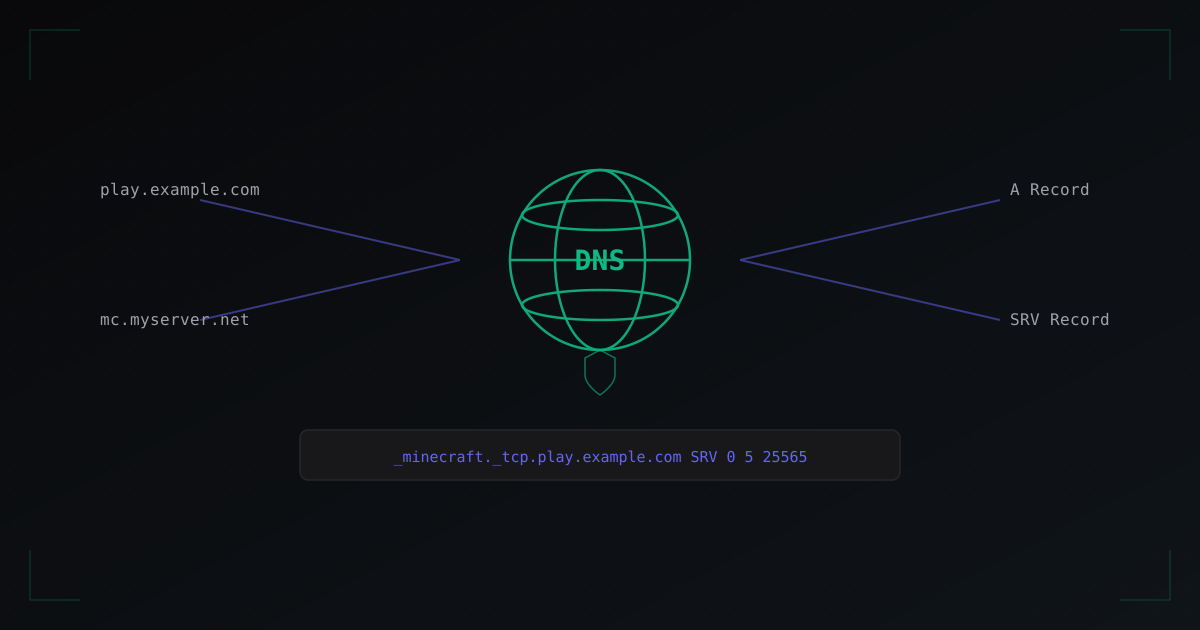
How to Set Up a Custom Domain for Your Minecraft Server
If you run a Minecraft server, sooner or later you will want players to connect using a clean domain like play.myserver.com instead of a raw IP address like 185.23.45.67:25565. In this guide, we will walk through the entire process from buying a domain to configuring DNS records and integrating with DDoS protection.
Why You Need a Domain
Many server owners use a bare IP address for years. It works, but a domain brings several serious advantages:
Branding. A domain like play.craftworld.com looks professional and is memorable. Players are far more likely to return to a server whose name they remember than to dig through bookmarks for an IP.
Hiding your real IP. When players connect through a domain, your actual IP address is hidden behind DNS. This makes direct DDoS attacks on your server more difficult. An experienced attacker may still try to discover the IP through other means, but a domain is the first layer of defense.
Flexibility. If you migrate to a different host, you do not need to notify every player about a new IP. Just update your DNS record and the domain points to the new address. Players will not even notice the migration.
Default port. Using an SRV record, you can eliminate the need to type a port. Instead of 185.23.45.67:25872, players simply enter play.myserver.com.
How to Buy a Domain
Buying a domain is straightforward. Here are the basic steps:
- Choose a domain registrar (Namecheap, Cloudflare, Porkbun, GoDaddy, etc.)
- Search for an available domain name. Popular TLDs for game servers:
.com,.net,.gg,.io - Pay for registration (typically $10 to $20 per year)
- Access the DNS management panel
Tip: pick a registrar with a user-friendly DNS panel. Cloudflare and Namecheap both have excellent interfaces for managing records.
DNS Record Types for Minecraft
Three main record types are used to connect a domain to a Minecraft server:
A Record
An A record maps a domain name to an IPv4 address. This is the most basic record type.
Type: A
Name: play
Value: 185.23.45.67
TTL: 300
After creating this record, play.yourdomain.com will point to IP 185.23.45.67. However, if your server runs on a non-standard port (not 25565), players will still need to specify the port: play.yourdomain.com:25872.
SRV Record
The SRV record solves the port problem. It tells the Minecraft client exactly which host and port the server is running on. The SRV record format for Minecraft:
Type: SRV
Name: _minecraft._tcp.play
Priority: 0
Weight: 5
Port: 25565
Target: play.yourdomain.com
TTL: 300
Important: the SRV record name must start with _minecraft._tcp., followed by your subdomain. The Minecraft client automatically looks up the SRV record when connecting and uses the host and port specified in it.
CNAME Record
A CNAME creates an alias pointing to another domain. Instead of an IP address, you specify another domain name:
Type: CNAME
Name: play
Value: protected.mineguard.net
TTL: 300
CNAME is especially useful when working with protection services. Rather than pointing directly to an IP, you point to a protected address.
Setting Up a Domain with MineGuard
In our system, every protected network receives its own subdomain. When you add a server to MineGuard, we assign a protected address that all traffic flows through. You can use your own domain and point it to our protected address. This gives you the best of both worlds: your brand plus our protection.
Step-by-step instructions:
Step 1: Add Your Server to MineGuard
Register on our platform and add your Minecraft server. You will receive a protected address like network-xxx.mineguard.net.
Step 2: Create a CNAME Record
In your domain DNS panel, create a CNAME record:
Type: CNAME
Name: play
Value: network-xxx.mineguard.net
TTL: 300
Now play.yourdomain.com points to our protected address.
Step 3: Create an SRV Record
To let players connect without specifying a port, add an SRV record:
Type: SRV
Name: _minecraft._tcp.play
Priority: 0
Weight: 5
Port: 25565
Target: play.yourdomain.com
TTL: 300
Step 4: Verify Your Setup
Wait 5 to 10 minutes (or longer if your TTL was set high) and verify that everything works.
Testing DNS Records
After configuration, it is important to confirm that records are working correctly. Use nslookup or dig commands:
Testing an A Record
nslookup play.yourdomain.com

# Or with dig:
dig play.yourdomain.com A
You should see the IP address the domain points to.
Testing CNAME
dig play.yourdomain.com CNAME
The target domain should appear (for example, network-xxx.mineguard.net).
Testing SRV Record
nslookup -type=SRV _minecraft._tcp.play.yourdomain.com

# Or:
dig _minecraft._tcp.play.yourdomain.com SRV
The response should include priority, weight, port, and target host.
Common Mistakes
Here are the most frequent issues people run into when configuring DNS for Minecraft:
Wrong SRV record format. The most common mistake. The name must be exactly _minecraft._tcp.subdomain, not just _minecraft._tcp or minecraft._tcp.subdomain. Note the underscore before both minecraft and tcp.
TTL set too high. If you set TTL to 86400 (24 hours), DNS changes will take a very long time to propagate. For game servers, a TTL of 300 to 600 seconds (5 to 10 minutes) is recommended. This allows you to change settings quickly when needed.
Forgot the port in SRV. An SRV record without a port is useless. Always specify the actual port your Minecraft server is running on.
CNAME on root domain. You cannot create a CNAME record for a root domain (for example, myserver.com without a subdomain). Use a subdomain: play.myserver.com, mc.myserver.com, etc.
A and CNAME conflict. You cannot have both an A record and a CNAME for the same name. Choose one. If you are using a CNAME pointing to our protected address, delete the A record for that subdomain.
Did not wait for DNS propagation. After creating or changing records, you need to wait. Even with a low TTL, propagation can take 1 to 30 minutes. Do not panic if the domain does not work immediately.
Advanced Configuration
Multiple Servers on One Domain
If you have several game servers, use different subdomains:
play.myserver.com      -> main server
hub.myserver.com       -> lobby
creative.myserver.com  -> creative
For each one, create a separate pair of CNAME and SRV records with the corresponding ports.
Using Cloudflare
If your domain is on Cloudflare, remember this important detail: the Cloudflare proxy (orange cloud) does not work with Minecraft traffic. Cloudflare only proxies HTTP/HTTPS. For DNS records related to your Minecraft server, you must disable the proxy (grey cloud, DNS Only).
play.myserver.com  A  185.23.45.67  DNS Only (grey cloud)
play.myserver.com  CNAME  network-xxx.mineguard.net  DNS Only
Conclusion
Setting up a custom domain for your Minecraft server is a straightforward process that significantly improves both user experience and security. An A record links the domain to an IP, an SRV record eliminates the need to type a port, and a CNAME lets you route traffic through protection services.
Combined with our protection, you get a solid configuration: your own domain for branding, our protected address for traffic filtering, and an SRV record for player convenience. If you have any questions about setup, our support team is always ready to help.
Protect Your Server from DDoS Attacks
Free protection with 5-minute setup. 1 TB bandwidth included.
Try for FreeRelated Articles
Under Attack Right Now: Emergency Guide for Minecraft Server Admins
Step-by-step emergency checklist: what to do when your Minecraft server is under attack right now. Diagnostics, quick iptables mitigations, temporary whitelist, when to contact hosting, and how to prepare for the next attack.
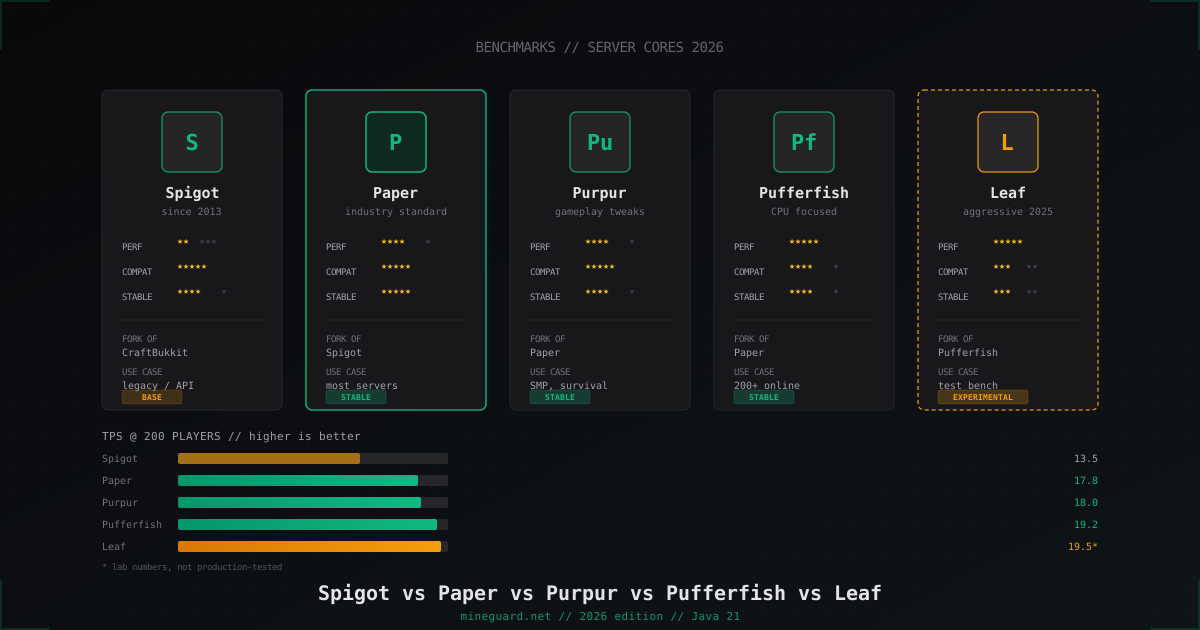
Minecraft Server Cores Compared 2026: Spigot vs Paper vs Purpur vs Pufferfish vs Leaf
Which Minecraft server core to pick in 2026: deep dive into Spigot, Paper, Purpur, Pufferfish and Leaf with real TPS numbers and player-count guidance.
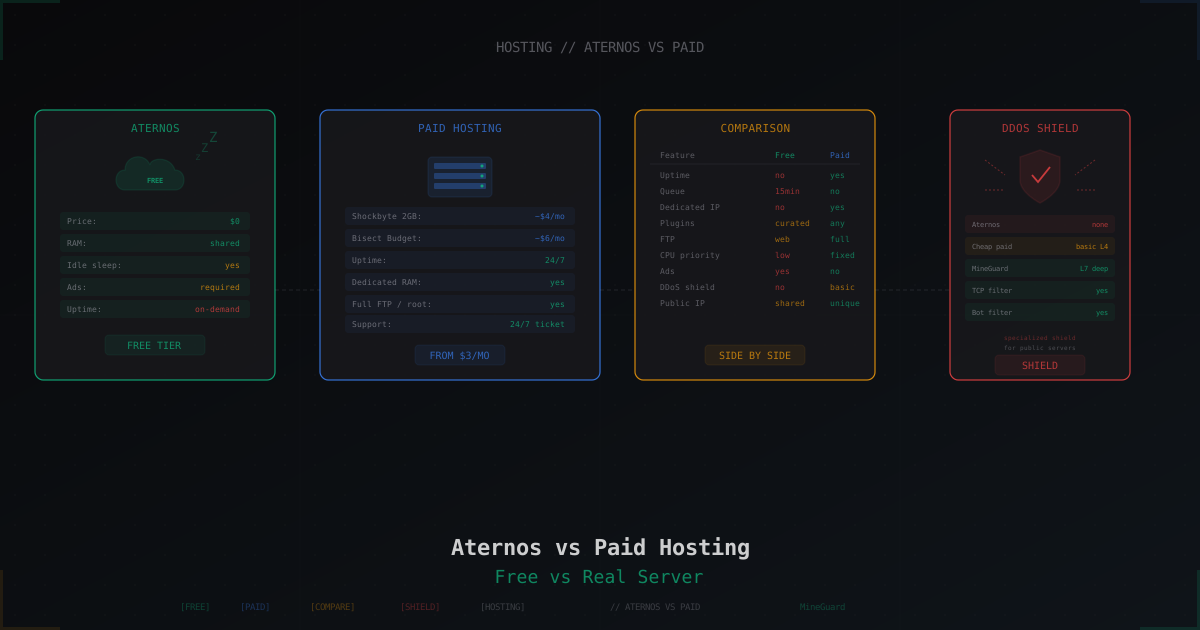
Aternos vs Paid Hosting: When Free Is Enough and When It Isn't
Honest breakdown of Aternos in 2026: real limits, idle sleep, ads, startup queue. Plus comparison with Minehut, Exaroton, Falix, and paid hosts from $3.