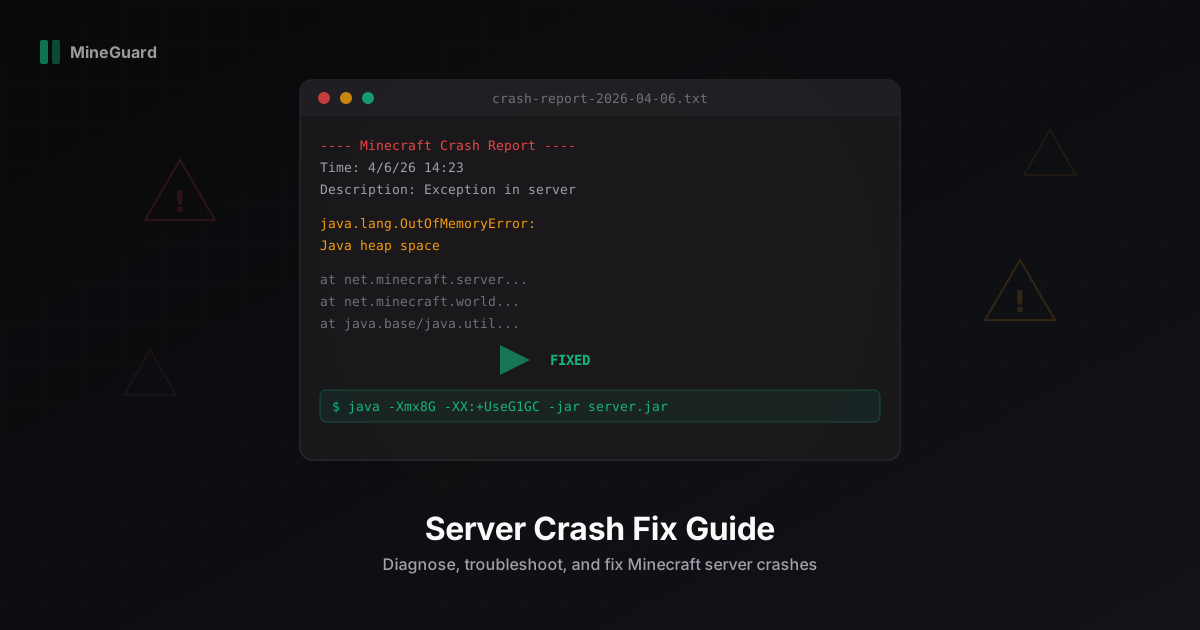
Why Your Minecraft Server Keeps Crashing: Complete Troubleshooting Guide
Your Minecraft server went down at 3 AM, players are panicking in chat, and you have no idea what happened. Sound familiar? At MineGuard, we work with hundreds of servers and see the same problems over and over again. In this guide, we will break down every major crash cause and show you how to find and fix them.
How to Read Crash Reports
The first thing to do after a crash is find and read the crash report. The server saves them in the crash-reports/ folder in your server root. Files are named by date and time, for example:
crash-reports/crash-2026-04-06_14.23.45-server.txt
Open the latest file. A crash report looks like this:
---- Minecraft Crash Report ----
Time: 4/6/26 14:23
Description: Exception in server tick loop

java.lang.OutOfMemoryError: Java heap space
    at net.minecraft.server.level.ServerLevel.tick(ServerLevel.java:382)
    at net.minecraft.server.MinecraftServer.tickChildren(MinecraftServer.java:873)
The most important parts are the Description line and the first line of the error (in the example above, OutOfMemoryError). The stack trace below shows exactly where the error occurred. If a plugin name appears in the stack trace, that plugin is most likely the cause.
If the server did not create a crash report, look in logs/latest.log. The server may not have had time to write the file if it terminated abruptly (for example, the Linux OOM Killer terminated the process).
Out of Memory (OutOfMemoryError)
This is the single most common cause of server crashes. The server consumed all allocated RAM and cannot continue operating.
Symptoms
- In crash report:
java.lang.OutOfMemoryError: Java heap space - TPS drops gradually before the crash
- Logs may show GC (garbage collector) warnings
The Fix: Aikar Flags
Do not just increase -Xmx. Use the optimized Aikar flags that configure the G1GC garbage collector specifically for Minecraft:
java -Xms8G -Xmx8G \
  -XX:+UseG1GC \
  -XX:+ParallelRefProcEnabled \
  -XX:MaxGCPauseMillis=200 \
  -XX:+UnlockExperimentalVMOptions \
  -XX:+DisableExplicitGC \
  -XX:+AlwaysPreTouch \
  -XX:G1NewSizePercent=30 \
  -XX:G1MaxNewSizePercent=40 \
  -XX:G1HeapRegionSize=8M \
  -XX:G1ReservePercent=20 \
  -XX:G1HeapWastePercent=5 \
  -XX:G1MixedGCCountTarget=4 \
  -XX:InitiatingHeapOccupancyPercent=15 \
  -XX:G1MixedGCLiveThresholdPercent=90 \
  -XX:G1RSetUpdatingPauseTimePercent=5 \
  -XX:SurvivorRatio=32 \
  -XX:+PerfDisableSharedMem \
  -XX:MaxTenuringThreshold=1 \
  -jar server.jar --nogui
Important: -Xms and -Xmx should be the same value. This prevents constant heap resizing.
How Much RAM to Allocate
- 1-20 players: 4-6 GB
- 20-50 players: 6-10 GB
- 50-100 players: 10-16 GB
- 100+ players: 16+ GB
These numbers are approximate. Heavy plugins (Dynmap, Citizens) and large worlds require more memory.
Corrupted Chunks
A corrupted chunk causes a crash when it gets loaded. Typically, this happens when a player enters a specific area and the server instantly goes down.
Symptoms
- Crash when a specific player logs in
- In logs:
ChunkLoadingExceptionorRegionFileCorruption - Errors reading NBT data
The Fix
Identify the coordinates of the problematic chunk from logs or the crash report. Then:
-
MCA Selector (recommended): open the world, find the corrupted chunk, and delete it. The server will regenerate it.
-
Region Fixer for automatic scanning:
python region-fixer.py /path/to/world
- Manual method: calculate the region file from chunk coordinates. Block X=400, Z=800 is in region r.12.25.mca (divide block coordinates by 512). Delete that file from
world/region/.
Prevention
- Make regular backups
- Never shut down the server with kill, use the
stopcommand - Use a UPS or power protection
Plugin Conflicts
Two plugins may try to modify the same thing, causing a crash. This happens especially often with plugins that modify packets, handle events, or change mob behavior.
Symptoms
- Crash after installing a new plugin
- Plugin names visible in the stack trace
- Errors like
AbstractMethodErrororNoSuchMethodError
The Binary Search Method
If you cannot tell which plugin is at fault:
- Remove half of the plugins from the
plugins/folder - Start the server
- If the crash repeats, the problem is in the remaining half. If not, it is in the half you removed.
- Repeat, splitting the problem half in two.
In 3-4 iterations, you will find the culprit even among 30+ plugins.
Commonly Conflicting Pairs
- ProtocolLib + outdated plugins that use it
- Two anti-cheats running simultaneously
- Chat plugins using different APIs
- WorldEdit + region protection plugins during mass operations
Entity Overload
Thousands of mobs, dropped items, or minecarts can overload the server to the point of crashing.
Symptoms
- TPS drops gradually
- In Spark profile:
entityTicktakes up most of the tick - Watchdog timeout in logs
The Fix
Quick: kill entities with a command:
/kill @e[type=!player]
Long-term: configure limits in bukkit.yml:
spawn-limits:
  monsters: 50
  animals: 10
  water-animals: 5
  water-ambient: 10
  ambient: 5

tick-inactive-spawners: false
Install ClearLag or FarmControl for automatic entity count management.
Watchdog Timeout
The Minecraft server expects each tick to complete within 50ms (20 TPS). If a single tick takes longer than 60 seconds, the Watchdog forcefully shuts down the server.
Symptoms
- In logs:
A single server tick took 60.00 seconds Considering it to be crashed, server will forcibly shutdown
Common Causes
- A plugin performing synchronous database operations
- A WorldEdit operation on a massive region
- Chunk generation in a heavy world (large render distance)
- A single plugin blocking the main thread
The Fix
Use Spark for profiling:
/spark profiler start
Wait a few minutes, then:
/spark profiler stop
Spark will show which method of which plugin takes the most time in the server tick. The culprit is usually obvious.
Stack Overflow from Recursive Plugins
A StackOverflowError happens when a plugin calls itself infinitely. Classic example: a plugin handling a player death event teleports the player, which triggers another event, which calls the same handler again.
In the crash report it looks like this:
java.lang.StackOverflowError
    at com.example.plugin.DeathHandler.onDeath(DeathHandler.java:45)
    at com.example.plugin.DeathHandler.onDeath(DeathHandler.java:45)
    at com.example.plugin.DeathHandler.onDeath(DeathHandler.java:45)
    ... (thousands of identical lines)
The Fix
Identify the plugin from the stack trace and contact the developer. This is usually a bug that gets fixed with an update. As a temporary workaround, disable the problematic plugin.
Crashes from Packet Exploits and DDoS
There is a separate category of crashes that cannot be fixed by server configuration. These are targeted attacks.
Packet Exploits
Attackers send specially crafted packets that trigger errors in the server code. Examples:
- Book exploit: a book with a massive NBT tag that causes OOM
- Position exploit: NaN or Infinity coordinates that crash the chunk system
- Packet spam: thousands of interaction packets overwhelming the server
DDoS Attacks
A massive flood of traffic saturates the network or overloads the server with fake connections. The server spends all resources processing junk traffic and stops responding to real players.
Our Solution
At MineGuard, we built a network filter specifically to protect against these attacks. Our filter operates at the network level, before traffic ever reaches your server. We filter packet exploits, block bots, and absorb DDoS traffic. These are problems that plugins cannot solve because by the time a plugin receives a malicious packet, the damage is already done. Our filter intercepts harmful packets before they reach the server.
How to Ask for Help the Right Way
If you cannot solve the problem yourself, here is what to prepare:
- Full crash report (the file from
crash-reports/) - Latest log (
logs/latest.log) - Spark report: run
/spark profilerand share the link - Timings report: run
/timings on, wait 5 minutes, then/timings report - Plugin list with versions (
/plugins) - Server version: Paper/Spigot/Purpur, Minecraft version, Java version
With this information, you can get help on the SpigotMC forums, in the PaperMC Discord, or in our MineGuard Discord. Do not just post "server crashing, help". The more data you provide, the faster you will get a solution.
Summary
Most Minecraft server crashes fall into one of these categories: out of memory, corrupted chunks, plugin conflicts, entity overload, or watchdog timeout. All of them are diagnosed through crash reports and logs, and all have specific solutions.
The exception is targeted attacks: packet exploits and DDoS. Protecting against these requires network-level filtering, and that is exactly why we built MineGuard.
Make backups, read your logs, keep plugins updated, and your server will run stable.
Protect Your Server from DDoS Attacks
Free protection with 5-minute setup. 1 TB bandwidth included.
Try for FreeRelated Articles
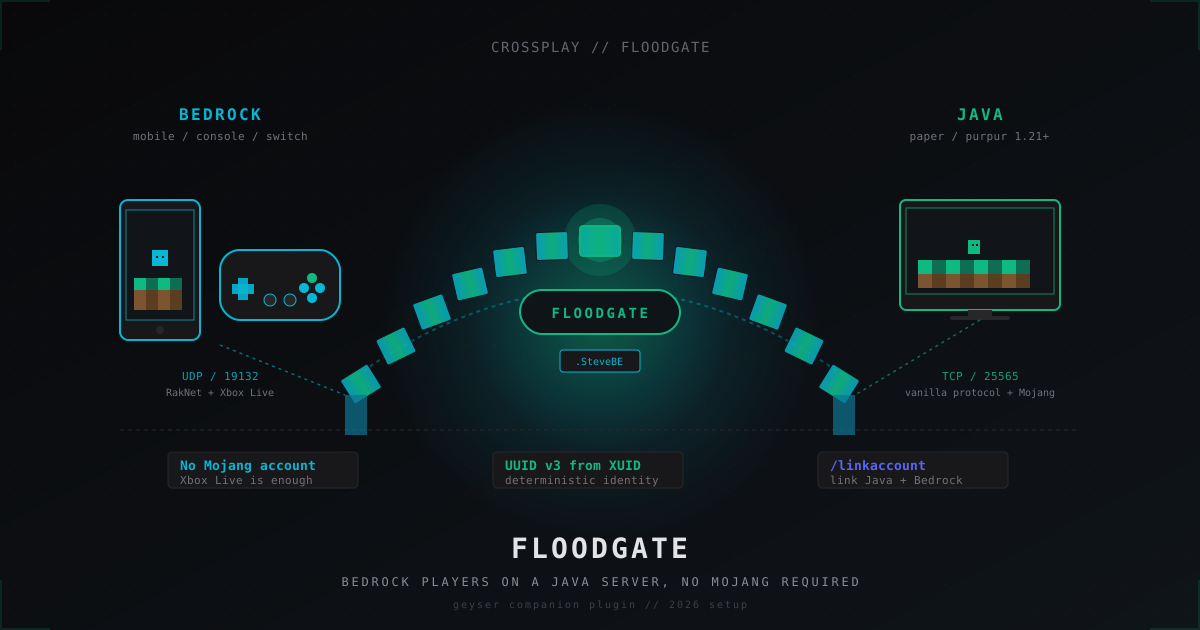
Floodgate: letting Bedrock players join Java servers without a Mojang account (2026)
Floodgate paired with Geyser is the official, Microsoft-blessed route from GeyserMC that lets phone, Switch and Xbox players onto a Java server without buying a separate Mojang account. Install, configs, UUID prefix, /linkaccount and the anti-abuse story.
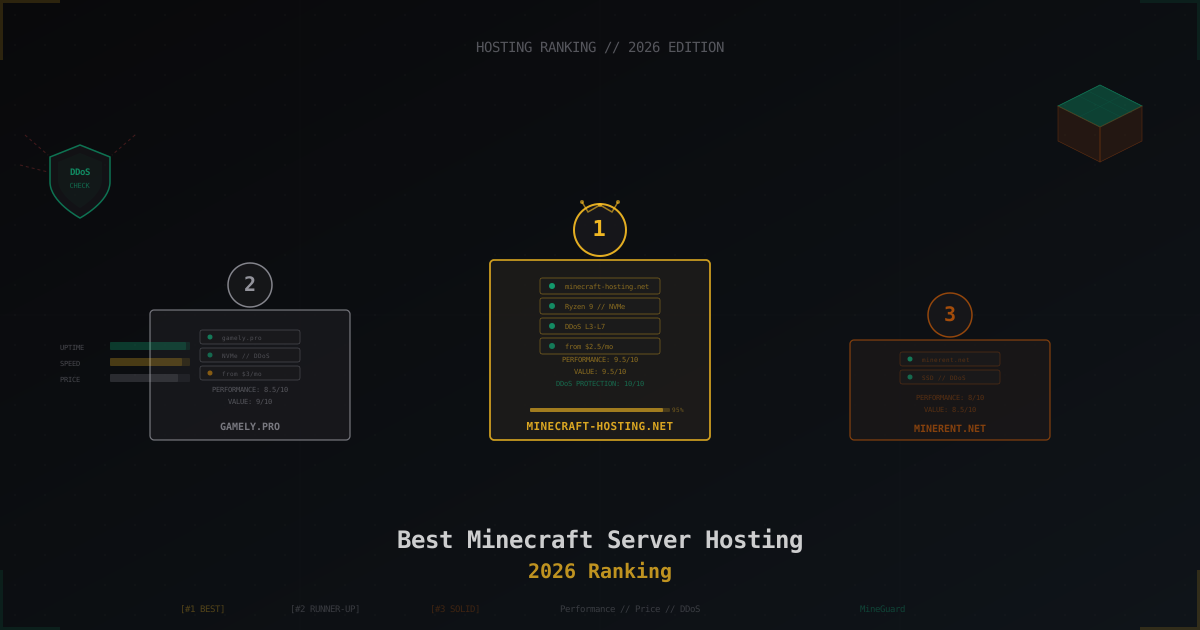
Best Minecraft Server Hosting 2026 - Ranking & Comparison
Honest ranking of Minecraft hosting providers in 2026. We test performance, compare prices, and check DDoS protection. Top 10 providers with detailed pros and cons for each.
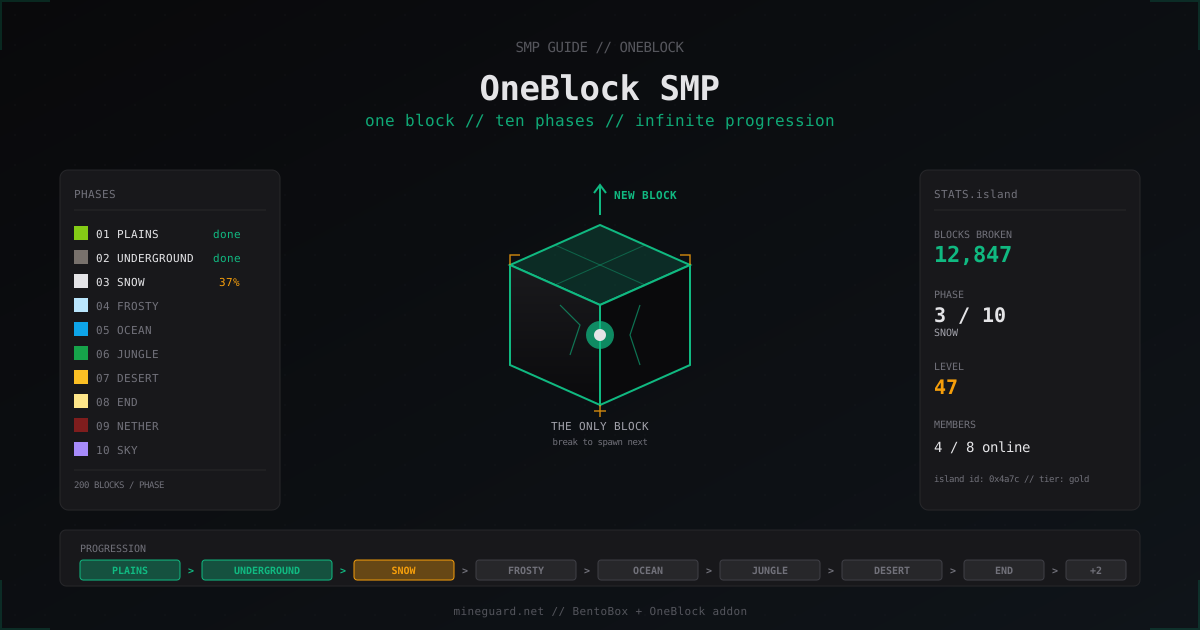
OneBlock SMP Minecraft Server: Complete Setup Guide for the One Block Mode
Launching an OneBlock SMP on Paper 1.21 with BentoBox: setup, phases, YAML customization, commands, SMP layer, backups and seasons.