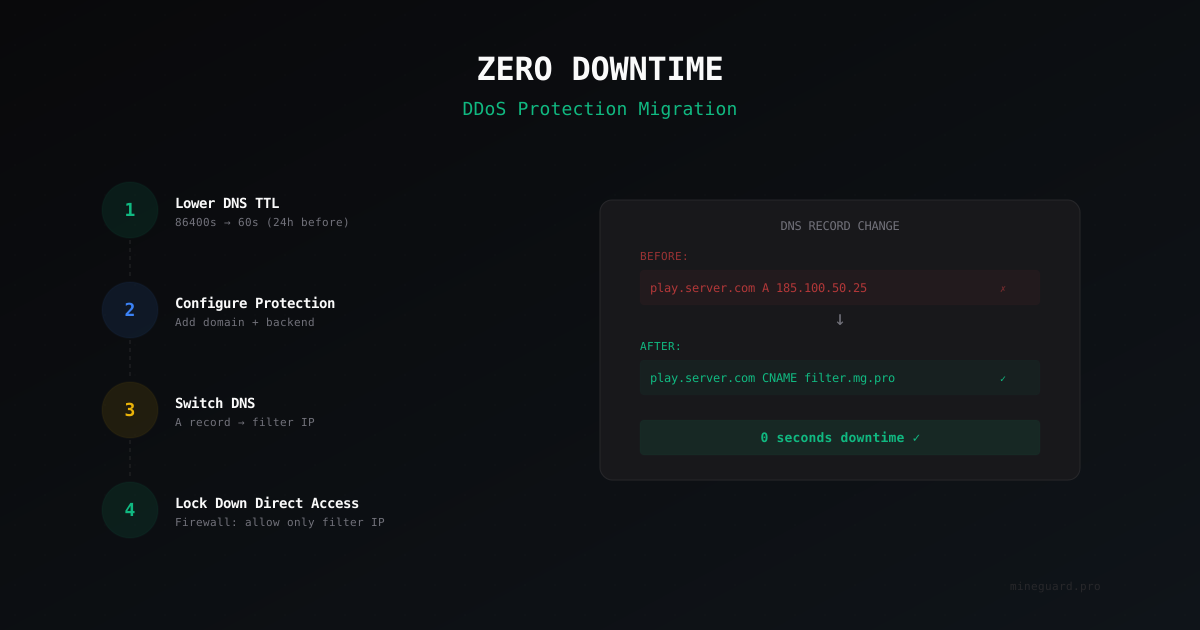
How to Migrate Your Minecraft Server to DDoS Protection with Zero Downtime
Why Move Your Server Behind Protection
If you're reading this guide, you've probably already dealt with DDoS attacks on your Minecraft server. Or maybe you haven't yet, but you know it's only a matter of time. Attacks on Minecraft servers are an everyday reality for thousands of admins.
The biggest fear when connecting DDoS protection is downtime. Players can't join, some leave for another server, donations dry up. Sound familiar? The good news: with the right approach, you can migrate with absolutely zero downtime. Players won't even notice anything changed.
This guide walks through the entire process step by step - from preparation to final verification.
How DNS-Based DDoS Protection Works
Before diving into settings, let's understand the basic principle. Most protection services (including MineGuard) work as a reverse proxy:
- A player connects to your server's domain (e.g., play.myserver.com)
- DNS points them not to your real IP, but to the protection filter's IP
- The filter inspects traffic and drops malicious packets
- Clean traffic gets forwarded to your actual server
The magic happens at the DNS level. You simply change where the domain points, and traffic starts flowing through the filter. Your server keeps running exactly as before.
Step 1: Preparation - Backup and Lower DNS TTL
Before any changes - backup. Yes, we're not touching the server itself, but the habit of backing up before any changes has saved more than one project.
What to back up:
- DNS zone configuration (screenshot or export records)
- Server firewall rules
- BungeeCord/Velocity configs if you use a proxy
Lowering DNS TTL
This is a critical step that many people skip. TTL (Time To Live) determines how long DNS resolvers cache a record. If your TTL is set to 86400 (24 hours), some players will keep connecting to the old IP for a full day after the DNS change.
Go to your DNS management panel (Cloudflare, Hetzner DNS, any other provider) and set the TTL for your game domain's A record to the minimum - 60 or 120 seconds. Do this 24-48 hours before the migration. You need to wait for the old high TTL to expire across all resolvers.
If you're using Cloudflare with proxying enabled (orange cloud) - TTL is managed automatically, no changes needed here.
Step 2: Register and Configure Protection
Sign up in the DDoS protection control panel. Using MineGuard as an example:
- Create an account on the website
- Add a new network - this is a container for your server's settings
- Choose a plan - the basic tier works fine to start, you can always scale up later
After creating the network, you'll receive a filter address - this could be an IP address or a CNAME record like filter.mineguard.net. This is the address we'll point DNS to later.
Important: don't rush to change DNS yet. First, fully configure the protection.
Step 3: Add Your Domain and Backend
In the protection panel, you need to specify two key parameters:
Domain (or subdomain) - the address players use to connect to your server. For example, play.myserver.com or just myserver.com.
Backend - the real IP address of your Minecraft server and port. For example, 185.100.50.25:25565. This is where the filter will forward clean traffic.
In MineGuard, this is done in the network settings section:
- Backend Address: enter your server's IP and port
- Backend Protocol: TCP (standard for Minecraft Java Edition)
If you have multiple servers behind BungeeCord or Velocity - enter the proxy server's IP, not individual backend servers.
Step 4: Configure Proxy Protocol (If Needed)
Proxy Protocol is a way to pass the real player IP through a proxy. Without it, your server will see all connections as coming from the filter's IP, not from actual players.
When you need Proxy Protocol:
- You want to see real IPs in logs
- You have an IP-based ban system
- You use plugins that rely on player IPs
When you can skip it:
- Small server where IP tracking isn't critical
- You only use nickname-based authentication
BungeeCord setup:
In BungeeCord's config.yml, find the listeners section and add:
listeners:
  - proxy_protocol: true
For Velocity in velocity.toml:
haproxy-protocol = true
For Paper/Spigot directly (without BungeeCord), you'll need a plugin like HAProxyDetector or similar.
After enabling Proxy Protocol on your server side, enable it in the protection panel too. The order matters: server first, then protection. If Proxy Protocol is enabled on only one side, connections will break.
Step 5: Switch DNS
Everything is configured, locally tested (we'll get back to that) - time to switch DNS. This is the actual migration moment.
Option A: Using an A Record
Go to your DNS panel and change the game domain's A record from your real server IP to the protection filter's IP.
Before:
play.myserver.com A 185.100.50.25
After:
play.myserver.com A 104.167.24.91
Option B: Using CNAME
Some protection services provide a CNAME record. In this case, remove the old A record and create a CNAME:
play.myserver.com CNAME yournetwork.filter.mineguard.net
Option C: Cloudflare + Protection
If your domain is on Cloudflare, you can use CNAME with proxying enabled (orange cloud). Cloudflare will proxy HTTP/HTTPS traffic, but for Minecraft game traffic you need to disable proxying (grey cloud) and use a regular CNAME or A record pointing to the filter.
Important reminder: Cloudflare only proxies web traffic. Minecraft TCP/UDP game traffic won't go through the orange cloud (unless you have Cloudflare Spectrum, but that's expensive and a separate topic).
After saving the DNS record, changes will start propagating. Thanks to the low TTL we set in step 1, most players will switch to the new route within a few minutes.
Step 6: Verify Everything Works
DNS has updated, now let's verify that everything is functioning.
Check DNS resolution:
nslookup play.myserver.com
or
dig play.myserver.com +short
The response should show the protection filter's IP, not your real server IP.
Test the connection:
Launch your Minecraft client and connect to the server using the domain. If you join normally, see the world, and can move around - basic check passed.
Check IPs in logs:
Go to your server and check the latest log. If Proxy Protocol is configured, logs should show real player IPs, not the filter's IP. If you see the filter's IP - re-read step 4.
Check the protection panel:
In the MineGuard panel, you can see active connections, traffic statistics, and current threats. If you see incoming connections, traffic is flowing through the filter.
Check ping:
Ping may increase slightly (by 1-5 ms) due to the additional hop through the filter. This is normal and unnoticeable to players. If ping increased significantly (50+ ms), check the filter's geographic location - ideally it should be closer to your main player base.
Step 7: Lock Down Direct Server Access
This is the step people forget most often. If attackers know your server's real IP (and they probably do), they'll just hit it directly, bypassing the protection entirely.
Firewall configuration:
Allow incoming connections on the game port (25565) only from the protection filter's IP addresses. In iptables, this looks roughly like:
iptables -A INPUT -p tcp --dport 25565 -s FILTER_IP -j ACCEPT
iptables -A INPUT -p tcp --dport 25565 -j DROP
Every protection service has a list of IP addresses that traffic comes from. Make sure you've added all of them, otherwise some players won't be able to connect.
Changing IP (if compromised):
If attackers know your server's real IP, the firewall will help against direct attacks on the Minecraft port but won't save you from volumetric attacks targeting the IP itself. Ideally, get a new IP from your host and don't expose it anywhere. Only specify the new IP in the protection settings as a backend.
What to Do If Something Goes Wrong
Players can't connect after the DNS change:
- Verify DNS has updated (
nslookup/dig) - Ask players to flush their DNS cache (
ipconfig /flushdnson Windows) - Check that the backend address in the protection panel is correct
- Make sure the server firewall allows connections from the filter's IP
Connection works but the server lags:
- Check the load on the server itself - it might be unrelated to the protection
- Look for packet loss on the route using
mtrortraceroute - Contact the protection service's support with your diagnostic results
Filter IP appears in logs instead of real player IPs:
- Proxy Protocol is not configured or only configured on one side
- Re-read step 4 and check configuration on both the server and the protection panel
Some players can join, others can't:
- DNS hasn't updated for everyone yet - wait (depends on the old TTL)
- If more than 24 hours have passed, the problem is elsewhere - check firewall and routing
Rollback: if everything goes really wrong, just point the DNS record back to your original server IP. Within a few minutes (thanks to the low TTL), everything will revert. This is exactly why we backed up the DNS configuration.
Recommendations After Migration
After a successful migration, don't forget to:
- Raise TTL back to 3600-86400 seconds. Low TTL creates unnecessary load on DNS servers.
- Set up alerts in the protection panel to get notifications about attacks.
- Explore firewall settings in the panel - you can restrict connections by protocol version, enable captcha for suspicious connections, configure rate limiting.
- Don't expose the real IP - don't put it in public configs, DNS records for other subdomains on the same IP, or server trackers.
- Check SRV records - if you use SRV records for Minecraft, make sure they also point to the protected address.
Summary
Migrating a Minecraft server to DDoS protection isn't rocket science. The whole process boils down to: prepare DNS, configure the filter, switch the record, verify it works. With proper preparation (especially the low TTL), downtime is zero.
The key is not to rush and to verify each step. It's better to spend an extra 30 minutes on preparation than to figure out later why 200 players can't connect to your server.
Protect Your Server from DDoS Attacks
Free protection with 5-minute setup. 1 TB bandwidth included.
Try for FreeRelated Articles
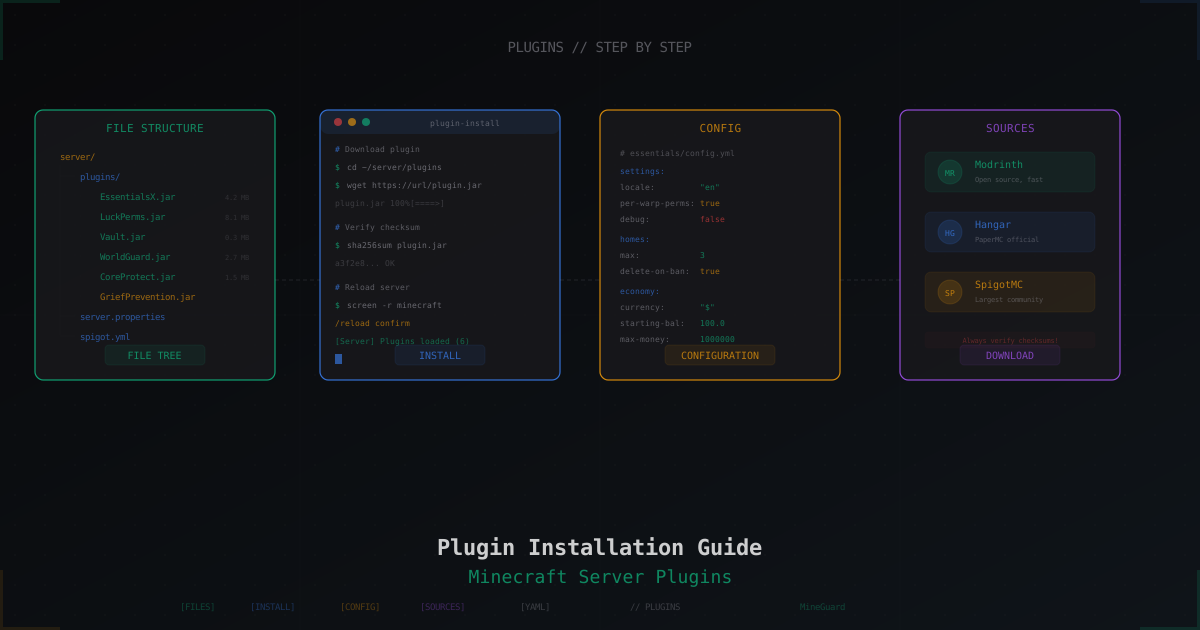
How to Install Plugins on a Minecraft Server: Complete Guide
Step-by-step guide to installing plugins on a Minecraft server: where to download, how to install, how to fix errors. Bukkit, Spigot, Paper - practical walkthrough.

ViaVersion + ViaBackwards: Multi-Version Support on One Minecraft Server
Complete guide to ViaVersion, ViaBackwards and ViaRewind: how to run a 1.21 server with 1.8+ clients, support matrix, installing on Paper and Velocity, performance notes and common errors.
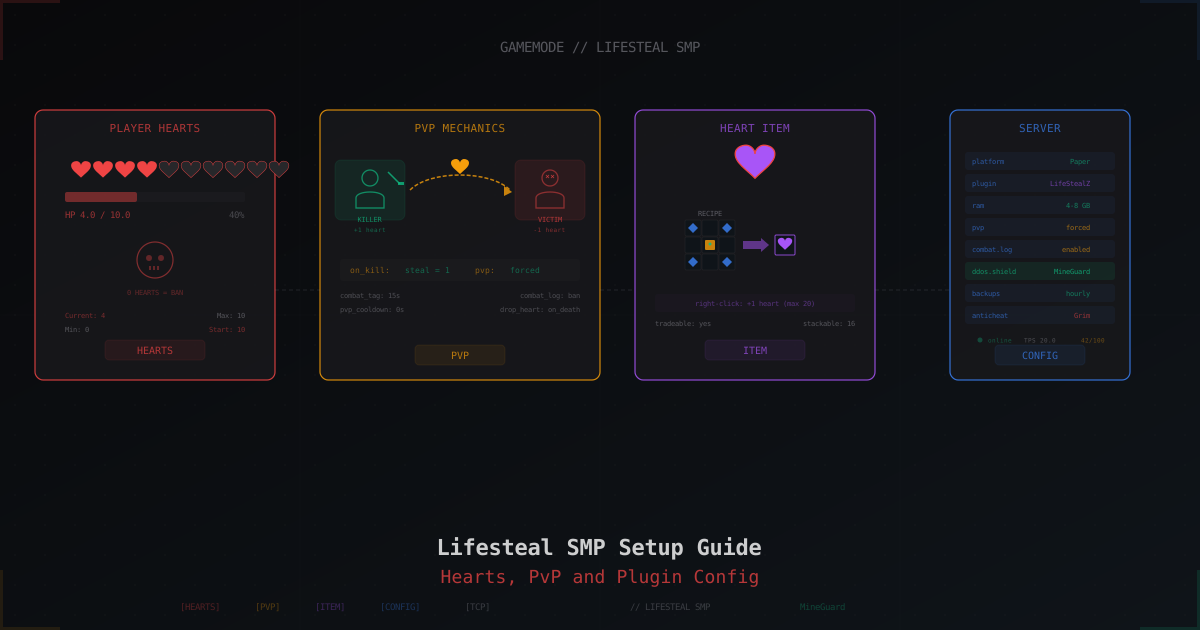
Lifesteal SMP Server: How to Set It Up From Scratch (2026)
Lifesteal SMP is the hottest gamemode on Minecraft YouTube. Kill a player, steal their heart. Zero hearts means permanent ban. Here is the full plugin, config and rules setup.