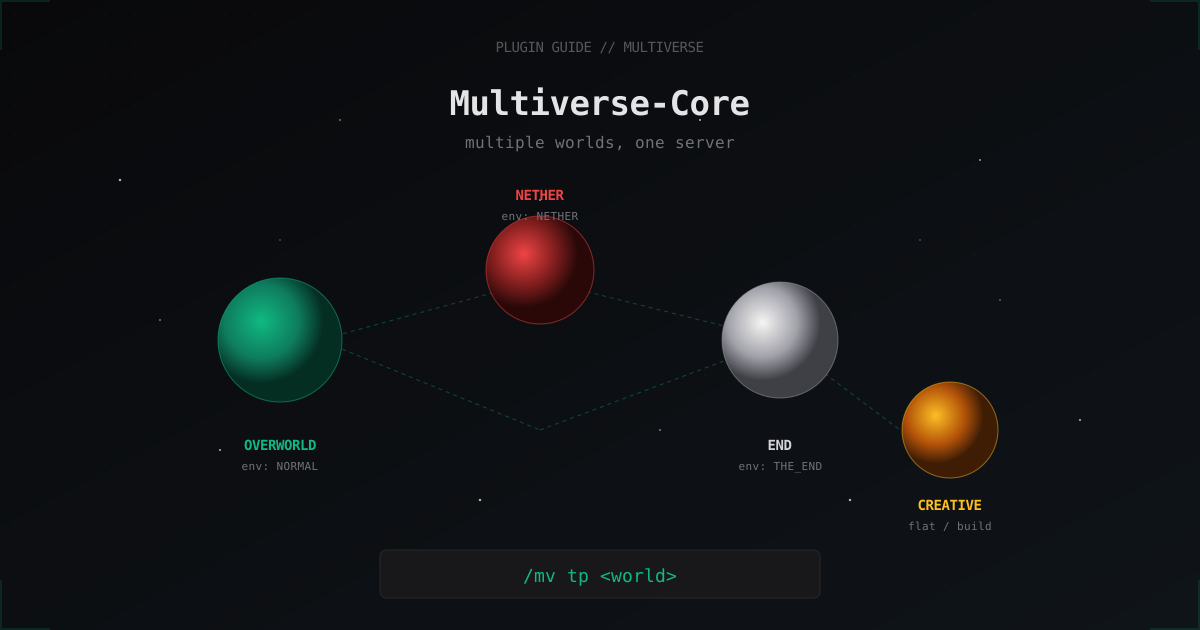
Multiverse-Core: Run Multiple Worlds on One Minecraft Server
One server, four worlds: main survival, creative for builds, a resource world, mini-games or event maps. Multiverse-Core keeps the whole construction in order without separate proxies or BungeeCord. This guide covers installation, commands, inventory separation, portal linking, and the real performance gotchas.
What Multiverse Is and Why You Need It
Multiverse-Core appeared in 2011 and remains the standard for world management on Bukkit-compatible cores. It runs on CraftBukkit, Spigot, Paper, Purpur, and most forks. In short: vanilla Minecraft handles three worlds (overworld, nether, end), and Multiverse lets you create as many custom ones as you want, configure each separately, and teleport players between them.
Without the plugin, every extra world would need to be wired into bukkit.yml by hand, with no UI and no on-the-fly settings management. Multiverse solves this with one /mv create command and a stack of options on top.
The plugin consists of four modules. Multiverse-Core is required, the rest are optional:
- Multiverse-Core - base, world management, teleports, settings.
- Multiverse-Portals - portal blocks that teleport to the configured world on entry.
- Multiverse-Inventories - separate inventories, XP, hunger, effects per world or world group.
- Multiverse-NetherPortals - links vanilla nether/end portals to the world pairs you specify.
Most servers with separated game modes run all four. A simple survival build only needs Core.
Installation
Download jars from Modrinth or SpigotMC. As of 2026, the active 4.x branch supports 1.20+, with 5.0 in beta for the latest Paper.
Drop into plugins/:
plugins/Multiverse-Core.jar
plugins/Multiverse-Portals.jar
plugins/Multiverse-Inventories.jar
plugins/Multiverse-NetherPortals.jar
Restart the server. After startup you'll find plugins/Multiverse-Core/, plugins/Multiverse-Portals/, and so on, with config files. Defaults are workable, no need to dive in immediately.
Verify the install:
/mv version
/mv list
The list will include the default world, world_nether, and world_the_end, which Multiverse imports automatically.
Core Commands
Run /mv help for the full list. In practice you'll use about ten regularly.
/mv create <name> <env>      create a world (env: NORMAL, NETHER, THE_END)
/mv import <name> <env>      import an existing world folder
/mv list                     list loaded worlds
/mv tp <world>               teleport to a world
/mv unload <world>           unload a world from memory
/mv load <world>             load it back
/mv remove <world>           remove from config (folder must be deleted manually)
/mv delete <world>           delete entire world (folder included)
/mv modify <prop> <val>      change a property of the current world
/mv setspawn                 set the world spawn at your current location
/mv info <world>             show all world parameters
Create a creative world with flat generation:
/mv create creative NORMAL -t FLAT -g VoidGen
Flags: -t generation type (NORMAL, FLAT, AMPLIFIED, LARGEBIOMES), -g generator plugin name, -s seed.
Import a world you uploaded manually into the server folder:
/mv import skyblock_arena NORMAL
If the folder already lives in the world_container, Multiverse picks it up and writes it into its config.
Per-World Settings
A new world starts with default parameters. Adjust them to your needs through /mv modify:
/mv modify set gamemode CREATIVE
/mv modify set pvp false
/mv modify set monsters false
/mv modify set animals true
/mv modify set difficulty PEACEFUL
/mv modify set keepspawninmemory false
/mv modify set hunger false
Useful properties:
- gamemode - SURVIVAL / CREATIVE / ADVENTURE / SPECTATOR. Players switch automatically on entry.
- pvp - true/false, vanilla PvP.
- monsters / animals - hostile and passive mob spawning. For a creative world, turn monsters off or your builds will suffer.
- keepspawninmemory - whether to hold the 19x19 spawn chunks loaded permanently. More on this below.
- hunger - whether hunger drains. Convenient to disable on build servers.
- respawnworld - which world a player respawns in after death.
All settings live in plugins/Multiverse-Core/worlds.yml. You can edit it manually, but run /mv reload afterward.
Multiverse-Inventories: Separating Inventories
If your server has both survival and creative without separate inventories, players will move diamonds from creative to survival in 30 seconds. Multiverse-Inventories solves this through world groups.
Create a group for survival worlds:
/mvinv group add survival_group
/mvinv group addworld survival_group world
/mvinv group addworld survival_group world_nether
/mvinv group addworld survival_group world_the_end
A separate one for creative:
/mvinv group add creative_group
/mvinv group addworld creative_group creative
Inside one group, the inventory is shared. Between groups, it's separated. By default everything splits: items, XP, hunger, health, effects, statistics. To split only the inventory and keep XP shared, edit plugins/Multiverse-Inventories/groups.yml:
groups:
  survival_group:
    worlds:
    - world
    - world_nether
    - world_the_end
    shares:
    - inventory
    - armor
    - ender_chest
Without experience in the shares list, XP stays global. Useful for servers with an XP economy or shared progression.
Multiverse-Portals: Portal Blocks
Vanilla obsidian portals lead to the standard nether. If you have a second nether or want a portal to the hub, you need Multiverse-Portals.
Portal creation:
- Take the wand. Default is a wooden axe:
/mvp wand. - Select an area between two points, like in WorldEdit (left-click first point, right-click second).
- Run
/mvp create <name> <destination>.
Example - a portal from the hub to a creative world:
/mvp create hub_to_creative w:creative
The w: prefix means the destination is a world. You can specify coordinates:
/mvp create spawn_portal w:world:100,64,100
Or another portal by name:
/mvp create return_portal p:hub_to_creative
The portal triggers when a player enters the selected area. Inside the area you can place any block: water, air, cobweb, light block. Light blocks or cobwebs are common for invisible portals.
Restrict portal access via permissions:
/mvp modify access add donor hub_to_creative
Now teleport works only for players with multiverse.access.hub_to_creative or the donor permission through your perms plugin.
World Generators: Custom Generation
The -g flag in /mv create accepts a generator plugin name. Popular options:
- TerraformGenerator - realistic landscapes, mountains, biomes.
- EpicWorldGenerator - paid, very detailed generation.
- Terralith via data pack - extended biomes on vanilla.
- VoidGenerator - empty world for skyblock or build servers.
- IrisWorlds - advanced modular generation.
Example with Terra:
/mv create wild_world NORMAL -g Terra:OVERWORLD
After the generator name, a colon separates the preset. Preset names live in the generator plugin's docs.
Important: once a world is created with a custom generator, that plugin must stay installed. Remove Terra or TerraformGenerator and the world keeps loading, but new chunks generate as vanilla, leaving ugly walls at the seams.
WorldGuard Integration
WorldGuard stores regions per world in plugins/WorldGuard/worlds/<world_name>/regions.yml. Multiverse doesn't break anything here: create a new world and WorldGuard picks it up at the first /rg command.
Set global flags per world. For example, disable PvP in creative and block creeper griefing in survival:
/rg flag __global__ -w creative pvp deny
/rg flag __global__ -w creative creeper-explosion deny
/rg flag __global__ -w world creeper-explosion deny
Without -w <world> the command applies only to the world the player is standing in. On the backend these are still separate region files, don't mix them up.
Removing a World Properly
World deletion is a common newbie mistake. /mv remove <world> only strips the entry from config, the folder stays on disk and old chunks resurface if you create a world with the same name later.
Correct order:
/mv unload <world>
/mv remove <world>
Then go into world_container and delete the folder:
rm -rf /opt/minecraft/server/old_world
Or use the all-in-one Multiverse command:
/mv delete <world>
/mv delete is dangerous: no confirmation prompt, no backup check. On production it's safer to do unload + backup + remove + manual folder removal.
You can also delete the default nether or end via /mv delete world_nether. But Bukkit may recreate vanilla worlds on the next restart based on level-name in server.properties and allow-nether=true. To prevent that, find the worlds: section in bukkit.yml and remove the old nether there, plus set allow-nether=false if nether isn't needed at all.
Performance: Counting RAM
Every loaded world consumes resources. The main load points:
- Spawn chunks - 19x19 chunks (361 total) around each world's spawn stay in memory permanently if
keepspawninmemory: true. That's roughly 50-80 MB RAM per world plus constant TPS cost from entity ticks. - Player-loaded chunks - view-distance multiplied by player count and worlds.
- Entity and block ticks - each world ticks separately. 5 worlds with mobs and redstone do 5x the work.
What to do on an 8-world server:
keepspawninmemory: false
Apply via /mv modify set keepspawninmemory false for each auxiliary world. The main survival world with the spawn point can stay default.
In paper.yml or paper-world-defaults.yml (depends on Paper version) reduce simulation-distance for creative worlds to 4-6, keeping survival at 8-10. On Paper 1.20+ this setting moved into per-world paper-world.yml, which is convenient.
Lower mob caps for creative and game worlds:
spawn-limits:
  monsters: 0
  animals: 0
  water-animals: 0
If a creative world doesn't need mobs, zero everything out and let the CPU breathe.
Backups
Multiverse doesn't make backups. That's a separate system or plugin like DriveBackupV2. Back up ALL world folders, not just the main one.
A minimal shell script for cron:
#!/bin/bash
SERVER=/opt/minecraft/server
BACKUP=/var/backups/minecraft
DATE=$(date +%Y%m%d_%H%M)
cd "$SERVER"
tar -czf "$BACKUP/worlds_$DATE.tar.gz" world world_nether world_the_end creative resource_world
find "$BACKUP" -name 'worlds_*.tar.gz' -mtime +7 -delete
Before tar runs against a live server, send save-off and save-all flush via RCON, then save-on afterward. Otherwise you risk a half-written chunk in the archive.
FAQ
Does Multiverse work on Folia?
As of 2026 - partially. Folia requires regional ticking and doesn't support the entire Bukkit API. Multiverse-Core 5.x is being actively reworked for Folia, but 4.x will crash on certain commands. If your server runs Folia, check the latest releases and issue tracker.
How do I delete the default nether?
/mv unload world_nether, then /mv remove world_nether. Set allow-nether=false in server.properties or Bukkit recreates it. Delete the world_nether folder manually.
Can I have different gamemodes per world?
Yes, via /mv modify set gamemode CREATIVE. Players switch automatically on entry. If EssentialsX or another plugin handles /gamemode, make sure Multiverse takes priority, otherwise players will swap mode themselves.
Multiverse vs MyWorlds - which is better?
MyWorlds is lighter, simpler, no extra modules. Multiverse is the standard with a large ecosystem - WorldGuard, EssentialsX, BungeeCord support is built around it. For a quick two-world setup, MyWorlds works. For a server with portals, inventories, and complex logic, Multiverse has no real alternative.
How do I make a player respawn in a specific world after death?
/mv modify set respawnworld lobby on the source world. Death in that world sends the player to lobby. Default respawnworld is the current world.
Can I clone a world with all builds?
Yes: /mv clone <source> <target>. Multiverse copies the folder, renames, and imports into the config. Convenient for arenas and template copies.
What if the server won't start after creating a new world?
Check logs/latest.log. The most common cause is a generator plugin that wasn't installed or was outdated. Roll back the world by deleting the folder and the entry in worlds.yml, install the right generator, recreate the world.
What's Next
If you're spinning up a multi-world server for the first time, keep three practical points in mind. First: take a full backup before creating the second world - it saves a day of recovery if something breaks. Second: set keepspawninmemory: false on all auxiliary worlds upfront, don't wait for RAM to run out. Third: test the Multiverse + Inventories combo on a staging server before production - group inventory logic isn't the most intuitive.
A multi-world server is a juicy DDoS target, especially if it hosts events and a large audience. MineGuard filters L4/L7 attacks ahead of the game port and keeps your worlds reachable through the storm.
Protect Your Server from DDoS Attacks
Free protection with 5-minute setup. 1 TB bandwidth included.
Try for FreeRelated Articles
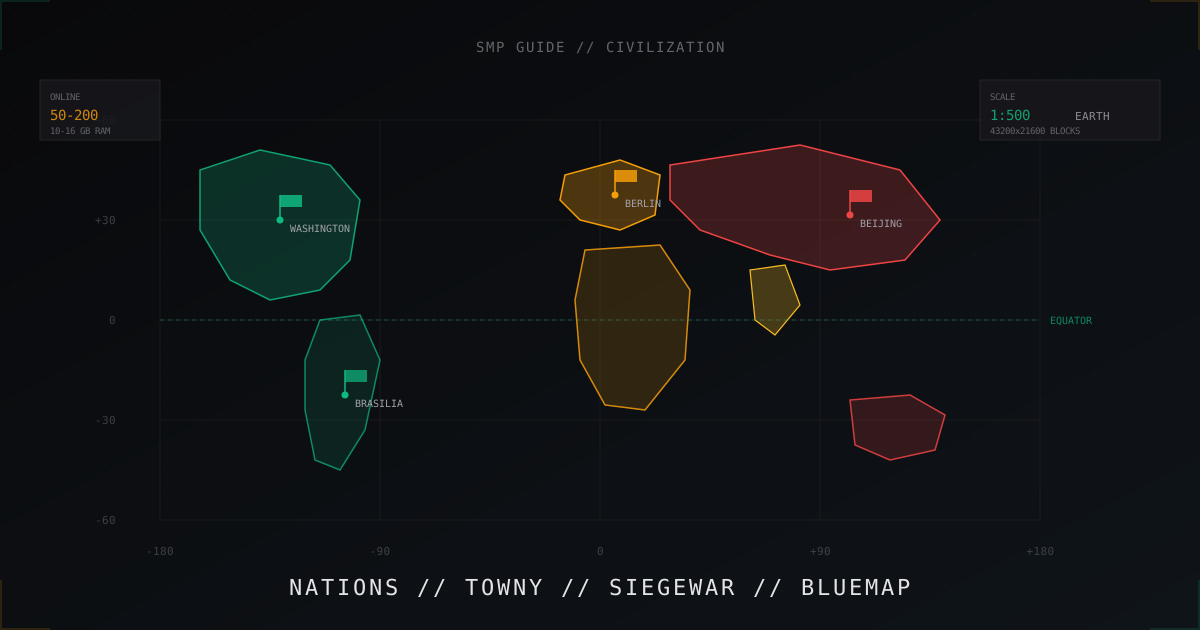
Civilization SMP from scratch: building an EarthMC-style nations server
Earth map, nations, city sieges and BlueMap. Full guide to building a civ SMP server in EarthMC style: plugins, economy, wars.
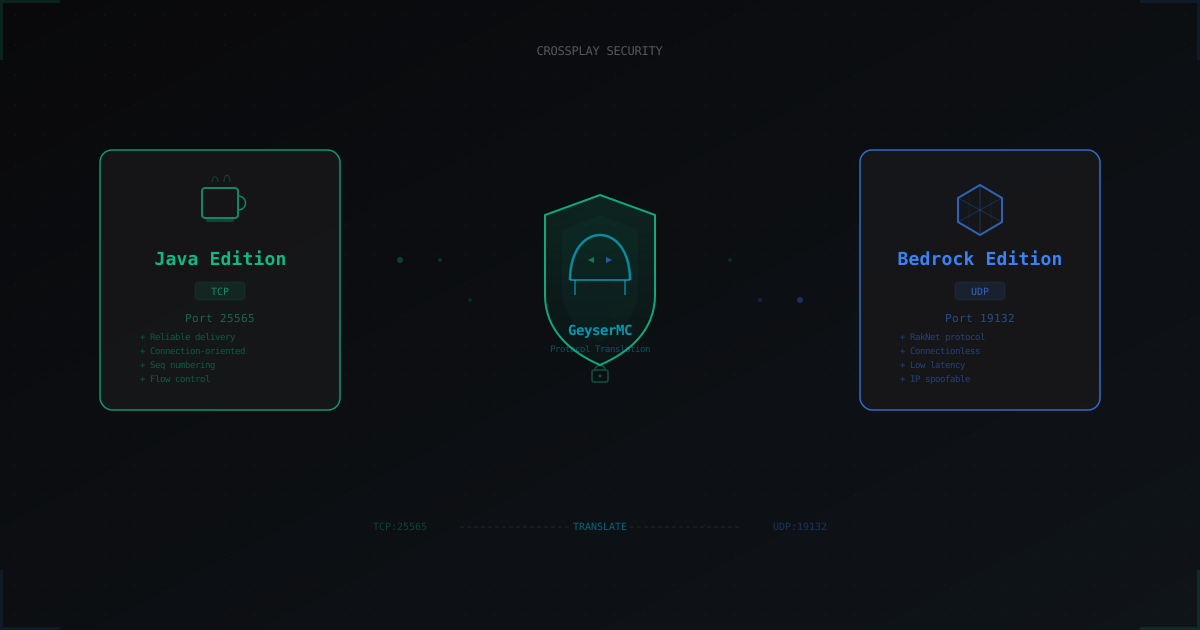
GeyserMC and Crossplay: How to Secure a Server with Bedrock Players
GeyserMC opens the door for mobile and console players, but adds a UDP port, new attack vectors, and authentication headaches. We break down crossplay risks and how to mitigate them.
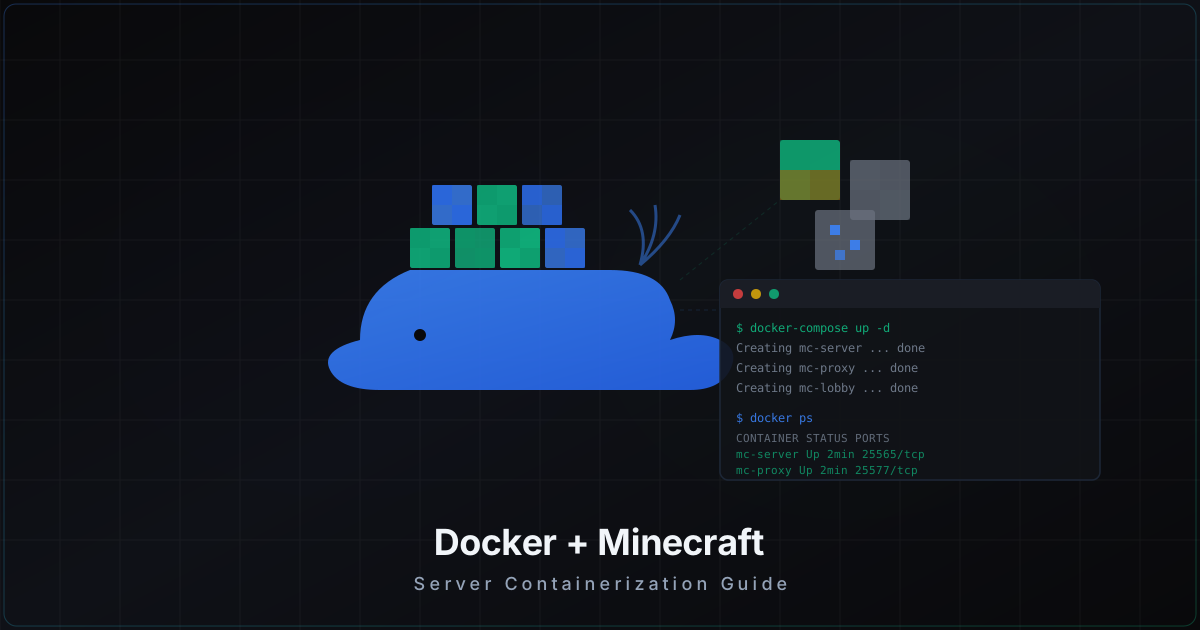
Docker for Minecraft Servers: Pros, Cons, and Pitfalls
Practical guide to containerizing Minecraft servers: the itzg/minecraft-server image, docker-compose for multi-server setups, volume configuration, host vs bridge networking, memory and CPU limits, backups, and when Docker is not the right choice.