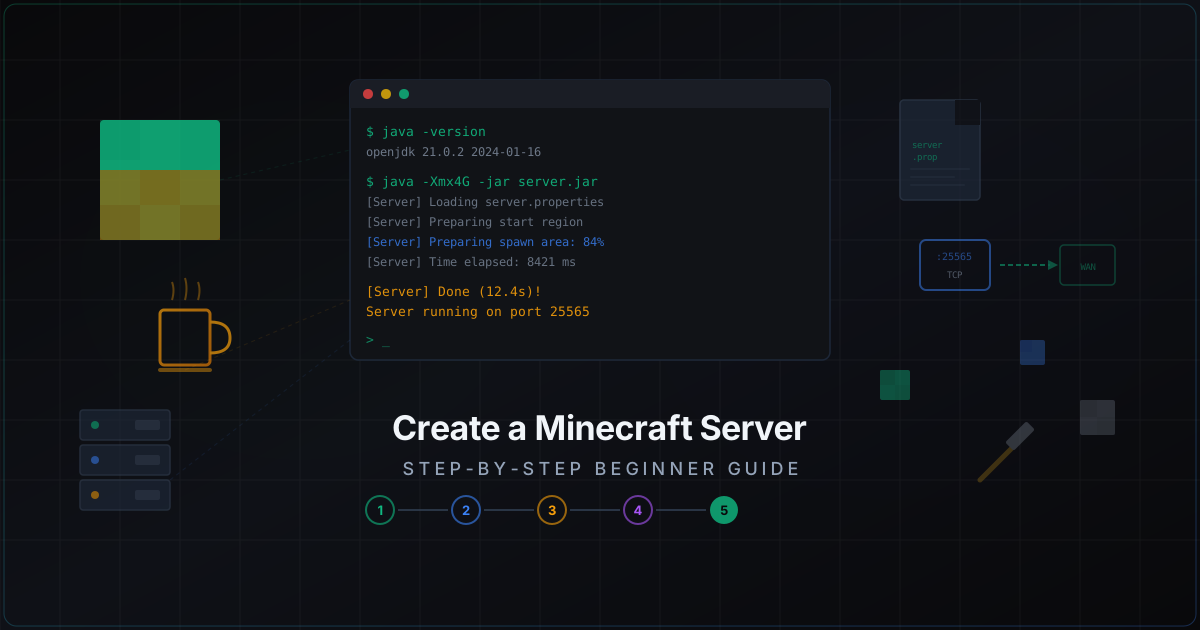
How to Create a Minecraft Server from Scratch
You've got a computer, an internet connection, and either a few friends who want to play together or bigger plans for a public server. Whatever the case, this guide takes you from zero to a running Minecraft server that people can actually connect to.
No fluff. Real commands, real file paths, real config values.
Before You Start
Minimum requirements for a 5-10 player server:
- CPU: 2 cores, 3+ GHz (Minecraft is single-threaded, clock speed matters more than core count)
- RAM: 4 GB free (2 GB for the server + OS overhead)
- Disk: 2-5 GB free space (SSD strongly recommended, HDD will cause chunk loading lag)
- Network: stable connection, wired preferred over WiFi
Planning for more players? Check how much RAM a Minecraft server needs. Thinking about renting instead of self-hosting? There's a full breakdown on choosing Minecraft hosting.
This guide works on Windows, Linux, or macOS. Commands shown are for Linux, but the Windows equivalents are straightforward.
Home PC or VPS?
A home computer works fine for getting started. It's free, you have physical access, and it's enough for 3-5 friends. But it has downsides: the server shuts down when your PC does. Most home ISPs give you a CGNAT IP, making external connections impossible without workarounds. And upload speed is usually limited.
A VPS for $5-10/month solves all of these. The server runs 24/7, has a public IP, and stable bandwidth. For 10-20 players, a VPS with 4 GB RAM and 2 vCPU is the minimum. Details in the hosting guide.
Step 1. Install Java
Minecraft server runs on Java. The version you need depends on your Minecraft version:
| Minecraft | Java |
|---|---|
| 1.17 and below | Java 8 or 16 |
| 1.18 - 1.20.4 | Java 17 |
| 1.20.5+ | Java 21 |
For current versions (1.21.x), install Java 21. I recommend Adoptium (Eclipse Temurin) - it's free, well-tested, and maintained. Don't use Oracle JDK - it requires a commercial license for server use.
Linux (Ubuntu/Debian):
sudo apt update
sudo apt install temurin-21-jdk
If the package isn't in your repos, add the Adoptium repository:
sudo apt install wget apt-transport-https
wget -qO - https://packages.adoptium.net/artifactory/api/gpg/key/public | sudo apt-key add -
echo "deb https://packages.adoptium.net/artifactory/deb $(lsb_release -cs) main" | sudo tee /etc/apt/sources.list.d/adoptium.list
sudo apt update
sudo apt install temurin-21-jdk
Windows:
Download the installer from adoptium.net, run it, click Next a few times. Make sure "Set JAVA_HOME variable" is checked.
Verify installation:
java -version
You should see something like:
openjdk version "21.0.2" 2024-01-16 LTS
OpenJDK Runtime Environment Temurin-21.0.2+13 (build 21.0.2+13-LTS)
If you get "java: command not found" - Java isn't installed or isn't in your PATH. On Windows, restart your terminal after installation. On Linux, verify the package installed with dpkg -l | grep temurin.
Step 2. Choose Your Server Software
Several options here, and the difference between them matters:
Vanilla - the official Mojang server. No plugins, no modifications. Pure vanilla experience. Download from minecraft.net.
Paper - a Spigot fork with heavy optimizations and bug fixes. Supports Bukkit/Spigot plugins. Best choice for 90% of servers. Paper patches dozens of exploits and duplication glitches present in vanilla, and runs noticeably faster through chunk loading optimization, entity ticking improvements, and redstone handling.
Purpur - a Paper fork with even more config options. More control, more knobs to turn. Lets you change things that are hardcoded in Paper - elytra flight speed, mob attack range, and so on. For power users.
Fabric - if you want mods (not plugins), this is your pick. Lighter than Forge, updates to new Minecraft versions faster.
Forge - also for mods, but older and heavier ecosystem. More mods available, worse performance.
I recommend Paper. It's faster than vanilla, patches duplication glitches and exploits, and supports thousands of plugins. Switching from Paper to Purpur later takes 5 minutes - just swap the jar file.
Downloading Paper
Go to papermc.io/downloads, pick your Minecraft version, download the jar.
Or via terminal:
mkdir ~/minecraft-server
cd ~/minecraft-server
wget https://api.papermc.io/v2/projects/paper/versions/1.21.4/builds/1/downloads/paper-1.21.4-1.jar -O server.jar
Build number may differ - check the Paper website for the latest. Always grab the newest build for your version.
Downloading Vanilla
If you want the official server:
mkdir ~/minecraft-server
cd ~/minecraft-server
wget https://piston-data.mojang.com/v2/objects/HASH/server.jar
Get the current link from minecraft.net/download/server. The page has a direct download link for the latest version jar.
Step 3. First Launch and EULA
Create a folder for your server (if you haven't already). Important: don't put the server in a system directory and don't run it as root. Create a dedicated user:
sudo useradd -m -s /bin/bash minecraft
sudo su - minecraft
mkdir ~/server
cd ~/server
# Copy server.jar here
Launch:
java -Xmx2G -Xms2G -jar server.jar --nogui
Parameters:
-Xmx2G- maximum 2 GB of RAM-Xms2G- initial heap size (set equal to Xmx)--nogui- no graphical interface (saves resources)
The server will start and immediately stop with:
You need to agree to the EULA in order to run the server.
This is expected. Open the eula.txt file that appeared in your folder:
nano eula.txt
Change eula=false to:
eula=true
Save and close (Ctrl+O, Enter, Ctrl+X in nano). This means you accept Mojang's license agreement. The EULA prohibits selling gameplay advantages for real money (pay-to-win) but allows cosmetic donations.
Step 4. Configure server.properties
After the first launch, a server.properties file appears. This is the main config file. Open it:
nano ~/server/server.properties
Key settings:
# Server port. 25565 is standard, no reason to change it usually
server-port=25565

# Maximum players
max-players=20

# View distance in chunks. Higher = more CPU/RAM usage
view-distance=10

# Simulation distance. Mobs and redstone only work within this range
simulation-distance=8

# Difficulty: peaceful, easy, normal, hard
difficulty=normal

# Game mode: survival, creative, adventure, spectator
gamemode=survival

# Message shown in server list. Supports color codes with section sign
motd=My Minecraft Server

# Whitelist. If true, only approved players can join
white-list=false

# Online mode. If false, cracked clients can join
online-mode=true

# Spawn protection radius in blocks. 0 = disabled
spawn-protection=0

# Enable command blocks
enable-command-block=true

# Packet compression threshold. 256 is a good balance
network-compression-threshold=256

# Allow flight (needed for some plugins and elytra)
allow-flight=true

# Max world size in blocks (radius). -1 = unlimited
max-world-size=29999984

# PvP enabled/disabled
pvp=true
Important notes:
- Keep
online-mode=truefor security. Withfalse, anyone can join as any username - including your admin accounts. If you need cracked client support, use a proxy (Velocity) with AuthMe instead. view-distanceis the biggest performance lever. Each extra chunk means quadratic load growth. view-distance=10 generates 441 chunks per player, while view-distance=16 generates 1089. Start at 10, drop to 8 or 6 if you're getting lag.simulation-distancecan be lower than view-distance. Players see distant chunks but mobs won't spawn there. This saves a lot of resources.allow-flight=true- Paper handles anti-cheat on its own, and withfalseplayers using elytra get kicked.
For public servers, definitely read about Paper and Spigot security settings.
Step 5. Proper Launch
Now start the server for real:
cd ~/server
java -Xmx2G -Xms2G -jar server.jar --nogui
For production, create a launch script start.sh:
#!/bin/bash
cd /home/minecraft/server
java -Xmx4G -Xms4G \
  -XX:+UseG1GC \
  -XX:+ParallelRefProcEnabled \
  -XX:MaxGCPauseMillis=200 \
  -XX:+UnlockExperimentalVMOptions \
  -XX:+DisableExplicitGC \
  -XX:G1NewSizePercent=30 \
  -XX:G1MaxNewSizePercent=40 \
  -XX:G1HeapRegionSize=8M \
  -XX:G1ReservePercent=20 \
  -XX:InitiatingHeapOccupancyPercent=15 \
  -jar server.jar --nogui
These JVM flags (Aikar flags) are the industry standard for Minecraft servers. They optimize G1GC garbage collection: shorter pauses, fewer freezes, better memory utilization. More on optimization below.
Make it executable:
chmod +x start.sh
./start.sh
Wait for Done (X.XXXs)! For help, type "help". Your server is running. Check TPS with the tps command in console - should be 20.0.
Running in screen (keeps running after you disconnect)
If you're connected via SSH, the server dies when you close your terminal. Fix this with screen or tmux:
sudo apt install screen
screen -S minecraft
./start.sh
Detach from the session: Ctrl+A, then D. Reattach: screen -r minecraft.
Tmux is a more modern alternative:
sudo apt install tmux
tmux new -s minecraft
./start.sh
Detach: Ctrl+B, then D. Reattach: tmux attach -t minecraft.
For production, use a systemd service instead - covered below.
Step 6. Port Forwarding
If you're running from home and want friends to connect from the internet, you need to forward port 25565 on your router.
- Find your local IP:
ip addr show(Linux) oripconfig(Windows). Usually something like 192.168.1.XX. - Open your router settings (typically 192.168.1.1 or 192.168.0.1 in a browser). Login/password is often admin/admin or printed on a sticker on the router.
- Find "Port Forwarding" / "NAT" / "Virtual Servers" section. Named differently in every router.
- Create a rule: external port 25565 (TCP) -> your computer's internal IP, port 25565.
- Save.
Find your external IP (google "my ip") and give friends the address: your_external_ip:25565.
Important details:
- If you have a CGNAT IP (starts with 100.64-127.x.x.x) - port forwarding won't work. You're behind your ISP's NAT. Options: ask your ISP for a public IP (sometimes free, sometimes extra cost), rent a VPS, or use tunneling services like playit.gg.
- Your external IP may change when the router restarts (dynamic IP). Solution: DDNS services (no-ip.com, duckdns.org) that bind a domain name to your IP.
- An open port is a potential security hole. Don't forward more ports than necessary.
If your server is on a VPS or dedicated machine - no port forwarding needed, the port is already accessible. Just make sure your firewall allows it:
sudo ufw allow 25565/tcp
More on firewall setup: iptables configuration for Minecraft.
Step 7. Connecting to the Server
Launch Minecraft, click "Multiplayer" -> "Add Server".
- Same computer: address
localhost - Local network:
192.168.1.XX(the server machine's IP) - From internet: your external IP
No need to specify the port if it's the default 25565. If you changed it, add it after a colon: ip:port.
Client version must match server version. If the server runs 1.21.4, the client needs to be 1.21.4 too. For Paper, the ViaVersion plugin allows connections from different versions, but that's a separate topic.
Step 8. Installing Plugins (Paper)
If you went with Paper, you have access to thousands of plugins. Some essentials for any server:
EssentialsX - core commands (/home, /spawn, /tpa, /warp), economy, kits. Hard to run a server without it. It's the foundation many other plugins build on.
LuckPerms - permissions and groups management. Who can do what. Non-negotiable for any server with more than one player. The web editor for configuring permissions is particularly nice.
WorldGuard + WorldEdit - region protection from griefers and building tools. WorldGuard lets you block PvP, explosions, fire spread in specific areas. WorldEdit - copy, paste, replace blocks at industrial scale.
CoreProtect - logs every action. Who broke a block, who opened a chest, who killed a mob. Invaluable when investigating grief. The /co inspect command is your best friend.
Spark - performance profiling. Shows exactly what's slowing your server down. Generates reports you can open in a browser and analyze.
Installing a plugin:
- Download the .jar file (from hangar.papermc.io, modrinth.com, or spigotmc.org)
- Drop it into the
plugins/folder - Restart the server
cp EssentialsX.jar ~/server/plugins/
cp LuckPerms.jar ~/server/plugins/
After restart, plugins create their configs in plugins/PluginName/. Tweak them to your liking.
Important: don't install 50 plugins at once. Start with 3-5 essential ones, make sure everything works, then add one at a time. Much easier to find the problem plugin when something breaks.
Only download plugins from official sources. Random sites offering "free premium plugins" are almost guaranteed malware that gives an attacker access to your server.
More about security plugins: best Minecraft security plugins.
Step 9. Basic Optimization
JVM Flags
The Aikar flags shown in the launch script above are the gold standard for Paper servers. Key points:
- Set
-Xmxand-Xmsto the same value. Prevents constant heap resizing, which causes lag spikes. - Don't allocate ALL your RAM. The OS needs memory for file caches, network buffers, and itself. If you have 8 GB total - allocate 4-6 to Minecraft, not more.
- G1GC is the default garbage collector for Minecraft. Don't switch to ZGC or Shenandoah unless you know exactly why. G1GC with Aikar flags has been tested on thousands of servers.
- More RAM isn't always better. 4 GB is enough for 20 players. 8 GB for 50+. 12 GB+ only makes sense for large servers with lots of plugins and multiple worlds.
Paper Configs
Paper generates extra config files in config/:
config/paper-global.yml:
chunk-system:
  gen-parallelism: default
  io-threads: default
packet-limiter:
  all-packets:
    max-packet-rate: 500.0
config/paper-world-defaults.yml:
chunks:
  auto-save-interval: 6000
  max-auto-save-chunks-per-tick: 8
spawn:
  keep-spawn-loaded: true
  keep-spawn-loaded-range: 8
environment:
  optimize-explosions: true
server.properties - Performance Tweaks
view-distance=8
simulation-distance=6
max-tick-time=60000
Lowering view-distance and simulation-distance is the easiest way to reduce load. Start at 10/8 and lower if TPS drops below 19.
Monitoring TPS
TPS (Ticks Per Second) is the primary server health metric. Normal is 20.0. TPS 19+ means everything is fine. 15-18 means noticeable lag. Below 15 means the server is seriously struggling.
Check TPS: /tps in console or in-game. Paper shows TPS for the last 1, 5, and 15 minutes.
If TPS is dropping, use Spark (/spark profiler) to find the cause. Often it's a single poorly-written plugin or too many entities in one area.
Detailed optimization guide: server optimization and DDoS protection. For lag causes and fixes: why your Minecraft server is lagging.
Step 10. Running as a systemd Service
For production, your server should start automatically on boot and restart on crashes. Screen and tmux aren't suitable - they don't survive machine reboots.
Create /etc/systemd/system/minecraft.service:
[Unit]
Description=Minecraft Server
After=network.target

[Service]
User=minecraft
WorkingDirectory=/home/minecraft/server
ExecStart=/usr/bin/java -Xmx4G -Xms4G -XX:+UseG1GC -XX:+ParallelRefProcEnabled -XX:MaxGCPauseMillis=200 -XX:+UnlockExperimentalVMOptions -XX:+DisableExplicitGC -XX:G1NewSizePercent=30 -XX:G1MaxNewSizePercent=40 -XX:G1HeapRegionSize=8M -XX:G1ReservePercent=20 -XX:InitiatingHeapOccupancyPercent=15 -jar server.jar --nogui
Restart=on-failure
RestartSec=10
StandardInput=null
StandardOutput=journal
StandardError=journal

[Install]
WantedBy=multi-user.target
Enable it:
sudo systemctl daemon-reload
sudo systemctl enable minecraft
sudo systemctl start minecraft
Check status: sudo systemctl status minecraft
View logs: sudo journalctl -u minecraft -f
Stop the server: sudo systemctl stop minecraft
Downside of systemd: no interactive console. To send commands to the server, use RCON (enabled in server.properties with enable-rcon=true), or the mcrcon utility.
Backups
Don't skip backups. One griefer plugin or corrupted world and you lose weeks of player work. Minimal setup - a cron job that copies the world every hour:
# Add to crontab -e
0 * * * * tar -czf /home/minecraft/backups/world-$(date +\%Y\%m\%d-\%H\%M).tar.gz /home/minecraft/server/world/
Don't forget rotation - deleting old backups. Otherwise your disk fills up in a couple of weeks:
# Delete backups older than 7 days
0 6 * * * find /home/minecraft/backups/ -name "*.tar.gz" -mtime +7 -delete
Full backup strategy: Minecraft server backups.
Protecting Your Server
The moment your server goes public, it becomes a target. DDoS attacks on Minecraft servers are common. Someone lost in PvP, someone got banned, someone is just bored. Stressers cost pennies, and the barrier to entry for attackers is nearly zero.
Basic steps:
- Don't expose your real server IP unnecessarily. Once it's out there, you can't un-expose it.
- Configure your firewall - open only the ports you need. SSH (22), Minecraft (25565), and nothing else.
- Disable query in server.properties (
enable-query=false) unless you use monitoring tools that need it. - Install fail2ban to protect SSH from brute force attacks.
- If your server is public with 20+ players, consider DDoS protection. MineGuard filters attacks at the network level without adding latency for legitimate players.
Want to understand how game server DDoS protection actually works? There's a detailed explanation. For attack types and the difference between TCP and UDP floods: TCP vs UDP attacks comparison.
For proxy-based protection and hiding your backend IP, read about Velocity/BungeeCord proxy architecture.
Common Issues
"Can't connect to server" - check: 1) server is running, 2) port is forwarded, 3) firewall isn't blocking it, 4) IP is correct. Try connecting via localhost first - if that works, the problem is networking, not the server.
"Outdated server" - client version doesn't match server version. Update one or the other to match.
"Connection timed out" - usually a port forwarding or firewall issue. Test with telnet your_ip 25565 or online port checkers.
Low TPS - use /tps command (Paper). If TPS is below 18, lower view-distance, disable heavy plugins, use Spark to find what's slowing things down.
"Not enough RAM" / OutOfMemoryError - increase -Xmx in your launch script. Or reduce view-distance and the number of loaded worlds.
Server crashes on startup - read the error log. Most often it's an incompatible plugin or wrong Java version. Remove the last installed plugin and try again.
What's Next
Server is running, friends are connected, plugins are installed. Now what?
- Set up permissions with LuckPerms - create groups (default, vip, moderator, admin) with clear permissions
- Add plugins for your game mode (minigames, economy, quests)
- Configure regular backups and verify they actually restore properly
- Add monitoring - at minimum Spark for performance tracking
- If the server grows, consider proper hosting instead of running from home
- For larger projects with multiple servers, look into Velocity and proxy architecture
- Read the server security checklist to make sure you haven't missed anything
Setting up a Minecraft server isn't hard. Keeping it running well, with good performance and protection against attacks - that's the ongoing challenge. But it starts with having a server that's actually up and running, and now you've got that covered.
Protect Your Server from DDoS Attacks
Free protection with 5-minute setup. 1 TB bandwidth included.
Try for FreeRelated Articles
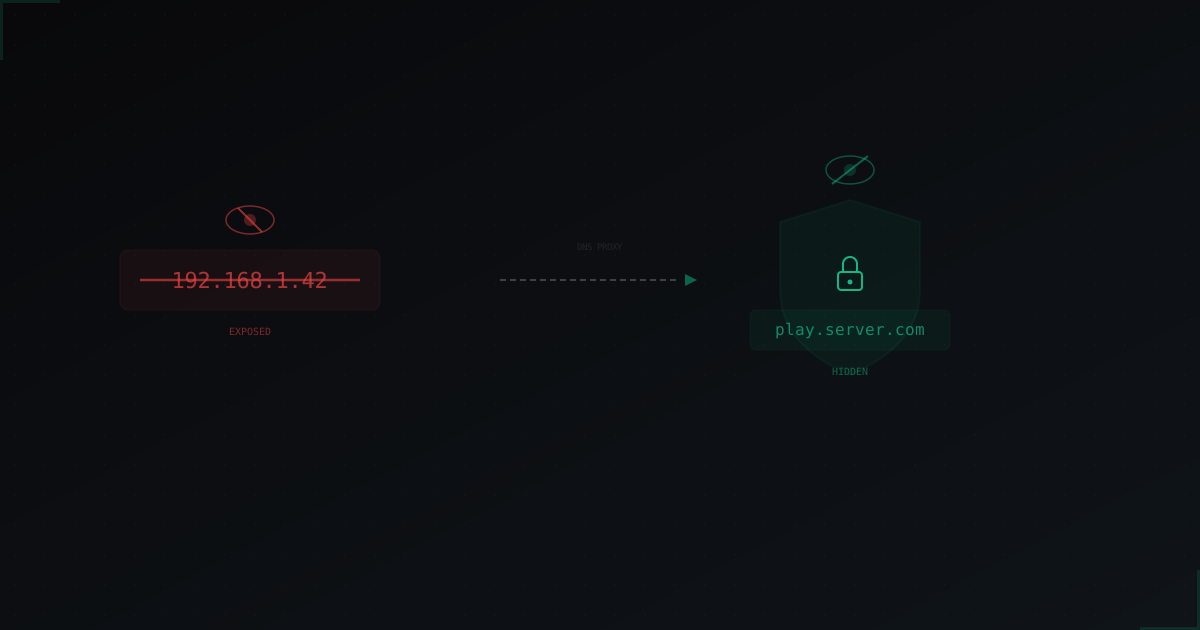
How to Hide Your Minecraft Server IP: Complete Guide
An exposed server IP is the #1 reason DDoS attacks succeed. We break down how attackers find your real IP and what you can do to make it impossible to discover.
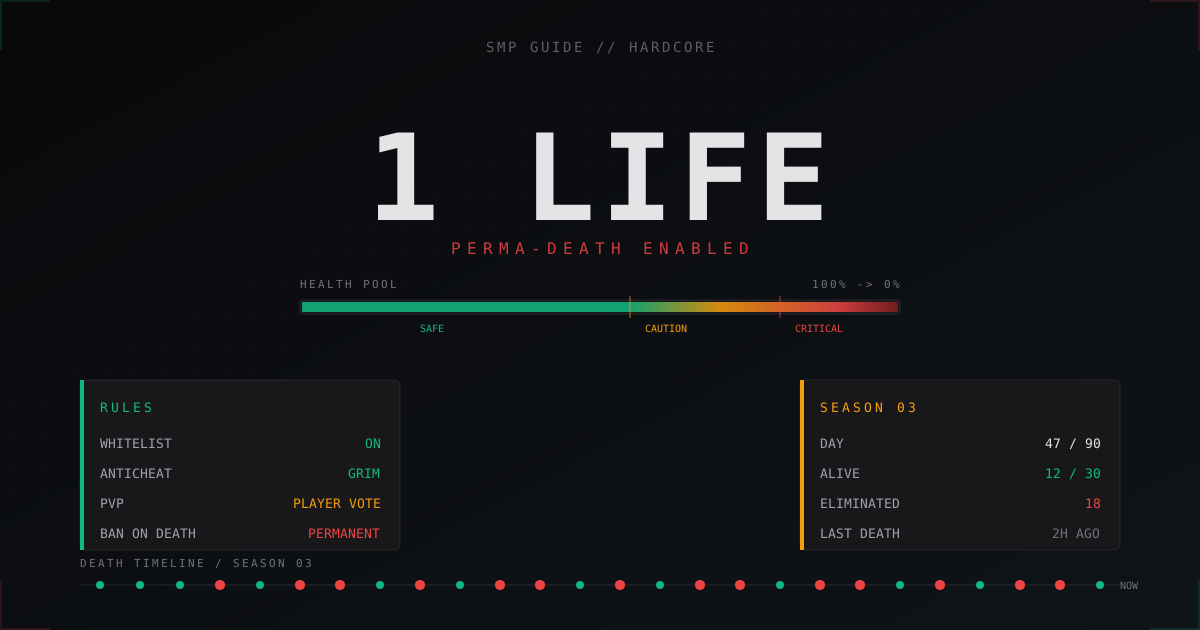
Hardcore SMP Server Setup: One Life, Perma-Death Guide 2026
How to set up a Hardcore SMP server with one life: ban-on-death plugins, anti-cheat, whitelist, seasons, Discord integration, and stable backups.
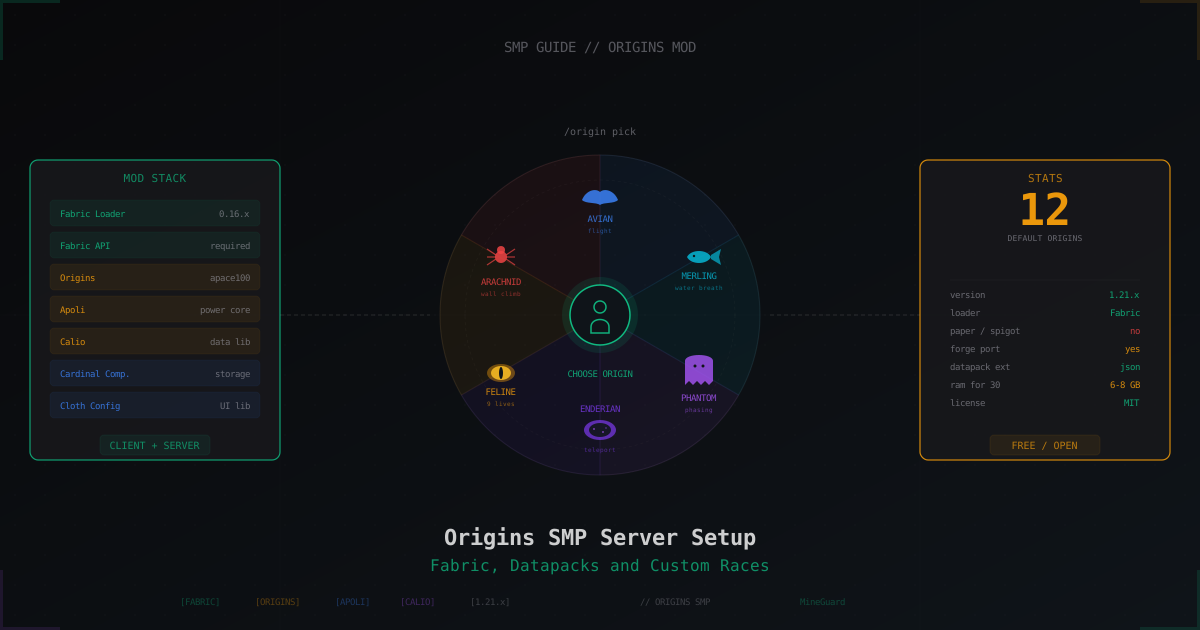
Origins SMP Server: Full Setup Guide for Minecraft Race Abilities
How to set up an Origins SMP server on Fabric: mod stack, 12 default races, custom origin via datapack and bot protection tips.