Minecraft Server Backups: How to Protect Your Data During Attacks
Your Minecraft server has been running for months. Players built cities, leveled up characters, the economy is humming. Then DDoS hits. The server crashes mid-autosave. Java gets killed by the OOM killer. Region files are half-written. Level.dat is zeroed out. You stare at 0-byte files in playerdata/ and realize: there are no backups.
This happens all the time. Admins spend months building a server but skip backups entirely. Or do them manually once a week. Or store them on the same disk as the server. All of these are equivalent to having no backups at all.
This article covers how to set up a reliable backup system for your Minecraft server. No fluff, just scripts and configs you can copy and use right now.
Why Backups Are Critical for MC Servers
Minecraft stores everything in files on disk. Worlds, inventories, achievements, stats, plugin configs, permissions. Plain files in the filesystem, and they are vulnerable to corruption whenever something goes wrong.
Key risks:
Crash during write. Minecraft periodically saves the world to disk. If the server crashes at that moment (DDoS, OOM, kernel panic), files can end up in an invalid state. A half-written region file can wipe an entire 32x32 chunk area. That is hundreds of hours of player work gone in an instant.
level.dat corruption. This file holds critical metadata: world time, spawn position, generator, game rules. Without it, the server will not start. Minecraft keeps a level.dat_old backup, but if both files get corrupted in the same crash cycle, you are stuck.
Player data loss. Files in world/playerdata/ store inventory, position, health, XP for each player. One 0-byte file means complete progress loss for that player. Imagine explaining to a veteran player that their six months of progress is gone because a DDoS attack hit during autosave.
Admin mistakes. Accidental rm -rf, botched plugin update, testing in production. Human error kills data as often as attacks do. One wrong command in the server directory and weeks of configuration work disappear.
Server attacks. DDoS attacks cause extreme TPS drops, CPU and memory overload. When the server cannot cope, the OS may kill the Java process. If an attacker gained access through a plugin vulnerability, they could intentionally delete or corrupt data. Combined attacks (DDoS as cover for exploitation) happen more often than most admins think.
What to Back Up
Not everything on the server is equally important. Prioritize accordingly.
Critical
- world/ (and all additional worlds: world_nether, world_the_end, plugin worlds)
- world/playerdata/ - player inventories and progress
- world/advancements/ - player achievements
- world/stats/ - player statistics
- plugins/ - configs and data for all plugins
- server.properties, spigot.yml, paper-global.yml, paper-world-defaults.yml
- ops.json, whitelist.json, banned-players.json, banned-ips.json
- MySQL/MariaDB databases (if plugins use SQL storage)
Important but replaceable
- Server and plugin JAR files (can be re-downloaded)
- Logs (useful for analysis but not critical for operation)
- Cache and temporary files (recreated automatically)
Skip
- .cache/, libraries/ (downloaded at startup)
- Old crash-reports you have already reviewed
- Compressed log archives taking up backup space
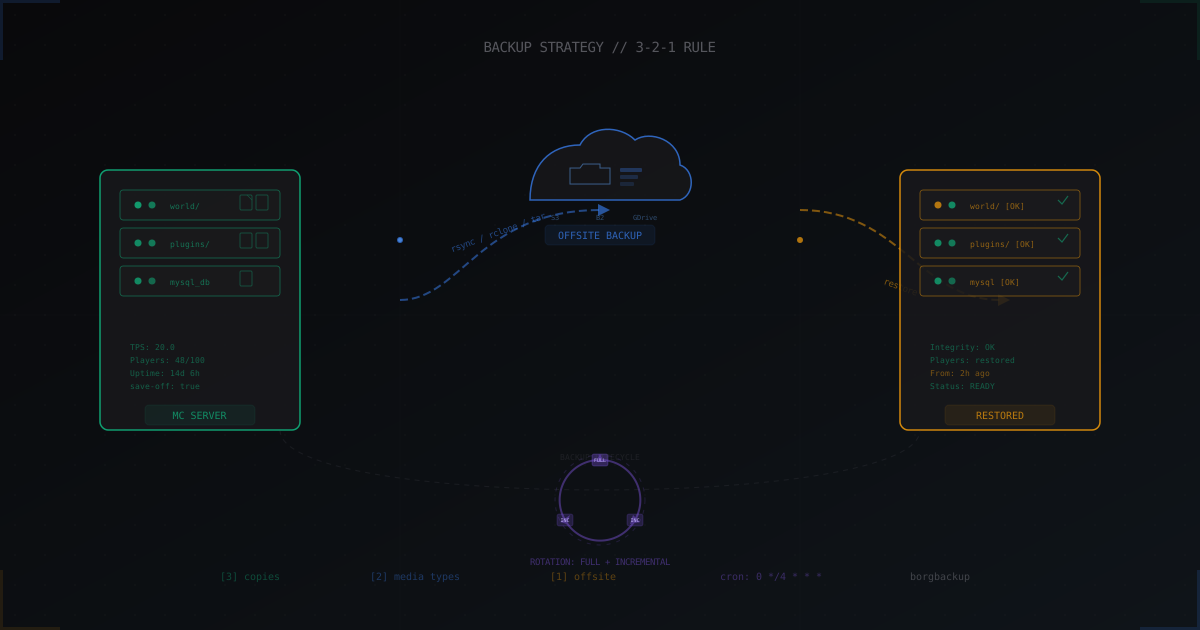
The 3-2-1 Rule
The gold standard of backup strategy. Simple rule that works:
- 3 copies of data (original + 2 backups)
- 2 different media types (local disk + cloud, or SSD + HDD)
- 1 copy offsite (different physical location)
For a Minecraft server this means:
- Original data on the server
- Local backup on a separate disk or partition
- Remote backup in cloud storage (S3, Backblaze B2, Google Drive)
Why this exact setup? Local backups give you speed. If the world gets corrupted, you restore in minutes. Remote backups protect against catastrophic scenarios: hosting provider loses your data, disk dies physically, server gets compromised and the attacker wipes everything including local backups.
Neither alone is enough. A local-only backup dies when the server dies. A cloud-only backup takes hours to download when you need to restore urgently and players are waiting in Discord.
Live Backups: save-off / save-on
The main challenge with Minecraft backups is consistency. You cannot simply copy files from a running server. If Minecraft is writing data while you copy, your backup may contain a half-written region file, a playerdata file open for writing, or a level.dat mid-update.
Solution: the save-off and save-on commands.
#!/bin/bash
# minecraft-backup.sh - live backup without stopping the server
# Requires: screen or tmux session named "minecraft"

SERVER_DIR="/opt/minecraft"
BACKUP_DIR="/backup/minecraft"
SCREEN_NAME="minecraft"
DATE=$(date +%Y-%m-%d_%H-%M-%S)
BACKUP_FILE="$BACKUP_DIR/mc-backup-$DATE.tar.gz"

mkdir -p "$BACKUP_DIR"

# Ensure save-on runs even if script fails
trap 'screen -S "$SCREEN_NAME" -p 0 -X stuff "save-on$(printf "\r")"' EXIT

# Notify players
screen -S "$SCREEN_NAME" -p 0 -X stuff "say Backup starting in 10 seconds...$(printf '\r')"
sleep 10

# Disable autosave
screen -S "$SCREEN_NAME" -p 0 -X stuff "save-off$(printf '\r')"
sleep 1

# Force save current state
screen -S "$SCREEN_NAME" -p 0 -X stuff "save-all$(printf '\r')"
sleep 5

# Create archive
tar -czf "$BACKUP_FILE" \
    -C "$SERVER_DIR" \
    world/ world_nether/ world_the_end/ \
    plugins/ server.properties spigot.yml \
    paper-global.yml ops.json whitelist.json \
    banned-players.json banned-ips.json 2>/dev/null

# Re-enable autosave
screen -S "$SCREEN_NAME" -p 0 -X stuff "save-on$(printf '\r')"

# Notify players
screen -S "$SCREEN_NAME" -p 0 -X stuff "say Backup complete!$(printf '\r')"

echo "Backup: $BACKUP_FILE ($(du -sh "$BACKUP_FILE" | cut -f1))"
The algorithm is straightforward: disable autosave, force a final save-all, copy the files, re-enable autosave. Between save-off and save-on, world files do not change, giving you a consistent snapshot.
The trap command is critical. If the script crashes after save-off, autosave stays disabled. Without the trap, if your server crashes later, you lose everything since the last save-all because autosave never came back on. With the trap, save-on runs no matter what happens to the script.
Tools: rsync, borgbackup, rclone
rsync
The workhorse of incremental file copying. rsync only transfers files that changed since the last run. For daily backups of large worlds, this saves enormous amounts of time and bandwidth.
#!/bin/bash
# rsync-backup.sh - incremental backup via rsync

SERVER_DIR="/opt/minecraft"
BACKUP_DIR="/backup/minecraft/latest"
LOG="/var/log/mc-backup.log"

rsync -a --delete \
    --exclude='.cache/' \
    --exclude='libraries/' \
    --exclude='logs/*.gz' \
    --exclude='crash-reports/' \
    "$SERVER_DIR/" "$BACKUP_DIR/"

echo "$(date '+%Y-%m-%d %H:%M:%S') rsync backup completed" >> "$LOG"
The --delete flag removes files from the backup that no longer exist on the server. This keeps the backup current, but be careful: if files are accidentally deleted on the server, --delete removes them from the backup too. Combine rsync with rotation (keeping multiple versions) to protect against this.
borgbackup
borgbackup (borg) creates incremental backups with deduplication. If you have a 10 GB world but only 200 MB of chunks changed today, borg stores only those 200 MB. Yet each backup looks like a complete copy when you restore it. You can restore any single backup independently without needing the entire chain.
# Initialize repository (once)
borg init --encryption=repokey /backup/borg-mc

# Create backup
borg create \
    --stats \
    --compression zstd,3 \
    --exclude '*.log.gz' \
    --exclude '.cache' \
    --exclude 'libraries' \
    /backup/borg-mc::mc-{now:%Y-%m-%d_%H-%M} \
    /opt/minecraft/world \
    /opt/minecraft/plugins \
    /opt/minecraft/server.properties \
    /opt/minecraft/ops.json \
    /opt/minecraft/whitelist.json

# Automatic rotation
borg prune \
    --keep-hourly=6 \
    --keep-daily=7 \
    --keep-weekly=4 \
    --keep-monthly=6 \
    /backup/borg-mc
Key advantages of borg for Minecraft servers:
- Deduplication: identical chunks across backups are not duplicated
- zstd compression: fast and effective for binary world data
- Encryption: backups are encrypted with AES-256, key stored locally
- Point-in-time restore: extract a single file from any backup in the history
rclone for cloud storage
rclone works with dozens of cloud storage providers. Configure it once and use it for offsite backups forever.
# Configuration (interactive, one time)
rclone config

# Example config for Backblaze B2 (~/.config/rclone/rclone.conf)
# [b2-backup]
# type = b2
# account = YOUR_KEY_ID
# key = YOUR_APP_KEY

# Sync backup to cloud
rclone sync /backup/minecraft b2-backup:mc-server-backup \
    --transfers=4 \
    --checkers=8 \
    --fast-list \
    --log-file=/var/log/rclone-backup.log \
    --log-level=NOTICE

# For Google Drive:
# rclone sync /backup/minecraft gdrive:mc-backup --drive-chunk-size=64M
Backblaze B2 costs $0.005/GB per month. For an average Minecraft server with a 5-10 GB world, that is about $0.05 per month. Minimal cost for data safety.
Automation with cron
A backup you have to run manually will not get run. It will be forgotten on the first busy week. Automate everything.
# crontab -e

# Local backup every 4 hours
0 */4 * * * /opt/scripts/minecraft-backup.sh >> /var/log/mc-backup.log 2>&1

# Cloud upload daily at 4 AM
0 4 * * * /opt/scripts/cloud-upload.sh >> /var/log/mc-cloud.log 2>&1

# Full borg backup every Sunday at 5 AM
0 5 * * 0 /opt/scripts/borg-backup.sh >> /var/log/mc-borg.log 2>&1

# Cleanup old backups weekly
0 6 * * 1 /opt/scripts/backup-cleanup.sh >> /var/log/mc-cleanup.log 2>&1
The complete pipeline script should enable save-on as early as possible. Run save-off, rsync the data, immediately re-enable save-on. Then run borg and rclone from the local copy. The server only pauses writes for the rsync duration, which is typically under a minute for incremental copies.
Here is the full pipeline:
#!/bin/bash
# full-backup-pipeline.sh
set -euo pipefail

SERVER_DIR="/opt/minecraft"
BACKUP_DIR="/backup/minecraft"
BORG_REPO="/backup/borg-mc"
SCREEN_NAME="minecraft"
RCLONE_REMOTE="b2-backup:mc-server-backup"
DATE=$(date +%Y-%m-%d_%H-%M-%S)
LOG="/var/log/mc-backup-pipeline.log"

log() { echo "$(date '+%Y-%m-%d %H:%M:%S') $1" >> "$LOG"; }

trap 'screen -S "$SCREEN_NAME" -p 0 -X stuff "save-on$(printf "\r")" 2>/dev/null' EXIT

log "=== Pipeline started ==="

# 1. save-off + save-all
screen -S "$SCREEN_NAME" -p 0 -X stuff "save-off$(printf '\r')"
sleep 1
screen -S "$SCREEN_NAME" -p 0 -X stuff "save-all$(printf '\r')"
sleep 5

# 2. rsync to local directory
rsync -a --delete --exclude='.cache/' --exclude='libraries/' \
    "$SERVER_DIR/" "$BACKUP_DIR/latest/"

# 3. Re-enable autosave immediately
screen -S "$SCREEN_NAME" -p 0 -X stuff "save-on$(printf '\r')"
log "save-on restored"

# 4. borg backup from local copy
borg create --stats --compression zstd,3 \
    "$BORG_REPO"::mc-"$DATE" "$BACKUP_DIR/latest/" 2>> "$LOG"

# 5. borg prune
borg prune --keep-hourly=6 --keep-daily=7 \
    --keep-weekly=4 --keep-monthly=3 "$BORG_REPO" 2>> "$LOG"

# 6. rclone to cloud
rclone sync "$BACKUP_DIR/latest/" "$RCLONE_REMOTE" \
    --transfers=4 --fast-list 2>> "$LOG"

log "=== Pipeline finished ==="
Notice how save-on is restored right after rsync, not at the end. Borg and rclone work from the local copy, so the server runs normally while the slower operations complete.
Incremental vs Full Backups
Full backup copies everything every time. Simple, reliable, but space-hungry. A 20 GB world means 20 GB per backup.
Incremental backup copies only what changed since the last run. Fast and storage-efficient, but for restoration you need the complete chain of backups.
The optimal strategy for Minecraft:
- Weekly full backup as a baseline (Sunday)
- Incremental backups every 4 hours throughout the week
borgbackup solves this problem elegantly. Each backup is technically incremental (stores only new data blocks), but when restoring, each one behaves like a full copy. Best of both worlds.
Rotation and Retention
You cannot keep backups forever. Disk space is finite. Set a retention policy:
- Last 24 hours: backup every 4 hours (6 copies)
- Last week: daily backup (7 copies)
- Last month: weekly backup (4 copies)
- Last 3 months: monthly backup (3 copies)
That gives you about 20 restore points covering 3 months of history. Recent events have fine-grained coverage (you can go back to any 4-hour window from today), while older history is still available at lower resolution.
For tar-based backups, use a rotation script:
#!/bin/bash
# backup-rotation.sh
BACKUP_DIR="/backup/minecraft"

# Delete backups older than 7 days (except Sunday ones)
find "$BACKUP_DIR" -name "mc-backup-*.tar.gz" -mtime +7 \
    -not -name "*_Sun_*" -delete

# Delete Sunday backups older than 30 days
find "$BACKUP_DIR" -name "*_Sun_*.tar.gz" -mtime +30 -delete

echo "Backup space usage:"
du -sh "$BACKUP_DIR"
For borg, use the built-in prune command shown earlier. It handles rotation more reliably than manual find/delete scripts.
Database Backups for MySQL/MariaDB
If your plugins use SQL storage (LuckPerms, ShopGUI+, CMI, Plan, Dynmap), file backups will not capture the database. You need a separate dump.
#!/bin/bash
# mysql-backup.sh
DB_NAME="minecraft"
DB_USER="mc_backup"
DB_PASS="secure_password_here"
BACKUP_DIR="/backup/mysql"
DATE=$(date +%Y-%m-%d_%H-%M-%S)

mkdir -p "$BACKUP_DIR"

mysqldump \
    --user="$DB_USER" \
    --password="$DB_PASS" \
    --single-transaction \
    --routines \
    --triggers \
    "$DB_NAME" | gzip > "$BACKUP_DIR/mc-db-$DATE.sql.gz"

echo "Database backup: $BACKUP_DIR/mc-db-$DATE.sql.gz"

# Remove dumps older than 14 days
find "$BACKUP_DIR" -name "mc-db-*.sql.gz" -mtime +14 -delete
The --single-transaction flag is critical. It creates a consistent snapshot without locking tables. Without it, the dump may contain data from different points in time (one table updated while another was still being dumped). Always include this flag.
Add this script to your backup pipeline. Run it before the file backup so the SQL dump is included in your borg archive.
Test Your Backups
An untested backup is not a backup. This is not a cliche. It is the single most common backup failure mode. Admins set up automated backups, forget about them, and six months later discover the script broke three months ago. Or the backups exist but cannot actually be restored due to permissions, missing files, or corruption.
Test restoration regularly. Monthly at minimum.
#!/bin/bash
# test-restore.sh - verify backup integrity
TEST_DIR="/tmp/mc-restore-test"
BORG_REPO="/backup/borg-mc"

rm -rf "$TEST_DIR" && mkdir -p "$TEST_DIR"

LATEST=$(borg list "$BORG_REPO" --last 1 --format '{archive}')
echo "Restoring: $LATEST"
borg extract "$BORG_REPO"::"$LATEST" --target "$TEST_DIR"

echo "=== Checking critical files ==="

# level.dat
if [ -f "$TEST_DIR/latest/world/level.dat" ]; then
    SIZE=$(stat -c%s "$TEST_DIR/latest/world/level.dat")
    if [ "$SIZE" -gt 100 ]; then
        echo "[OK] level.dat ($SIZE bytes)"
    else
        echo "[FAIL] level.dat too small ($SIZE bytes)"
    fi
else
    echo "[FAIL] level.dat missing!"
fi

# Region files
REGION_COUNT=$(find "$TEST_DIR/latest/world/region/" -name "*.mca" 2>/dev/null | wc -l)
EMPTY_REGIONS=$(find "$TEST_DIR/latest/world/region/" -name "*.mca" -empty 2>/dev/null | wc -l)
echo "[INFO] Region files: $REGION_COUNT total, $EMPTY_REGIONS empty"

# Player data
PLAYER_COUNT=$(find "$TEST_DIR/latest/world/playerdata/" -name "*.dat" 2>/dev/null | wc -l)
EMPTY_PLAYERS=$(find "$TEST_DIR/latest/world/playerdata/" -name "*.dat" -empty 2>/dev/null | wc -l)
echo "[INFO] Player data: $PLAYER_COUNT total, $EMPTY_PLAYERS empty"

# server.properties
[ -f "$TEST_DIR/latest/server.properties" ] && echo "[OK] server.properties" || echo "[FAIL] server.properties"

rm -rf "$TEST_DIR"
echo "=== Restore test complete ==="
Run this weekly via cron and send results to your Discord webhook. If the test fails, you find out before you actually need the backup. That difference can save your server.
Quick Restore After an Attack
DDoS corrupted your world data. Players are waiting. Every minute of downtime costs you audience. Here is the fast path back to normal:
# 1. Stop server (if still running)
screen -S minecraft -p 0 -X stuff "stop$(printf '\r')"
sleep 10

# 2. Move corrupted data (don't delete it!)
mv /opt/minecraft/world /opt/minecraft/world_corrupted_$(date +%Y%m%d)

# 3. Restore from latest backup
# Option A: from rsync copy (fastest)
cp -a /backup/minecraft/latest/world /opt/minecraft/world

# Option B: from borg
# borg extract /backup/borg-mc::ARCHIVE_NAME --target /opt/minecraft

# Option C: from tar archive
# tar -xzf /backup/minecraft/mc-backup-LATEST.tar.gz -C /opt/minecraft world/

# 4. Restore database if needed
# gunzip < /backup/mysql/mc-db-LATEST.sql.gz | mysql minecraft

# 5. Fix permissions
chown -R minecraft:minecraft /opt/minecraft/world

# 6. Start server
screen -S minecraft -X stuff "/opt/minecraft/start.sh$(printf '\r')"
From an rsync copy, restoration takes minutes. From borg with deduplication, slightly longer but still fast. From cloud backup, you may need significant download time, which is why the local copy is so important.
Keep the corrupted data around. Do not delete it immediately. You might want to extract something from it later, like player data created after the last backup ran.
Backup Security
Backups contain everything: database passwords, RCON credentials, API tokens from plugins, player IP addresses. If someone gets access to your backup, they get full control over your server and potentially sensitive player information.
Encryption. borgbackup encrypts with AES-256 out of the box when you init with --encryption=repokey. For tar archives, use gpg:
# Encrypt
tar -czf - /opt/minecraft/world /opt/minecraft/plugins | \
    gpg --symmetric --cipher-algo AES256 \
    --output /backup/mc-encrypted-$(date +%Y%m%d).tar.gz.gpg

# Decrypt
gpg --decrypt /backup/mc-encrypted-20260403.tar.gz.gpg | \
    tar -xzf - -C /opt/minecraft
Access control. Restrict backup directory permissions. Create a dedicated backup user with read-only access to server files and full access to the backup directory. If the server gets compromised, the attacker running as the minecraft user cannot delete backups owned by a different user.
chmod 700 /backup/minecraft
chown root:root /backup/minecraft
chmod 600 ~/.config/rclone/rclone.conf

# Create dedicated backup user
useradd -r -s /bin/bash -d /backup mc-backup
setfacl -R -m u:mc-backup:rx /opt/minecraft
chown -R mc-backup:mc-backup /backup/minecraft
Plugin-Based Backups
If bash scripts are not your thing, plugins can handle backups from within Minecraft.
DriveBackupV2 automatically backs up to Google Drive, OneDrive, or FTP on a schedule. Configuration is simple YAML. eBackup handles local backups with SFTP support. Both work well for smaller servers where the admin is more comfortable with Minecraft plugin configuration than Linux scripting.
For serious infrastructure, use system-level tools (borg + rclone + cron). They operate at the OS level, do not depend on the Java process being healthy, and give you full control over every aspect of the backup process. When your server is crashing due to a DDoS attack, a plugin-based backup cannot run. A cron job on the host system can.
Offsite Storage Options
Backblaze B2: Most budget-friendly. $0.005/GB storage, $0.01/GB download. First 10 GB free. For most Minecraft servers, the monthly bill is under $1.
Amazon S3 / S3-compatible: More expensive but widely supported. Consider Wasabi for S3-compatible storage at lower prices.
Google Drive via rclone: 15 GB free. Enough for a small server. Easy to set up with rclone.
Start with Backblaze B2. Minimal cost, high reliability, good speed.
DDoS and Backups
DDoS attacks create perfect conditions for data loss. Server overloaded, TPS at zero, OOM killer ready to strike at any moment. If autosave happens to be running at that exact moment, data will get corrupted.
Protect yourself:
-
Use DDoS protection. Services like MineGuard filter attacks before traffic reaches your server. No overload, no crashes, no corruption. Prevention is always better than recovery.
-
Increase backup frequency if you are under threat. Every 2 hours instead of 4 cuts your maximum data loss (RPO) in half. If your server gets attacked regularly, consider hourly backups.
-
Don't rely on autosave alone. Autosave overwrites the same files. If they get corrupted, autosave writes the corrupted version over the good one. A proper backup system keeps multiple historical copies.
-
Keep local backups on a separate disk. If the primary disk starts failing under heavy I/O load from an attack, backups on the same disk die with it.
For more on recovering after attacks, read our post-DDoS recovery guide. For general server hardening, see the 2026 security checklist. And if you want to know what to do when your server is actively under attack, we have a guide for that too.
Backup Monitoring
Backups are useless if they silently break. Add monitoring:
#!/bin/bash
# check-backup-health.sh
BACKUP_DIR="/backup/minecraft/latest"
MAX_AGE_HOURS=6
DISCORD_WEBHOOK="https://discord.com/api/webhooks/YOUR_WEBHOOK"

LATEST_MOD=$(stat -c %Y "$BACKUP_DIR/world/level.dat" 2>/dev/null || echo 0)
NOW=$(date +%s)
AGE_HOURS=$(( (NOW - LATEST_MOD) / 3600 ))

if [ "$AGE_HOURS" -gt "$MAX_AGE_HOURS" ]; then
    curl -s -H "Content-Type: application/json" \
        -d "{\"content\":\"[ALERT] MC backup is $AGE_HOURS hours old (max: $MAX_AGE_HOURS). Check backup system!\"}" \
        "$DISCORD_WEBHOOK"
fi
Add to cron: 0 */2 * * * /opt/scripts/check-backup-health.sh. If the backup has not been updated in over 6 hours, you get a Discord notification before disaster strikes.
Quick Setup Checklist (30 Minutes)
- [5 min] Create
/backup/minecraftand the backup script from this article - [3 min] Add to cron (every 4 hours)
- [5 min] Install borgbackup (
apt install borgbackup), init repository - [5 min] Install rclone (
apt install rclone), configure Backblaze B2 (free up to 10 GB) - [5 min] Set up cloud upload script + cron
- [5 min] Run the first backup manually and verify it works
- [2 min] Set up monitoring (Discord webhook on failure)
30 minutes now saves weeks of work later. You can rebuild a server from scratch in a day. You cannot rebuild a world that players spent six months creating. The builds, the farms, the memories, the community investment. All of it gone because nobody spent 30 minutes setting up backups. Do not be that admin.
Protect Your Server from DDoS Attacks
Free protection with 5-minute setup. 1 TB bandwidth included.
Try for FreeRelated Articles
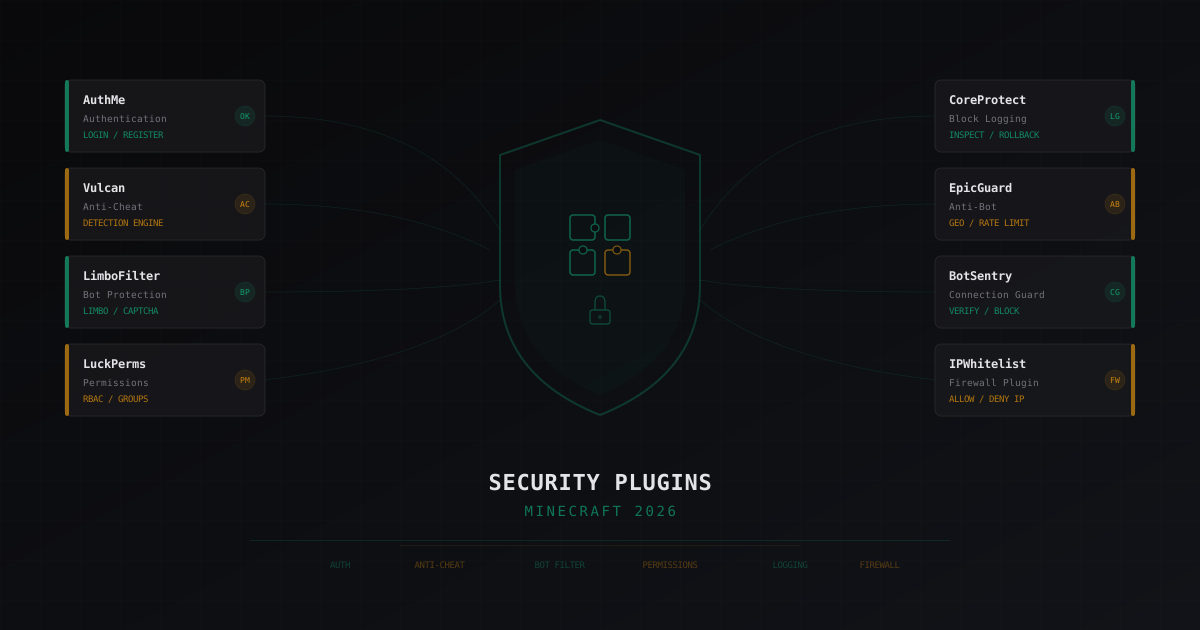
Best Security Plugins for Minecraft 2026: An Honest Review
Breaking down security plugins for Minecraft servers: authentication, anti-cheat, bot protection, permissions, logging. Honest pros and cons for each solution with configuration tips.
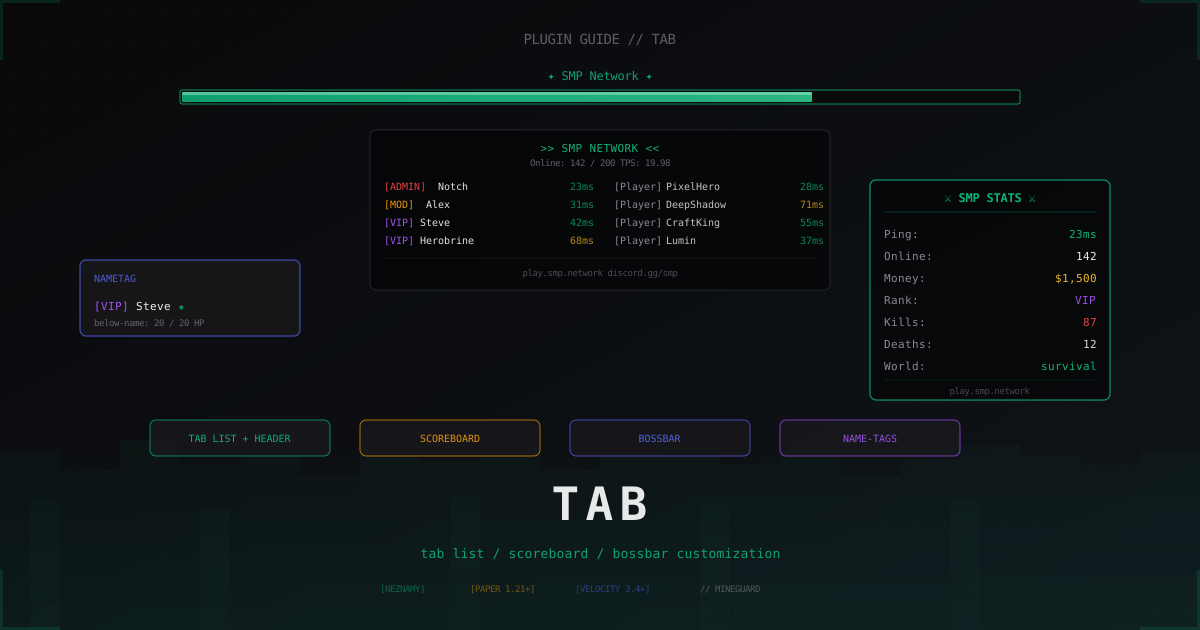
TAB plugin: tab list, scoreboard and BossBar customization (2026)
One plugin covers tab list, scoreboard, BossBar, name-tags and LuckPerms prefixes. We walk through TAB by NEZNAMY: install, proxy mode, sorting, anti-override and real config.yml snippets.
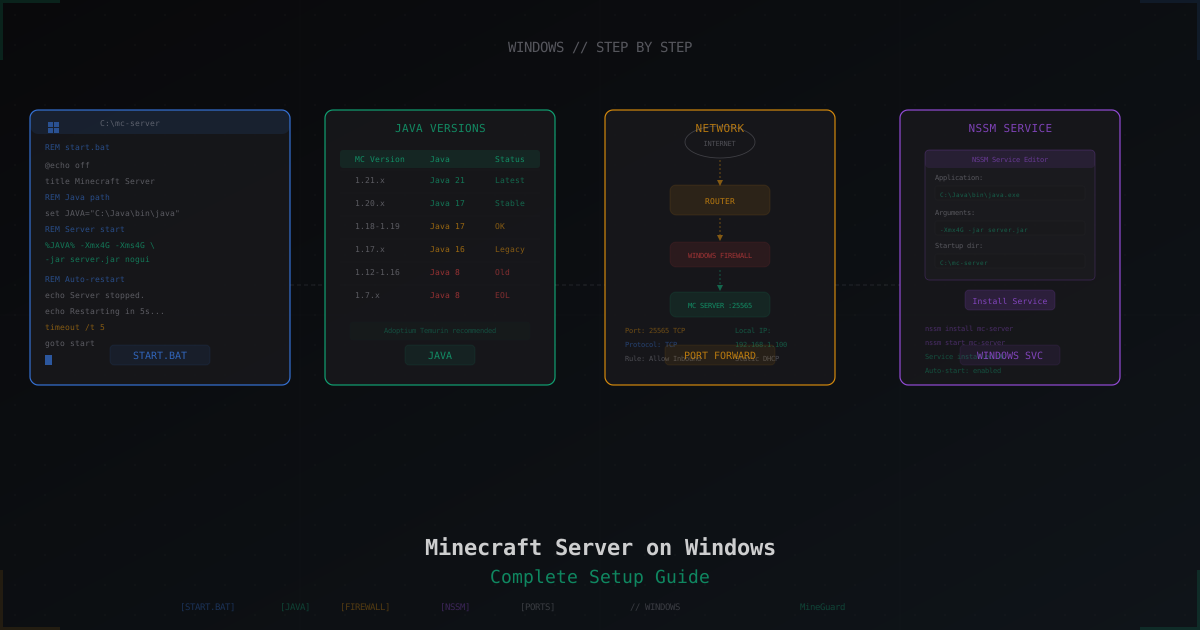
Minecraft Server on Windows: Step-by-Step Setup Guide
Complete guide to running a Minecraft server on Windows: installing Java, downloading Paper, creating start.bat with JVM flags, port forwarding, firewall rules, auto-start with NSSM, and common Windows pitfalls.