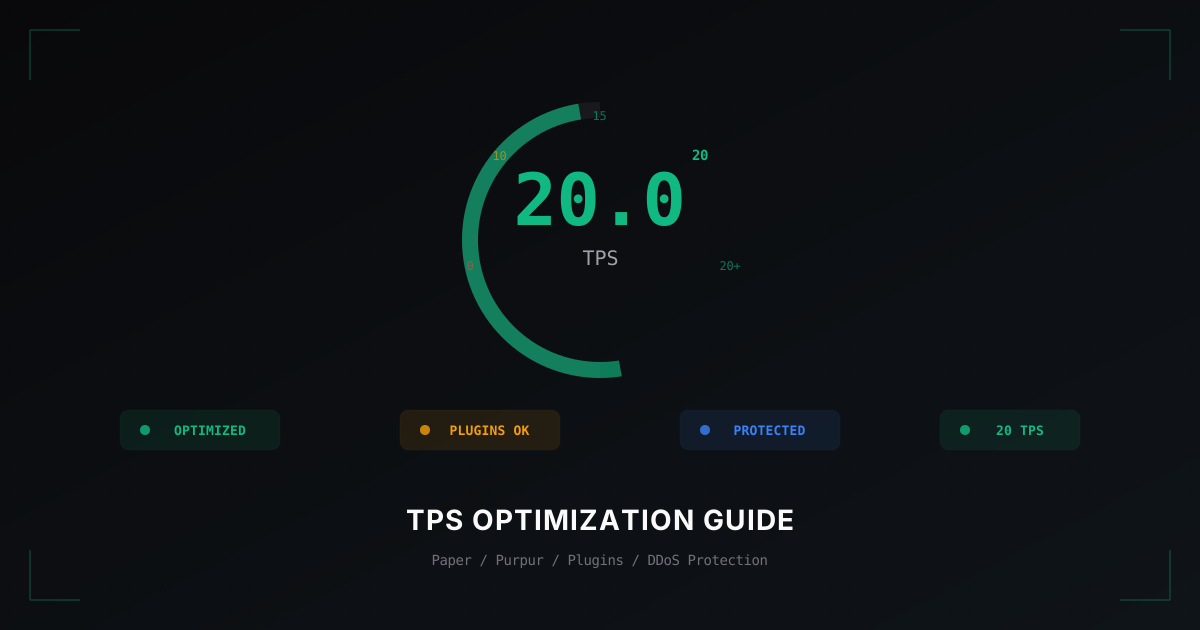
Minecraft Server TPS Optimization: Complete Guide
What Is TPS and Why It Matters
TPS (Ticks Per Second) is the heartbeat of your Minecraft server. Every tick is one cycle of game world updates: mob movement, crop growth, redstone processing, block physics, player action handling. Ideally, the server runs 20 ticks per second, meaning each tick takes no more than 50 milliseconds.
When TPS drops below 20, everything starts lagging. Mobs move in jerks, blocks break with delay, players complain about "server lag." At TPS 15, the gameplay becomes noticeably unpleasant. At TPS 10 and below, the server is essentially unplayable.
It is important to understand the difference between TPS and ping. Ping is the network delay between the player and the server. TPS is the server's own performance. A player can have a perfect 10ms ping, but if the server TPS is 12, there will still be lag. Conversely, a server can maintain a solid 20 TPS, but a player with poor internet will still lag due to high ping.
Main Causes of Low TPS
Before optimizing, you need to understand what exactly is loading the server. Here are the most common causes.
Too Many Entities
Every mob, dropped item, arrow, boat, minecart is an entity that the server processes every tick. A farm with hundreds of cows in one pen kills TPS faster than almost anything else. Dropped items that nobody picks up accumulate and load the server.
Heavy Plugins
Not all plugins are written equally well. Some perform complex calculations on the server's main thread, blocking tick processing. Dynamic maps, complex economy plugins, plugins with frequent database queries are all potential TPS killers.
Chunk Loading
Generating new chunks is one of the most expensive operations. When several players explore new territories simultaneously, the server has to generate dozens of chunks per second. That is a massive load.
Redstone
Complex redstone mechanisms, especially clock circuits and large systems, generate thousands of block updates per tick. A single player with an infinite redstone clock can bring down the entire server.
World Size
The more loaded chunks there are, the more work the server does. Each chunk contains blocks that need updating: water flows, lava flows, crops grow, mobs spawn.
Optimizing Paper.yml / paper-global.yml
Paper (and its forks like Purpur) provide a huge number of settings for optimization. Here are the key parameters.
For Paper 1.19.4+ (paper-global.yml and paper-world-defaults.yml)
# paper-world-defaults.yml

# Reduce mob activation distance
entities:
  spawning:
    despawn-ranges:
      monster:
        hard: 96
        soft: 28
      creature:
        hard: 96
        soft: 28
      ambient:
        hard: 64
        soft: 28

# Limit mob spawning
spawn-limits:
  monsters: 50      # vanilla: 70
  animals: 8        # vanilla: 10
  water-animals: 3  # vanilla: 5
  ambient: 1        # vanilla: 15

# Chunk optimization
chunks:
  max-auto-save-chunks-per-tick: 8
  delay-chunk-unloads-by: 10s
  entity-per-chunk-save-limit:
    experience_orb: 16
    arrow: 8
    item: 32

# Redstone optimization
redstone-implementation: ALTERNATE_CURRENT
Key Purpur Settings
If you use Purpur (a Paper fork with additional optimizations):
# purpur.yml
settings:
  dont-send-useless-entity-packets: true

world-settings:
  default:
    mobs:
      zombie:
        aggressive-towards-villager-when-lagging: false
      villager:
        lobotomize:
          enabled: true  # disables complex AI for stuck villagers
Plugin Audit: Finding Resource-Hungry Plugins
Blindly optimizing configs will not help if one plugin is eating 60% of your server tick. You need to find the culprit.
Spark - The Best Profiling Tool
Install the Spark plugin. It is the most accurate profiler for Minecraft.
/spark profiler start    # Start profiling
/spark profiler stop     # Stop and get a report
/spark tps               # Current TPS
/spark health            # Overall server health
Spark will show which plugins and which specific operations take the most time. Look for plugins that consume more than 10-15% of the server tick.
Timings (Built into Paper)
/timings on      # Start collecting data
# Wait 5-10 minutes
/timings paste   # Get a link to the report
The Timings report will show every plugin and every event handler with exact execution times. Red lines are the problem areas.
What to Do with a Heavy Plugin
If you found a plugin that slows down the server, you have three options: replace it with a more optimized alternative, configure it (increase update intervals, disable unnecessary features), or remove it if it is not critical.
View Distance and Simulation Distance
These two parameters have a massive impact on performance.
View Distance controls how many chunks around the player are sent to the client for rendering. Simulation Distance controls how many chunks around the player are actually processed by the server (mobs, redstone, crop growth).
# server.properties
view-distance=7           # vanilla: 10
simulation-distance=4     # vanilla: 10
Reducing simulation-distance from 10 to 4 cuts the processed area by more than 6 times. The effect on TPS is massive.
If players care about beautiful views, you can keep view-distance higher (7-8) while keeping simulation-distance low (4-5). Distant chunks will be visible but will not load the server.
Pre-generating the World
On-the-fly chunk generation is expensive. The solution: generate all chunks in advance.
The Chunky plugin does this efficiently:
/chunky radius 5000       # Radius in blocks from center
/chunky start             # Start generation
/chunky pause             # Pause if needed
/chunky continue          # Resume
Generate the world when there are few players online, or completely offline. After pre-generation, set a world border so players do not venture beyond the generated territory:
/worldborder set 10000 # World border of 10000 blocks
DDoS Attacks and TPS: The Hidden Connection
Here is something rarely discussed in TPS optimization guides: DDoS attacks directly kill server performance, even if they do not crash it entirely.
How an Attack Affects TPS
During a DDoS attack on a Minecraft server, the following happens. Thousands of fake connections flood the network stack. The server spends CPU time processing fake packets instead of game ticks. Bot attacks create hundreds of fake players, each one a load on the server. Even if the attack does not fully crash the server, TPS drops to 10-15, and players experience terrible lag.
You can perfectly configure Paper, clean up heavy plugins, pre-generate the world, but a single bot attack will undo all your efforts.
How We Solve This Problem
At MineGuard, we filter malicious traffic before it reaches your server. Our filter blocks bots, fake connections, and junk packets at the network level. Your server receives only legitimate traffic from real players.
The result: even during an active DDoS attack, your server maintains a stable 20 TPS because all the attack load falls on our filter, not on your hardware. We have seen cases where servers with perfectly configured Paper dropped to 5 TPS during bot attacks, and after connecting our protection, they held steady at 19.9-20.0 even under attack.
TPS Monitoring: Keeping Your Finger on the Pulse
Optimization is not a one-time action. You need to constantly monitor your server's state.
Spark for Continuous Monitoring
/spark tps                    # Current TPS (1m, 5m, 15m)
/spark health                 # CPU, memory, TPS in one report
/spark profiler start --timeout 300  # Profile for 5 minutes
Run profiling during peak hours to catch real issues.
Automatic Alerts
Set up notifications for TPS drops. Many control panels (Pterodactyl, AMP) support this out of the box. If you have a custom setup, use a plugin that sends a webhook to Discord when TPS drops below a threshold.
What to Look For
- TPS 19.5-20.0 - excellent, server is running perfectly
- TPS 18.0-19.5 - normal, minor dips
- TPS 15.0-18.0 - optimization needed, players start noticing lag
- TPS below 15.0 - serious problems, needs immediate attention
Optimization Checklist
Let us wrap up. Go through this list:
- Update your server core to the latest Paper or Purpur version
- Configure paper-world-defaults.yml: mob limits, despawn-ranges, ALTERNATE_CURRENT
- Set simulation-distance to 4-5, view-distance to 7-8
- Pre-generate the world with Chunky and set a world border
- Audit plugins with Spark - find and replace heavy ones
- Limit entities: farm caps, automatic item cleanup
- Connect DDoS protection so attacks do not affect your TPS
- Set up TPS monitoring with Spark
- Regularly check Timings reports after plugin updates
TPS optimization is a comprehensive process. There is no single magic setting that fixes everything. But if you systematically go through each point, the difference will be enormous. Servers that consistently hold 20 TPS retain players. Servers with lag lose them.
Protect Your Server from DDoS Attacks
Free protection with 5-minute setup. 1 TB bandwidth included.
Try for FreeRelated Articles
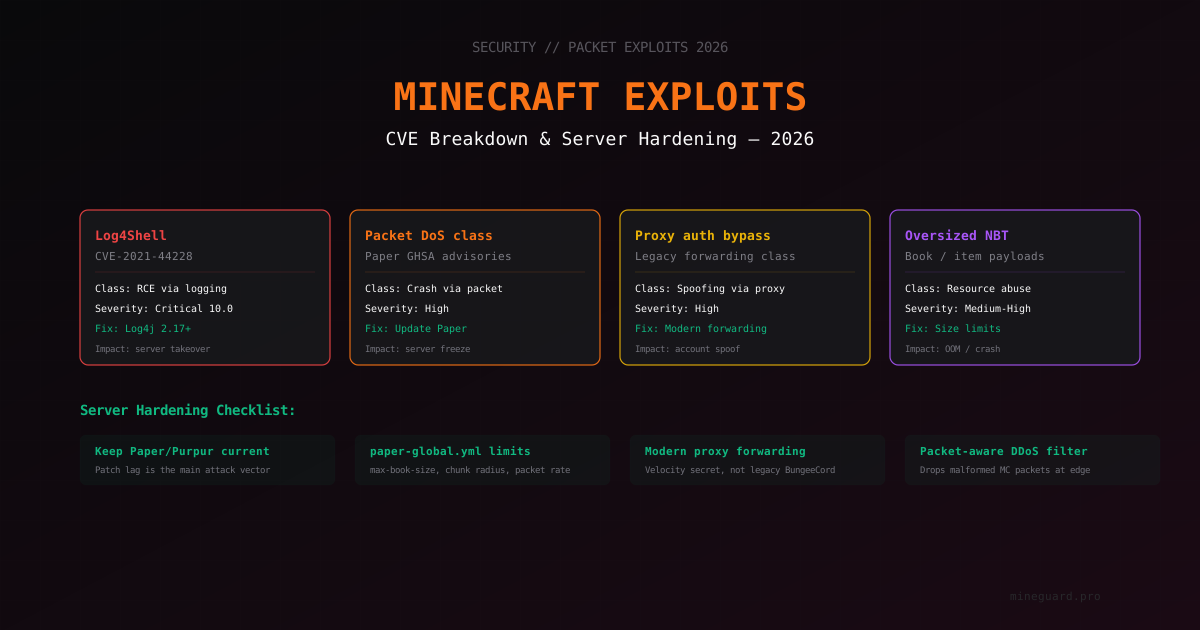
Minecraft Server Vulnerabilities in 2026: CVE Breakdown and Hardening
Overview of Minecraft server vulnerability classes: Log4Shell, packet DoS, proxy forwarding bypass, NBT overflows. How to know if your server is protected, which versions to install, and how to spot exploit attempts.
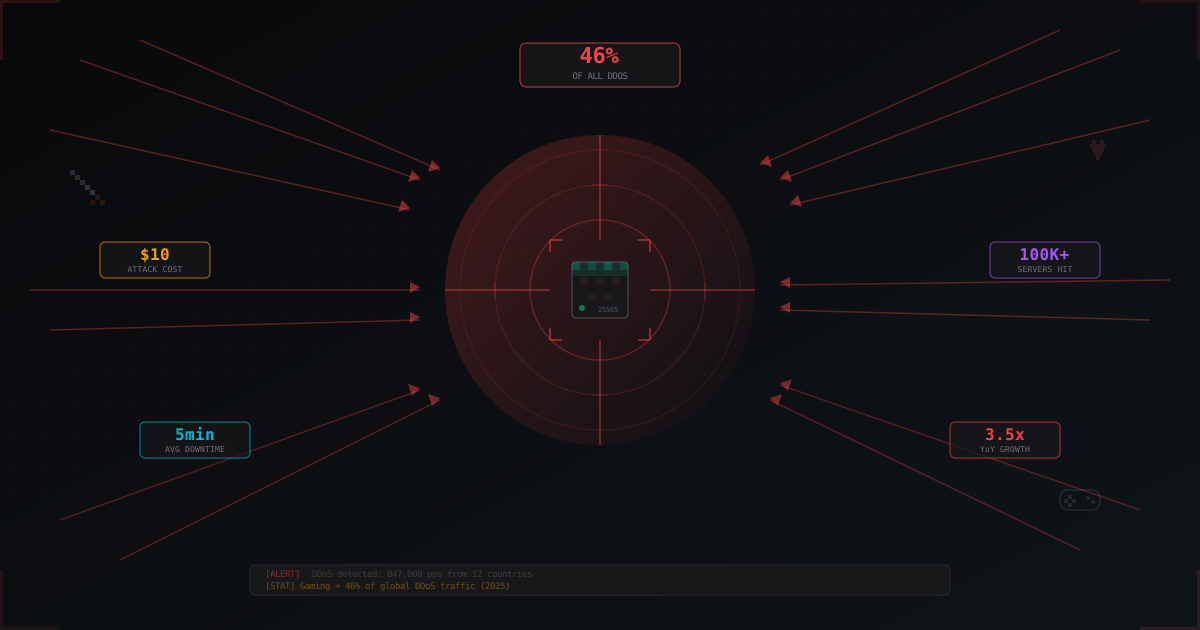
Why Gaming Servers Are the #1 Target for DDoS Attacks
The gaming industry absorbs over 46% of all DDoS attacks worldwide. We break down why gaming servers are attacked, who is behind it, what attacks cost, and why Minecraft suffers the most.
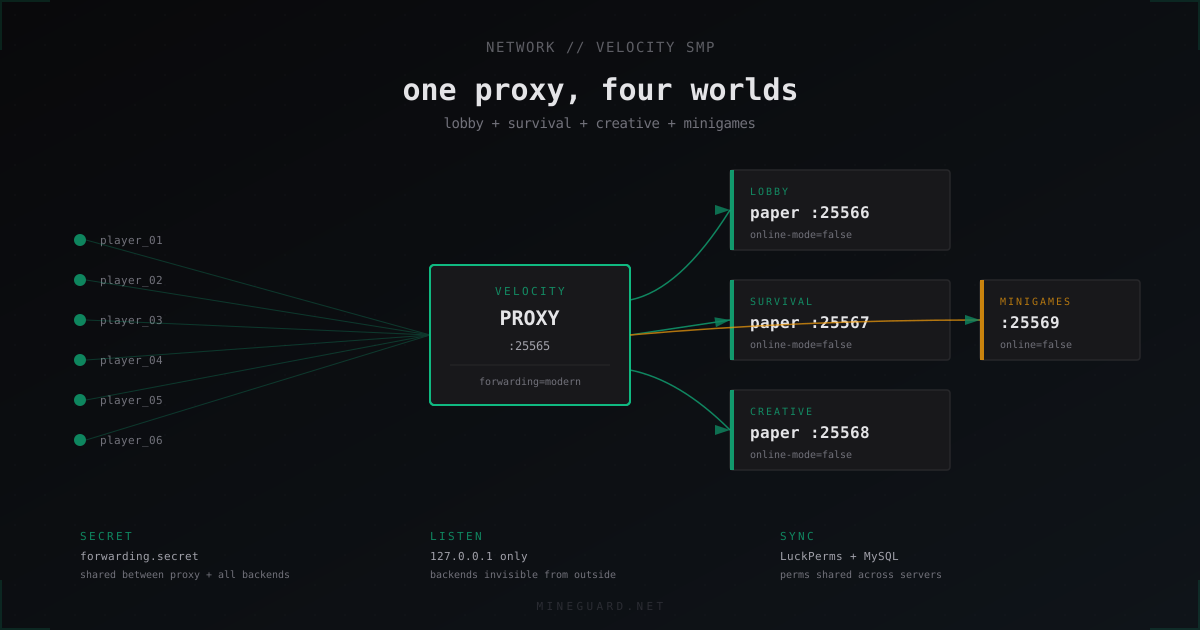
Velocity SMP network: lobby, survival, creative and minigames behind one proxy
How to build a multi-server SMP network on Velocity: velocity.toml setup, modern forwarding, syncing perms and chat between lobby, survival and creative.