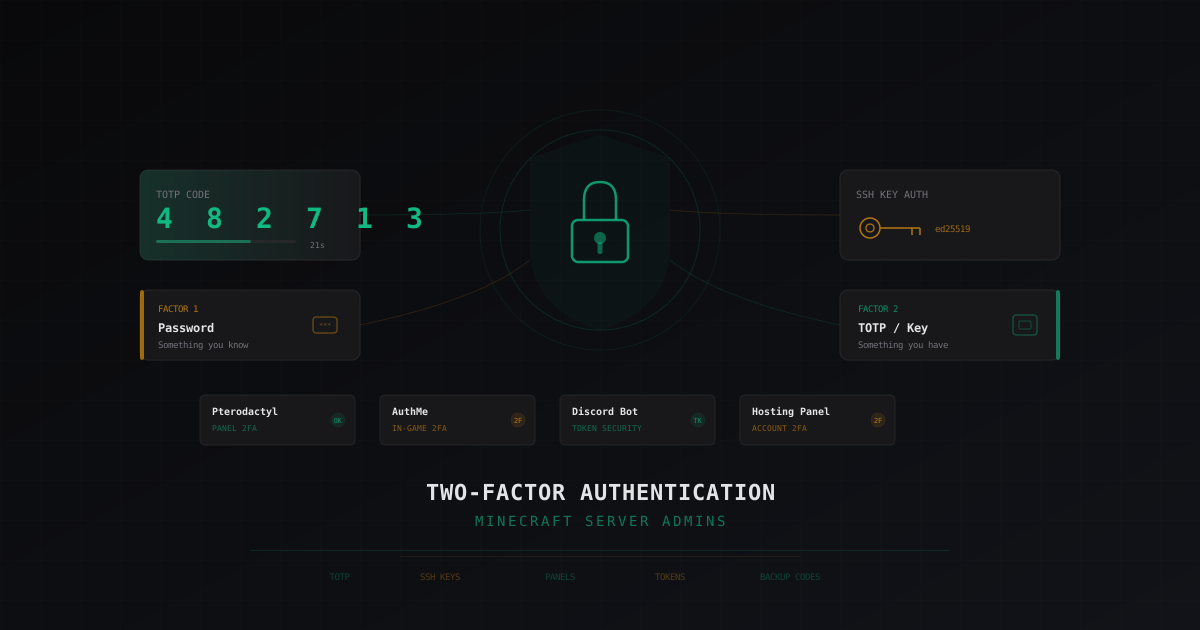
Two-Factor Authentication for Minecraft Server Admins: A Complete Guide
A password is a minimum, not a defense. If you're administering a Minecraft server and still relying only on passwords, here's the bad news: you're one phishing page away from losing everything.
Two-factor authentication (2FA) requires two separate confirmations to log in: something you know (password) and something you have (phone, hardware key). Even if someone learns your password, they can't get in without the second factor. Simple and effective.
In this article, I'll cover every place where a Minecraft server admin needs 2FA and show you how to set it up. No fluff, just concrete steps.
Why admins need 2FA
Let's start with the unpleasant part. Here's what can happen if someone gains access to your account:
Compromised game account:
- Attacker logs in with operator privileges and runs any command
- Deletes or rolls back the world
- Spawns items, cheats, wrecks the economy
- Bans all moderators and players
- Installs malicious plugins with backdoors
Compromised control panel:
- Full server control: start, stop, change settings
- File access - can swap plugins, configs, world files
- Views logs containing player data (IP addresses, usernames)
- Deletes backups
Compromised SSH/hosting:
- Full root access to the machine
- Steals player password databases
- Installs botnet agents and crypto miners
- Uses your server to attack others
These aren't theoretical threats. I've seen servers destroyed in minutes because of a single compromised password. Recovery takes days, rebuilding player trust takes months.
TOTP - the backbone of two-factor auth
TOTP (Time-based One-Time Password) is the standard protocol for generating one-time codes. Your phone app generates a six-digit code every 30 seconds. You enter this code along with your password when logging in.
Why TOTP specifically:
- Works offline on your phone (after initial setup)
- Standard protocol - supported everywhere
- Not tied to a phone number (unlike SMS codes)
- SMS can be intercepted via SIM-swap attacks, TOTP can't
Choosing a TOTP app
There are several options, and picking the right one matters:
Google Authenticator - the most well-known, but not the best. For a long time it didn't support cross-device sync, now it does through your Google account. Simple and functional.
Authy - my recommended choice for most people. Supports encrypted cloud backup, works on multiple devices, has a desktop version. If you lose your phone, you don't lose all your codes.
Aegis Authenticator (Android only) - open-source, stores everything locally, supports encrypted backups. For those who don't trust cloud services.
Bitwarden / 1Password - password managers with built-in TOTP support. Convenient, but there's a catch: if someone gets into your password manager, they get both the password and the TOTP code. Two factors become one.
My advice: keep TOTP codes separate from passwords. If you use a password manager, put TOTP in a separate app.
Setting up 2FA in AuthMe
AuthMe doesn't support 2FA out of the box. You need an additional plugin - 2FA AuthMe or something similar.
Here's how it works:
- Install a 2FA plugin (for example, MCAuthenticator or an equivalent for your version)
- Player (or admin) enables 2FA via an in-game command
- Plugin displays a QR code or secret key
- Scan the QR code with your app (Authy, Google Authenticator)
- Every login after the password now requires a six-digit code
Example MCAuthenticator config:
# config.yml
enforce2FA: false          # true = everyone must enable 2FA
enforceForOps: true        # mandatory for OP
authenticationSteps: 2     # password + TOTP
Tip: enable enforceForOps: true at minimum. You can leave 2FA optional for regular players, but anyone with elevated permissions should be required to use it.
If you're using LibreLogin instead of AuthMe - good news. LibreLogin supports TOTP natively, no extra plugins needed. Just /2fa setup and you're done.
For more on authentication plugins, check out Best Security Plugins for Minecraft 2026.
2FA for control panels
Pterodactyl Panel
Pterodactyl is one of the most popular server management panels, and it supports 2FA natively. There's absolutely no reason not to enable it.
Setup:
- Log into your Pterodactyl account
- Go to Account Settings
- Find the Two-Factor Authentication section
- Click Enable
- Scan the QR code with your TOTP app
- Enter the confirmation code
- Save your backup codes (more on that below)
As a panel admin, you can force all users to enable 2FA through the admin panel settings.
Important: if you're self-hosting Pterodactyl on your VPS, make sure the panel is accessible only via HTTPS. 2FA is pointless if traffic between browser and panel is unencrypted.
More on Pterodactyl security in our Pterodactyl Panel security guide.
AMP (Application Management Panel)
AMP from CubeCoders also supports 2FA:
- Log into AMP
- Configuration -> User Management
- Select your account
- Enable Two-Factor Authentication
- Standard QR code procedure
In AMP, you can require 2FA for all users with admin privileges. I recommend doing this.
Multicraft and other panels
Multicraft in its standard version doesn't support 2FA. If you're on Multicraft, you have two options:
- Switch to Pterodactyl (recommended)
- Use a reverse proxy (nginx) with an additional authentication layer
Most modern hosts use WHMCS or billing panels that support 2FA. Enable it wherever possible.
SSH: keys instead of passwords
If you have a dedicated server or VPS, SSH is the gateway to full control over the machine. And here, passwords are simply not an option.
SSH keys are a pair of cryptographic keys: private (stored on your machine) and public (stored on the server). When connecting, the server verifies you have the correct private key, without sending a password over the network.
Generating an SSH key
ssh-keygen -t ed25519 -C "admin@myserver"
Why ed25519 over RSA:
- Shorter keys with equal or better cryptographic strength
- Faster operations
- No known vulnerabilities related to key length
The private key is saved to ~/.ssh/id_ed25519, the public key to ~/.ssh/id_ed25519.pub.
Installing the key on the server
ssh-copy-id -i ~/.ssh/id_ed25519.pub user@your-server-ip
Disabling password authentication
After installing the key and confirming key-based login works, disable passwords:
# /etc/ssh/sshd_config
PasswordAuthentication no
PubkeyAuthentication yes
ChallengeResponseAuthentication no
UsePAM no
PermitRootLogin prohibit-password
Restart SSH:
sudo systemctl restart sshd
Important: before disabling passwords, verify key login works. Try connecting in a new terminal without closing your current session. If something goes wrong, you can roll back through the existing connection.
SSH key with passphrase
An SSH key by itself is one factor (something you have). Add a passphrase to the key and you get proper two-factor authentication:
ssh-keygen -t ed25519 -C "admin@myserver"
# When prompted for passphrase - enter a strong password
Now using the key requires both the key file and its password. To avoid typing the passphrase every time, use ssh-agent:
eval $(ssh-agent)
ssh-add ~/.ssh/id_ed25519
# Enter password once, agent remembers it
For more on firewall and SSH security, see Setting up iptables for a Minecraft server.
Protecting Discord bot tokens
If you have a Discord bot for your server (and you probably do), its token is yet another entry point. A stolen token lets someone fully control the bot: read messages, ban users, delete channels.
Token protection rules:
Never store the token in code.
# BAD
TOKEN = "MTIzNDU2Nzg5MDEyMzQ1Njc4.GAbcDE.abcdefghijklmnopqrstuvwxyz1234567890"

# GOOD
import os
TOKEN = os.environ.get("DISCORD_TOKEN")
Use .env files and .gitignore:
# .env
DISCORD_TOKEN=MTIzNDU2Nzg5MDEyMzQ1Njc4.GAbcDE.abcdefghijklmnopqrstuvwxyz1234567890
# .gitignore
.env
Enable 2FA on the Discord account that owns the bot. If someone gets into that account, they can reset the bot token or delete it entirely.
Give the bot minimum required permissions. Don't grant administrator if it only needs to send messages.
Check bot logs. If the bot starts doing strange things, reset the token immediately via Discord Developer Portal.
If a token leaks:
- Reset the token immediately in Developer Portal -> Bot -> Reset Token
- Update the token in your bot's configuration
- Check bot logs for suspicious activity
- Verify no webhooks were created or permissions changed
Protecting hosting panel access
Most hosting providers have a client area where you manage servers, billing, and support. This is another critical point.
What to do:
- Enable 2FA in your hosting control panel. Nearly all reputable hosts support TOTP.
- Use a unique password. Not the same one you use on Minecraft forums or Discord.
- Secure the linked email with 2FA. If password recovery uses email, that email needs 2FA protection too.
- Don't share hosting panel access with others. If someone needs server access, use Pterodactyl/AMP with restricted permissions.
- Regularly review active sessions in the control panel and terminate suspicious ones.
If you have a VPS, all SSH recommendations from the previous section apply. Additionally, enable 2FA in your VPS management panel (Hetzner Cloud, OVH, etc.).
For picking a reliable host, check our article on How to choose hosting for a Minecraft server.
Backup codes: don't forget to save them
Backup codes are a set of one-time codes you can use if you lose access to your phone. Without them, losing your phone means losing access.
Rules for backup codes:
- Save them immediately when setting up 2FA. Each service gives you 8-10 backup codes when activating 2FA.
- Store them securely. Ideally, print them and put them in a safe or sealed envelope. Don't store them in Google Docs or phone notes.
- Password manager is acceptable. If you use Bitwarden/1Password, create a separate entry for backup codes.
- Regenerate after use. If you used a backup code, log in and generate a new set.
Recovery scenario: what if your phone is stolen?
- Use a backup code to log in
- Disable 2FA
- Set up 2FA again on the new device
- Update backup codes
If you use Authy, you restore codes from cloud backup on the new device. This is exactly why I recommend Authy over Google Authenticator.
Checklist: where to enable 2FA
Let's wrap up with a summary. Here's every place where a Minecraft server admin needs 2FA:
- Minecraft account (Mojang/Microsoft) - 2FA via Microsoft Authenticator
- Server control panel (Pterodactyl, AMP) - TOTP
- SSH access to the server - keys + passphrase
- Hosting control panel - TOTP
- Discord account (especially if bot owner) - TOTP
- Email linked to accounts - TOTP
- GitHub/GitLab (if you store configs/plugins) - TOTP
- Domain registrar (if you have a custom domain) - TOTP
- In-game auth (AuthMe/LibreLogin) - TOTP for admins
Missed even one item? That's a potential hole. Attackers always look for the weakest link.
Practical tips
A few extra recommendations from experience:
Don't rely on SMS. SMS codes are better than nothing, but they're vulnerable to SIM-swap attacks. Always choose TOTP when given the option.
Regularly audit who has access. Once a month, go through the list of people with panel, SSH, and Discord access. Remove those who no longer need it.
Separate privileges. Don't give one person access to everything. A moderator doesn't need SSH. A builder doesn't need panel access. A developer doesn't need OP on production.
Log all logins. Pterodactyl, AMP, and SSH all support logging. Set up alerts for logins from new IPs.
Test your recovery. Every six months, verify you can recover access using backup codes. Better to find out something's broken now than when your phone is already gone.
More tips on overall server security in our Minecraft server security checklist.
Conclusion
2FA isn't some advanced tech for paranoid people. It's basic hygiene, like washing your hands. Setup takes 10-15 minutes per service, and it protects against 99% of account attacks.
Passwords leak, databases get breached, people fall for phishing. It's inevitable. But with 2FA, even a leaked password doesn't lead to disaster.
Start right now: open the settings of your most important account (Pterodactyl, hosting, Discord) and enable 2FA. Then the next one. And the next. In an hour, you'll have protection that can't be bypassed by simple password guessing.
Protect Your Server from DDoS Attacks
Free protection with 5-minute setup. 1 TB bandwidth included.
Try for FreeRelated Articles
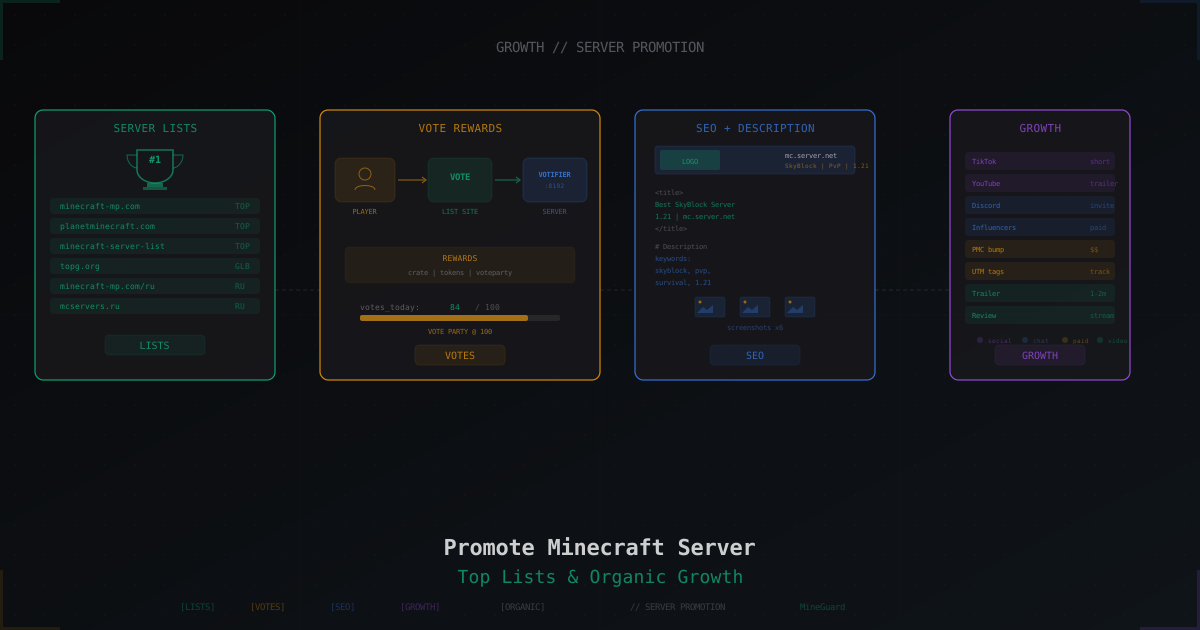
How to Promote a Minecraft Server: Top Lists, Voting and Ads
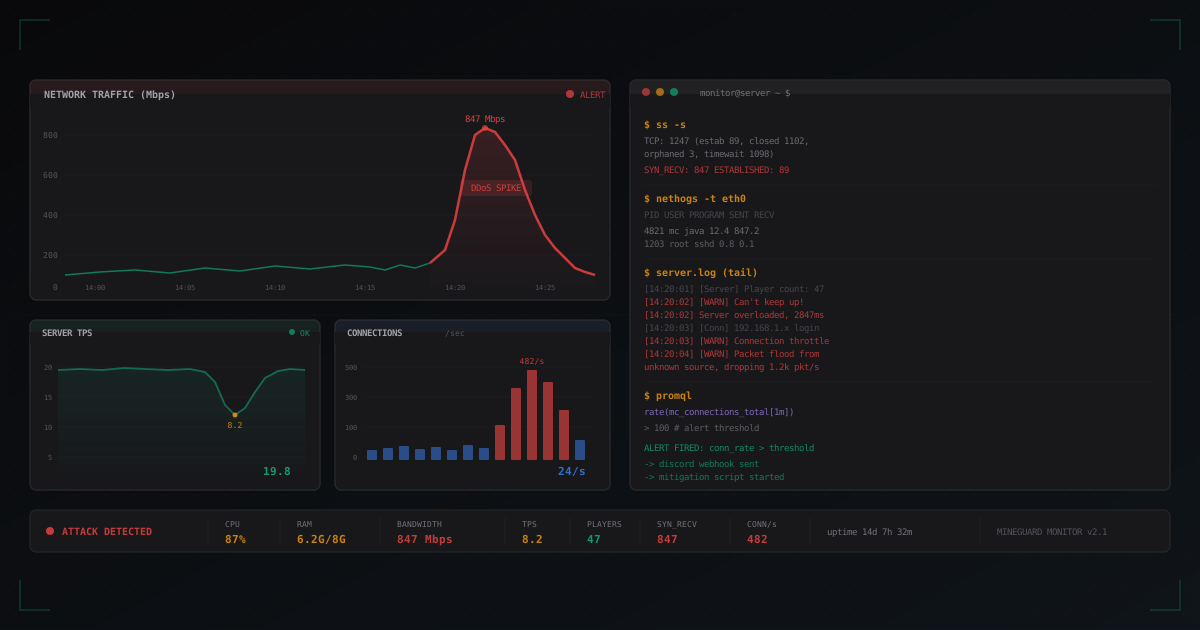
Minecraft Server Monitoring: How to Track Attacks in Real Time
Complete guide to Minecraft server monitoring: from basic Linux tools to Prometheus + Grafana. Which metrics to track, how to set up Discord alerts, and how to automatically respond to DDoS attacks.
DDoS Attack Trends for Minecraft Servers in 2026
Breaking down the top DDoS attack trends for Minecraft servers in 2025-2026: growing volumes, new attack vectors, smart botnets, and how to defend against it all.