Proxy Protocol for Minecraft: Why You Need It and How to Set It Up
What Is Proxy Protocol
When a Minecraft server sits behind a reverse proxy (whether it's DDoS protection, a CDN, or your own proxying server), you run into a fundamental problem: the server sees the proxy's IP address instead of the real player IP. Every connection looks like it's coming from a single address.
Proxy Protocol solves exactly this. It's a straightforward protocol originally developed for HAProxy that passes the original connection information (client IP address and port) at the very beginning of a TCP connection. The proxy prepends a special header before forwarding traffic to the backend, and the backend reads it to find out who actually connected.
There are two versions of the protocol. Proxy Protocol v1 sends data in text format, v2 uses binary. The second version is more compact and faster to parse. Most modern solutions (including MineGuard) use v2.
Why Your Minecraft Server Needs This
Without real IP addresses, a whole set of server mechanics that administrators rely on every day breaks down.
Bans and Moderation
The most obvious case. IP bans are a primary tool for dealing with griefers and cheaters. If the server only sees the proxy's IP, banning a specific player by IP is impossible. Worse, if you try to ban that single IP the server sees, every player gets disconnected.
Geo-blocking and Geo-analytics
Many servers restrict connections by geography. A server might block connections from regions that typically generate bot traffic. Or an event server is open only to a specific region. Without real IPs, geo-filtering doesn't work at all.
Plus analytics: understanding where your players come from is useful for growing your project. Which regions are expanding, where to advertise, whether you need additional server locations.
Plugins and Rate Limits
Tons of plugins depend on player IPs. Connection limits per IP, anti-bot systems, voting systems, account linking. When every player "comes from" the same address, these plugins either don't work or work incorrectly.
Logging
If there's an incident (account compromise, internal attack, rule violation), logs with real IP addresses are the only way to investigate. Logs where everyone shares one IP are useless.
Setting Up Proxy Protocol for Paper
Paper (and its forks like Purpur) support Proxy Protocol starting from relatively recent versions. Configuration depends on which version of Paper you're running.
Paper 1.19.4 and Newer
In the configuration file config/paper-global.yml, find the proxies section:
proxies:
  proxy-protocol: true
Save the file and restart the server. Done.
Older Paper Versions
For versions before 1.19.4, the configuration is in paper.yml:
settings:
  proxy-protocol: true
Important Note
Once Proxy Protocol is enabled, the server expects a PP header from every incoming connection. This means direct connections (without a proxy) will stop working. Don't enable this option before setting up the proxy, or nobody will be able to join the server, including you.
If you're testing on a local machine and connecting directly, you need to either disable PP during testing or connect through the proxy.
Setting Up Proxy Protocol for Velocity
Velocity is a popular proxy server for networks with multiple backend servers. If your architecture looks like "DDoS protection -> Velocity -> Paper", you need to enable PP on Velocity, and then Velocity passes the real IP to backend servers through its own forwarding protocol.
In velocity.toml:
[advanced]
haproxy-protocol = true
After restarting, Velocity will read PP headers from incoming connections.
Proxy Chaining
A typical setup for a protected server:
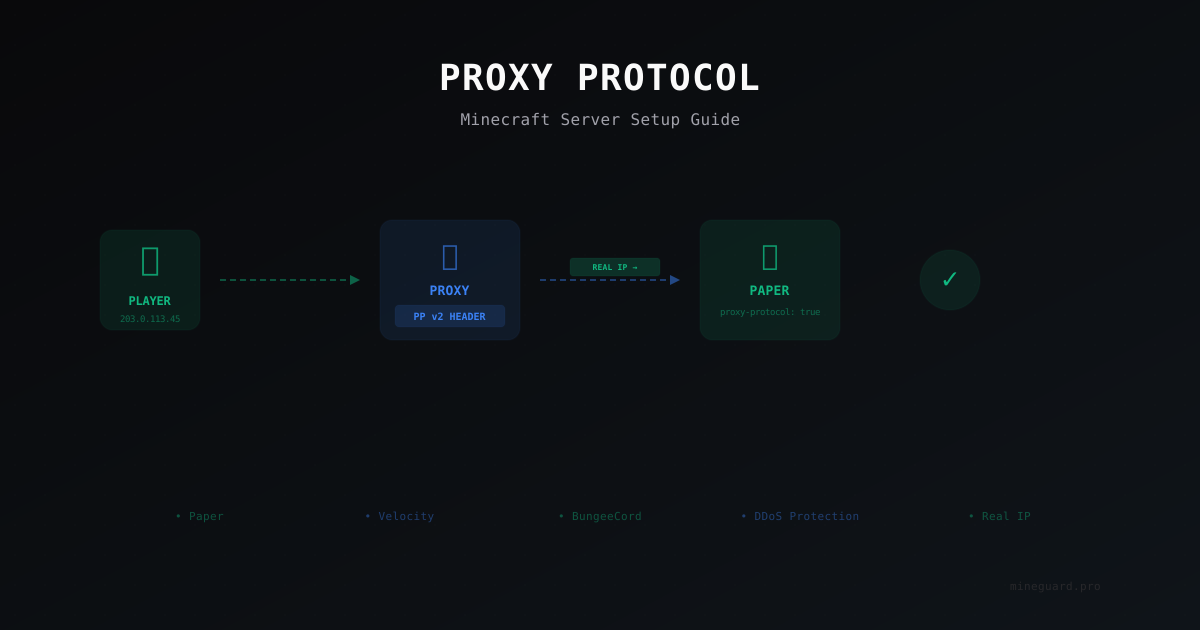
Player → DDoS protection (PP v2) → Velocity (haproxy-protocol = true) → Paper
In this setup, PP is enabled only on Velocity. Paper receives real IPs through Velocity's built-in modern forwarding mechanism. You do not need to enable PP on Paper.
If you don't have Velocity and the architecture is simpler:
Player → DDoS protection (PP v2) → Paper (proxy-protocol = true)
Then PP is enabled directly on Paper.
Do not enable PP on both Velocity and Paper in the same chain. Paper behind Velocity should not expect PP headers.
How Proxy Protocol Works with DDoS Protection
A Minecraft DDoS protection service works as a reverse proxy: it accepts incoming connections on its own IP, filters out malicious traffic, and forwards clean traffic to your real server. Without Proxy Protocol, the server sees the filter's IP instead of the player's IP.
MineGuard supports Proxy Protocol v2. It's enabled with a single checkbox in the control panel under network settings. Once enabled, the filter automatically adds a PP v2 header to every proxied connection, passing the real player IP to your server.
Here's what happens technically:
- A player connects to the protected address (MineGuard filter IP).
- The filter analyzes traffic, filtering out attacks and bots.
- Legitimate connections are proxied to your real server.
- A PP v2 header with the player's IP and port is prepended to the TCP connection.
- Your server (Paper/Velocity) reads the header and sees the real IP.
The entire chain is transparent to the player. They just connect to an address and play, noticing neither the protection nor the proxying.
Common Mistakes When Setting Up Proxy Protocol
Over time, working with Proxy Protocol in the Minecraft context, a few recurring pitfalls have emerged.
Mistake 1: MOTD Not Showing or Displaying Incorrectly
When a Minecraft client sends a Server List Ping request to get the MOTD, it establishes a regular TCP connection. If Proxy Protocol is enabled on the server, but the MOTD request comes without a PP header (for example, from a monitoring tool or directly), the server can't parse the packet and drops the connection.
Solution: make sure all connections to the server go through the proxy that sends the PP header. If you need direct monitoring, use tools that can send PP headers, or monitor through a separate port without PP.
Mistake 2: Double Proxy Protocol
A classic scenario: DDoS protection sends a PP header to Velocity, Velocity forwards the connection to Paper, and Paper also has PP enabled. Paper tries to read a PP header from the data Velocity sends, doesn't find one (because Velocity uses its own forwarding protocol), and crashes or rejects the connection.
The rule is simple: PP is enabled only on the first receiving link in your infrastructure.
- Have Velocity? Enable PP on Velocity, leave Paper without PP.
- No Velocity? Enable PP on Paper.
- Never enable PP on both.
Mistake 3: Forgot to Enable PP on the Server but Enabled It on the Proxy
The proxy sends a PP header, but the server doesn't expect it. The server tries to interpret the header as the beginning of a Minecraft Handshake, can't parse it, and rejects the connection. Players see "Connection refused" or "Can't connect to server."
Mistake 4: Enabled PP on the Server but Forgot on the Proxy
The mirror situation. The server expects a PP header but receives a Minecraft Handshake directly. Same result: connection drops.
Mistake 5: Firewall Blocking Ports or Protocols
PP works on top of regular TCP connections, not on a separate port. But if you have strict firewall rules that only allow connections from specific IPs, make sure the proxy server's IP (or DDoS protection filter's IP) is allowed. This also applies to iptables/nftables rules: they must pass traffic from the proxy.
Verifying It Works
After setup, you need to confirm everything is working correctly. A few ways to do this:
Through Server Logs
Connect to the server and check the logs. If latest.log shows your real IP (not the proxy or filter IP), PP is working.
[Server thread/INFO]: PlayerName[/203.0.113.45:52341] logged in
If the proxy's address appears instead of your IP (for example, an internal IP of your protection service), something is misconfigured.
Through Plugins
A GeoIP plugin or any other plugin that displays a player's IP will show the real address if PP is configured correctly.
Through Commands
On Paper, you can check a connected player's IP via /whois (if you have the appropriate plugin) or through Essentials' /seen <player> command.
Security and Proxy Protocol
There's an important security aspect that's rarely discussed. If your server accepts PP headers, anyone who connects to the server directly (bypassing the proxy) can theoretically spoof their IP by sending a fake PP header.
That's why it's critical to:
-
Block direct access to the server. Use your firewall to allow connections only from your proxy/protection IPs. Block everything else.
-
Don't publish the server's real IP. If an attacker knows your real IP, they can attack you directly, bypassing the protection. Use only the protection address in DNS records and on server listing sites.
-
Check configuration after updates. When updating Paper or Velocity, make sure PP settings haven't been reset to defaults.
When using MineGuard, your server's real IP is known only to the filtering system. Players see only the filter's address, adding an extra layer of protection.
Proxy Protocol and BungeeCord
BungeeCord deserves a separate mention. It also supports Proxy Protocol, but the mechanism differs slightly from Velocity.
In BungeeCord's config.yml:
proxy_protocol: true
It works the same way: BungeeCord starts reading PP headers from incoming connections.
However, if you're choosing between BungeeCord and Velocity, Velocity is preferable for several reasons: it's faster, has better modern forwarding support, and is more actively developed. Proxy Protocol works equally well on both, but overall Velocity is the more modern solution.
Wrapping Up
Proxy Protocol is a simple thing that solves one specific problem: losing real IP addresses during proxying. Without it, you lose the ability to IP-ban, use geo-filtering, collect proper analytics, and fully utilize plugins.
Setup takes a couple of minutes: enable it on the proxy (or DDoS protection), enable it on the receiving server, check logs. Just remember three rules:
- PP is enabled on only one link in the chain.
- Direct access to the server must be blocked by a firewall.
- After enabling PP, direct connections (without a proxy) won't work.
If you're using MineGuard to protect your server, enabling PP v2 takes exactly one click in the panel. Your server keeps seeing real player IPs, and the protection keeps filtering junk traffic. Everyone wins.
Protect Your Server from DDoS Attacks
Free protection with 5-minute setup. 1 TB bandwidth included.
Try for FreeRelated Articles
MythicMobs: Custom Mobs and Bosses Guide for Minecraft
MythicMobs install, YAML format, skills with triggers, drops and spawners. Real boss configs and TPS optimization tips from production.
How to Set Up iptables for a Minecraft Server: Complete Guide
Step-by-step iptables setup for Minecraft server protection: basic rules, rate limiting, port scan defense, connlimit, and persistent configuration. Real command examples with comments.
BetonQuest: Minecraft Server Quest Setup (Complete 2026 Guide)
Full BetonQuest 2.x guide: installation, package layout, conversations, objectives, conditions, events, journal, 1.x migration and TPS bottlenecks.