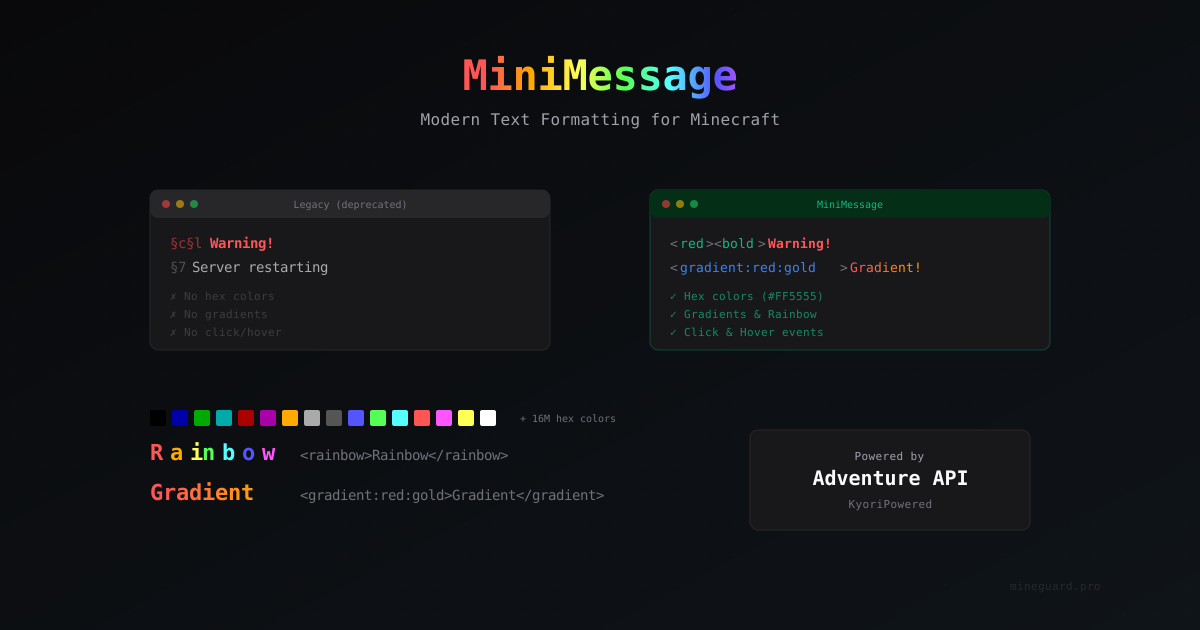
MiniMessage: Modern Text Formatting for Minecraft Servers
If you've ever tried to make a good-looking MOTD for a Minecraft server or a colorful chat message, you've probably dealt with constructions like §6§lWelcome. It works, but it looks like a mess of symbols. Adventure API and its MiniMessage format solve this problem once and for all.
In this article, we'll break down how MiniMessage works, why you should switch from legacy codes, and how to use all of its features - from simple colors to gradients and interactive elements.
What Are Adventure API and MiniMessage
Adventure is a library for working with text components in Minecraft. It was developed by the KyoriPowered team and is now built directly into Paper, Velocity, Sponge, and other popular server platforms.
MiniMessage is a text serialization format within Adventure. If the Component API is the programmatic way to build text from objects in Java code, MiniMessage is a way to write the same thing as a single string in a config or message.
Instead of this:
Component.text("Hello")
    .color(NamedTextColor.GOLD)
    .decorate(TextDecoration.BOLD)
    .append(Component.text(" world").color(NamedTextColor.GREEN))
You write:
<gold><bold>Hello</bold> <green>world</green>
The result is identical, but the second version can go straight into a YAML config and any admin will understand what's going on.
Why §-Codes Are Outdated
Legacy codes with the § symbol (or & in plugins that replace it automatically) have been around since Minecraft beta. They have several serious problems:
Only 16 colors. You're limited to a palette of 16 preset colors. No hex values, no shades - just §a green, §c red, and so on.
No nesting. Formatting is linear. If you write §l§6Text§r, the reset §r wipes everything - both color and bold. You have to re-specify the color after every reset.
No interactivity. Legacy codes don't support click events, hover tooltips, or other chat component features. It's just flat text with colors.
Hard to read. The string §6§l✦ §e§lServer §6§l✦ §7- §fWelcome! - try understanding what's happening at first glance.
MiniMessage solves all of these problems. At the same time, most tools that support MiniMessage maintain backward compatibility with legacy codes. You can transition gradually.
Basic MiniMessage Syntax
The core principle is simple: tags in angle brackets open formatting, tags with / close it.
Named Colors
<red>Red text</red>
<gold>Gold text</gold>
<dark_purple>Dark purple</dark_purple>
All 16 standard Minecraft colors are available: black, dark_blue, dark_green, dark_aqua, dark_red, dark_purple, gold, gray, dark_gray, blue, green, aqua, red, light_purple, yellow, white.
Hex Colors
This is what makes many people switch to MiniMessage. The full palette of 16 million colors:
<#FF5555>Custom red</#FF5555>
<color:#00AAFF>Blue shade</color>
<#FFD700>Gold</#FFD700>
Two notation styles - both work the same way. Hex colors open up huge possibilities for server branding.
Text Decoration
<bold>Bold</bold> or shortened <b>Bold</b>
<italic>Italic</italic> or <i>Italic</i>
<underlined>Underlined</underlined> or <u>Underlined</u>
<strikethrough>Strikethrough</strikethrough> or <st>Strikethrough</st>
<obfuscated>Obfuscated</obfuscated> or <obf>Obfuscated</obf>
Tags can be combined:
<bold><red>Bold red</red></bold>
<#FF0000><b><u>Red bold underlined</u></b></#FF0000>
Resetting Formatting
The <reset> tag clears all formatting. But usually you don't need it - just close the tag and the formatting ends on its own.
<red><bold>Bold red</bold> just red</red> normal text
Gradients and Effects
This is where MiniMessage really shows its strength. Try making a gradient with legacy codes - that's dozens of characters with manually picked colors for each letter. In MiniMessage, it's a single line.
Gradient Text
<gradient:red:gold>Smooth transition from red to gold</gradient>
<gradient:#FF0000:#00FF00:#0000FF>Three-color gradient</gradient>
<gradient:green:blue:purple>Green through blue to purple</gradient>
The gradient automatically distributes across all characters in the text. You can specify two, three, or more colors - transitions will be evenly spaced.
Rainbow
<rainbow>Text in all rainbow colors</rainbow>
<rainbow:2>Rainbow with a different phase</rainbow>
The phase parameter (the number after the colon) shifts the starting color of the rainbow. Useful when you have multiple rainbow elements and don't want them all starting with the same color.
Transition
<transition:red:gold:0.5>Color at 50% between red and gold</transition>
Unlike gradient, transition applies a single color to the entire text - calculated as an intermediate value between the specified colors.
Interactive Elements
MiniMessage supports all Minecraft chat component features. This works in chat, books, the tab list, and other places where the client renders JSON text.
Click Events
<click:open_url:'https://example.com'>Open website</click>
<click:run_command:'/spawn'>Click to teleport</click>
<click:suggest_command:'/msg '>Send a message</click>
<click:copy_to_clipboard:'Copied text'>Copy</click>
Click event types:
open_url- opens a link in the browserrun_command- executes a command as the playersuggest_command- inserts text into the chat barcopy_to_clipboard- copies text to clipboard
Hover Tooltips
<hover:show_text:'This is a tooltip'>Hover over me</hover>
<hover:show_text:'<red>Red tooltip'>Hover</hover>
MiniMessage formatting works inside hover text too. You can make colorful, multi-line tooltips:
<hover:show_text:'<gold>Enchanted Sword
<gray>Damage: <red>+15
<gray>Durability: <green>1500/1500'>⚔ Dragon Sword</hover>
Combining Everything
The real power comes from combining features:
<click:open_url:'https://example.com'><hover:show_text:'<aqua>Visit website'><gradient:gold:yellow><bold>Our Website</bold></gradient></hover></click>
This creates text with a gradient that shows a tooltip on hover and opens a link on click.
Special Tags
Translatable Text
<translatable:block.minecraft.diamond_block>
Displays the block name in the player's client language. Useful for multilingual servers.
Keybind
Press <keybind:key.sneak> to crouch
Shows the key bound to that action for each specific player.
Selector
<selector:@p> - nearest player
Insertion
<insertion:'Text to insert'>Shift+Click me</insertion>
On Shift+Click, inserts the specified text into the chat bar.
Real-World Examples
Server MOTD
<gradient:#FF6B35:#FFD700><bold>MYSERVER</bold></gradient> <dark_gray>- <gray>Survival 1.21
<aqua>▸ <white>New season! <green>Online: <yellow>42
Welcome Message
<gradient:gold:yellow>✦ Welcome, </gradient><green><bold>%player%</bold></green><gradient:yellow:gold> ✦</gradient>
<gray>Enjoy your time on the server!
<dark_gray>▸ <click:run_command:'/rules'><hover:show_text:'<yellow>Click to read'><aqua>Rules</aqua></hover></click> <dark_gray>▸ <click:open_url:'https://discord.gg/example'><hover:show_text:'<#7289DA>Our Discord'><#7289DA>Discord</#7289DA></hover></click>
Kick Message
<red><bold>Disconnected from server</bold></red>

<gray>Reason: <white>%reason%
<dark_gray>Contact us on <click:open_url:'https://discord.gg/example'><aqua>Discord</aqua></click>
Where MiniMessage Is Used
Paper and Its Forks
Paper (and forks like Purpur, Pufferfish, Folia) has Adventure API built in. Any plugin can use MiniMessage directly:
MiniMessage mm = MiniMessage.miniMessage();
Component message = mm.deserialize("<gold>Hello, <green>" + playerName);
player.sendMessage(message);
Many modern plugins already support MiniMessage in their configs: EssentialsX, LuckPerms (in some contexts), TAB, DeluxeChat, and others.
Velocity
Velocity is also built on Adventure API. MiniMessage works in configs and plugins for Velocity. MOTD, kick messages, server switch messages - everything supports this format.
MineGuard
The DDoS protection service MineGuard supports MiniMessage in all custom messages. Proxy MOTD, block kick messages, captcha verification messages - you can use both MiniMessage tags and legacy §/& codes everywhere. This lets you customize the look of your protection to match your server's style, including gradients and hex colors.
BungeeCord / Waterfall
BungeeCord doesn't use Adventure natively, but bridge libraries exist (adventure-platform-bungeecord) that let plugins work with MiniMessage.
Tools for Working with MiniMessage
MiniMessage Web Viewer
The main tool is webui.advntr.dev. It's an online editor where you can:
- Write MiniMessage markup and see the result in real time
- Check syntax correctness
- Test gradients and color combinations
- Experiment with hover and click events
I highly recommend keeping this tab open when configuring your server.
MiniMessage API in Code
For plugin developers:
// Basic usage
MiniMessage mm = MiniMessage.miniMessage();
Component parsed = mm.deserialize("<red>Message");

// With placeholders (safe from injection)
Component parsed = mm.deserialize(
    "Hello, <name>!",
    Placeholder.unparsed("name", playerName)
);

// With component placeholders
Component parsed = mm.deserialize(
    "Hello, <name>!",
    Placeholder.component("name", playerNameComponent)
);
Note the Placeholder.unparsed() - this is important for security. If you substitute user input directly into the string, a player could insert MiniMessage tags. unparsed escapes them.
Converting from Legacy
If you already have a bunch of messages in legacy format, you can convert programmatically:
LegacyComponentSerializer legacy = LegacyComponentSerializer.legacySection();
Component component = legacy.deserialize("§6§lText");
String miniMessage = MiniMessage.miniMessage().serialize(component);
Common Mistakes
Unclosed tags. MiniMessage is strict about tag pairing. <bold>Text without </bold> can lead to unexpected behavior. Always close your tags.
Wrong closing order. Tags close in reverse order, like HTML:
Correct: <bold><red>Text</red></bold>
Wrong: <bold><red>Text</bold></red>
Quotes in click/hover. If your tooltip text contains quotes, use different quote types:
<hover:show_text:"Text with 'single' quotes">Hover</hover>
Spaces in tags. Don't put spaces inside tags: <bold> is correct, < bold > won't work.
Style Tips
A few recommendations that come with experience:
-
Don't overdo the colors. Rainbow text everywhere isn't stylish. Pick 2-3 main colors for your server and stick to them.
-
Gradients are for headings. Use gradients for server names and section headers. Simple colors work better for regular text.
-
Hover for useful info. Don't add hover just for the sake of it. Tooltips should provide additional information.
-
Test on different clients. Bedrock clients through Geyser may render text differently. Check this if you have a cross-platform server.
-
Use variables. Instead of hardcoding colors, create templates. If you decide to change your server's main color, you'll only need to change it in one place.
Wrapping Up
MiniMessage is where the Minecraft server ecosystem is heading. Paper has fully transitioned to Adventure API, Velocity was built on it from the start, and more and more plugins and services (including MineGuard) are adding support for this format.
If you're still using §-codes, it's time to try MiniMessage. Start with webui.advntr.dev, experiment with gradients and hover tooltips. Once you get used to the syntax, you won't want to go back.
Protect Your Server from DDoS Attacks
Free protection with 5-minute setup. 1 TB bandwidth included.
Try for FreeRelated Articles
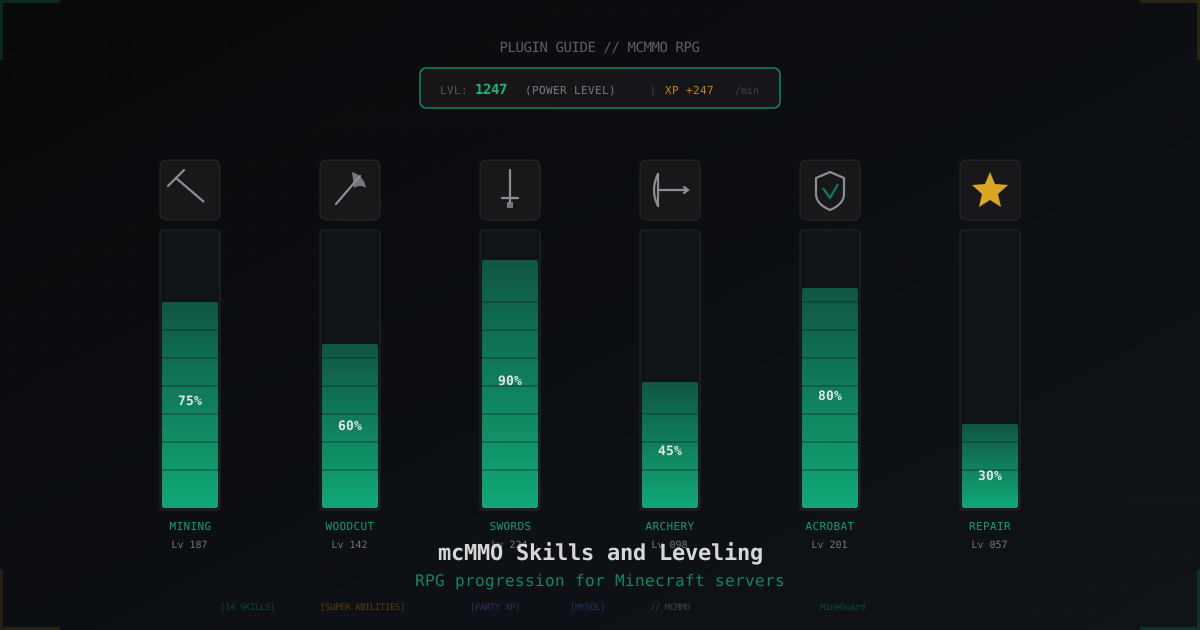
mcMMO: RPG Skills and Leveling on Your Minecraft Server
mcMMO guide: 14 skills, super abilities, party system, MySQL storage, and anti-cheat compatibility on Paper 1.20-1.21.
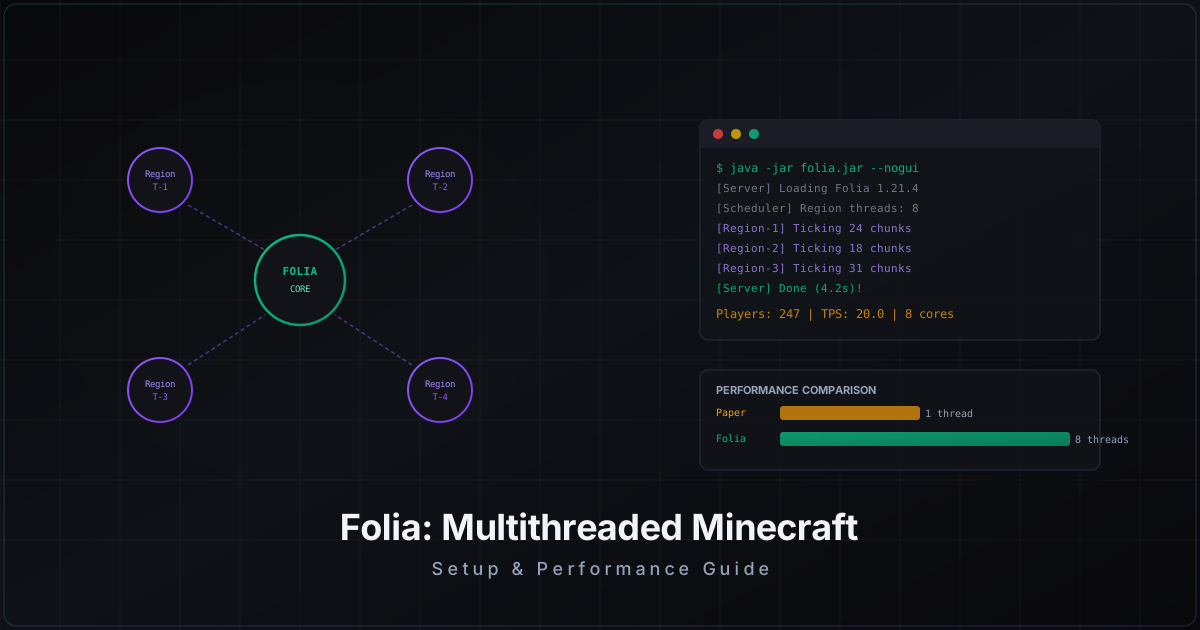
Folia: Complete Guide to Multithreaded Minecraft Server
Folia by PaperMC splits the world into regions and ticks each one on a separate thread. We break down when Folia actually makes sense, how to set it up, and which plugins are compatible.
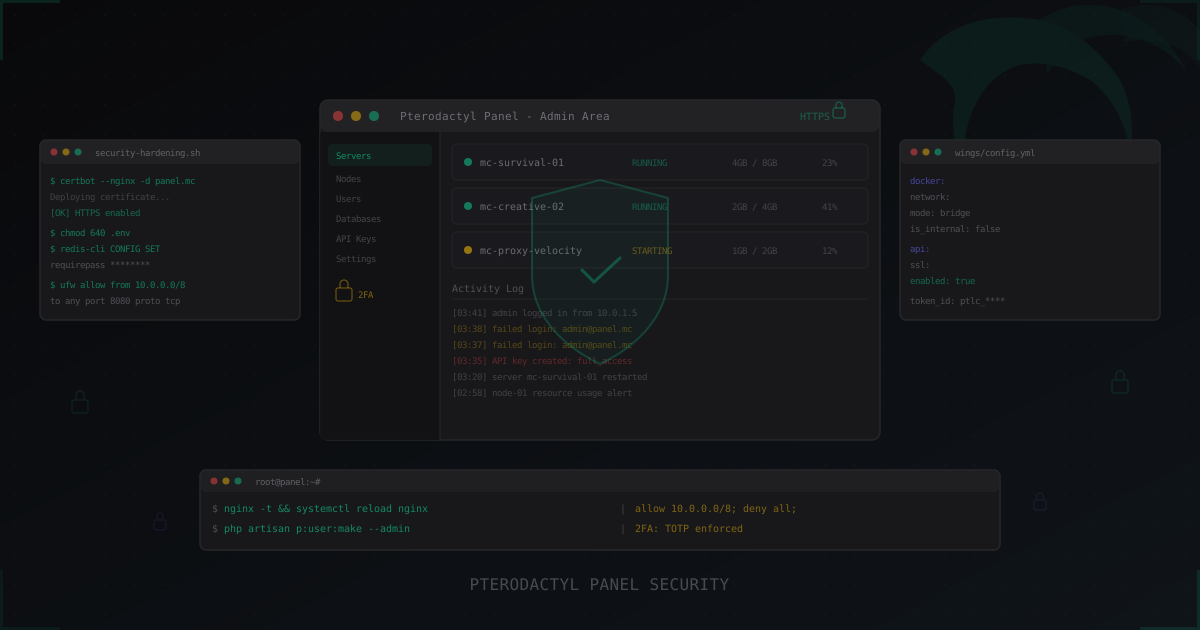
Pterodactyl Panel Security: How to Secure Your Server Management Panel
Complete guide to securing Pterodactyl Panel: SSL, 2FA, Wings hardening, Docker isolation, database and Redis security, API key management, monitoring, and brute-force protection. Plus a look at Pelican as the Pterodactyl successor.