Minecraft Server Not Starting: 11 Causes and Fixes
You hit start on your Minecraft server and it just... doesn't work. The console throws an error or closes after a second. Sound familiar? In this guide, I will walk you through the 11 most common reasons a Minecraft server refuses to start and show you how to fix each one step by step.
1. Wrong Java Version
This is the number one cause. Minecraft 1.21 and newer requires Java 21. If you have Java 17 or, worse, Java 8 installed, the server simply will not start. You will see something like:
Error: LinkageError occurred while loading main class
java.lang.UnsupportedClassVersionError
How to check your Java version:
java -version
How to fix:
- Minecraft 1.21+ - requires Java 21
- Minecraft 1.17-1.20.x - requires Java 17
- Minecraft 1.16.5 and older - Java 8 or 11
On Linux, install the correct version:
sudo apt install openjdk-21-jre-headless
If you have multiple Java versions installed, specify the path explicitly in your startup script:
/usr/lib/jvm/java-21-openjdk-amd64/bin/java -jar server.jar
2. Not Enough RAM
The server may crash immediately on startup or after a few seconds if it does not have enough memory. The typical error looks like this:
java.lang.OutOfMemoryError: Java heap space
How to fix: Configure the -Xmx and -Xms flags in your startup script:
java -Xmx4G -Xms4G -jar server.jar nogui
Memory recommendations:
- 1-10 players: minimum 2 GB
- 10-30 players: 4-6 GB
- 30-100 players: 6-10 GB
- 100+ players: 10+ GB
Important: do not allocate all available memory on the machine to the server. Leave at least 1-2 GB for the operating system.
3. Port Already in Use
If another process is already running on port 25565, you will get this error:
FAILED TO BIND TO PORT!
The exception was: java.net.BindException: Address already in use
How to check who is using the port (Linux):
sudo lsof -i :25565
On Windows:
netstat -ano | findstr :25565
How to fix:
- Kill the previous server process
- Or change the port in
server.properties:server-port=25566
4. Corrupted World Files
If the level.dat file is corrupted, the server cannot load the world. The error might look like:
java.io.IOException: Not a valid NBT file
Failed to load world data from level.dat
How to fix:
- Find the
level.dat_oldfile in your world folder - this is an automatic backup - Delete the corrupted
level.dat - Rename
level.dat_oldtolevel.dat - Start the server
Tip: always make regular world backups. This will save you not only from file corruption but from many other problems as well.
5. Plugin Conflicts After Update
Updated your server or plugins and everything broke? This is a classic scenario. A plugin written for an older API can cause a crash during loading.
How to diagnose:
- Move all plugins from the
plugins/folder to a temporary folder - Start the server without plugins
- If it works, add plugins back one by one, restarting the server each time
- When you find the problematic one, update it or replace it with an alternative
Check plugin compatibility with your server version before updating. Most developers list supported versions on their download page.
6. EULA Not Accepted
On the first launch, Minecraft creates an eula.txt file. Until you accept the license agreement, the server will not start:
You need to agree to the EULA in order to run the server.
Go to eula.txt for more info.
How to fix: Open eula.txt and change:
eula=true
7. Permission Issues on Linux
On Linux servers, the user running the server often lacks read or write permissions for required files.
java.io.FileNotFoundException: ./server.properties (Permission denied)
How to fix:
# Check file ownership
ls -la

# Change owner to your user
sudo chown -R minecraft:minecraft /home/minecraft/server/

# Set correct permissions
chmod -R 755 /home/minecraft/server/
Never run a Minecraft server as root. Create a dedicated user for it.
8. Firewall Blocking the Port
Server started but players cannot connect? The firewall might be blocking the port.
Check and open the port on Linux (UFW):
sudo ufw status
sudo ufw allow 25565/tcp
With iptables:
sudo iptables -A INPUT -p tcp --dport 25565 -j ACCEPT
Also check your hosting provider's firewall settings. Many VPS providers have an additional firewall in their control panel.
9. "Failed to Bind to Port" Error
This error is different from "port already in use." It can occur when:
- The IP address specified in
server.propertiesdoes not exist on the server - The address format is incorrect
How to fix: In server.properties, leave the server-ip field empty:
server-ip=
This forces the server to listen on all available interfaces (0.0.0.0).
10. Server Crashes on Startup
If the server begins loading but crashes during the process, the answer is almost always in the logs.
Where to look:
- Main log:
logs/latest.log - Crash reports: the
crash-reports/folder
What to look for:
- Lines containing
ERROR,FATAL,Exception - The last lines before the crash - that is usually where the cause is
- A plugin or mod name in the stack trace - that is the culprit
# Quick error search in logs
grep -i "error\|exception\|fatal" logs/latest.log
11. How to Read Crash Reports
Minecraft crash reports contain a lot of useful information. Here is what to look for:
---- Minecraft Crash Report ----
Time: 2026-04-06 12:34:56
Description: Exception in server tick loop

java.lang.NullPointerException: ...
    at com.example.plugin.MainClass.onEnable(MainClass.java:42)
    at org.bukkit.plugin.java.JavaPlugin.setEnabled(JavaPlugin.java:281)
Breaking it down:
- Description - a brief summary of the problem
- Error type (NullPointerException, OutOfMemoryError, etc.) - the category of the issue
- Stack trace - the chain of calls. Look for lines with your plugin names
- System Details (at the bottom) - Java version, OS, memory amount
If you cannot figure it out on your own, copy the full crash report text and post it on the problematic plugin developer's forum or on SpigotMC.
Startup Troubleshooting Checklist
If your server will not start, go through this list:
- Check your Java version (
java -version) - Make sure enough RAM is allocated (-Xmx)
- Check if the port is already in use
- Look at
eula.txt - Verify file permissions
- Check
logs/latest.log - Try starting without plugins
- Check
server.propertiesfor typos
In most cases, the issue is resolved within the first three steps.
Server Starts but Players Cannot Join
If the server runs fine but players cannot connect, the problem is usually network-related: closed ports, NAT, firewall. But if connections drop during a DDoS attack, no port configuration will help. At MineGuard, we provide DDoS protection for Minecraft servers - filtering malicious traffic before it reaches your server. If attacks are preventing players from joining, it is worth considering specialized protection.
Conclusion
Most Minecraft server startup problems have simple solutions. The key is learning to read logs and work methodically. Check your Java version, allocate enough memory, keep plugins up to date, and make backups. This will save you from 90% of the headaches of server administration.
Protect Your Server from DDoS Attacks
Free protection with 5-minute setup. 1 TB bandwidth included.
Try for FreeRelated Articles
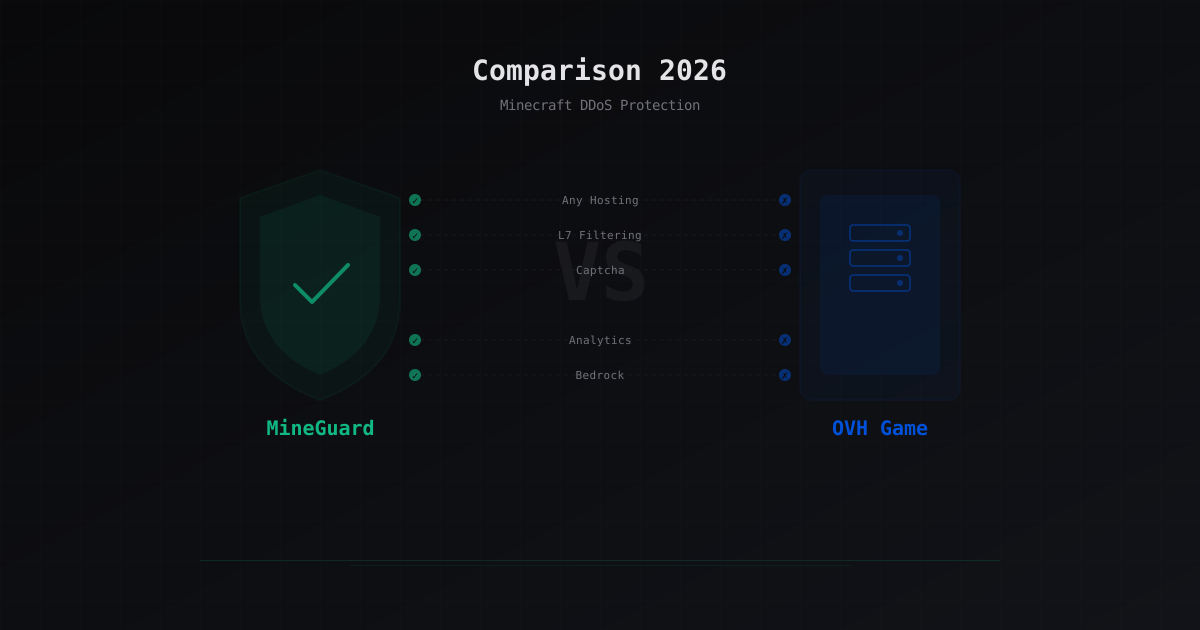
MineGuard vs OVH Game DDoS Protection: Which Is Better for Minecraft
I compare MineGuard and OVH Game DDoS Protection for Minecraft servers. Breaking down differences in approach, L7 attack filtering, captcha capabilities, analytics, and hosting lock-in. Honest comparison with feature table.
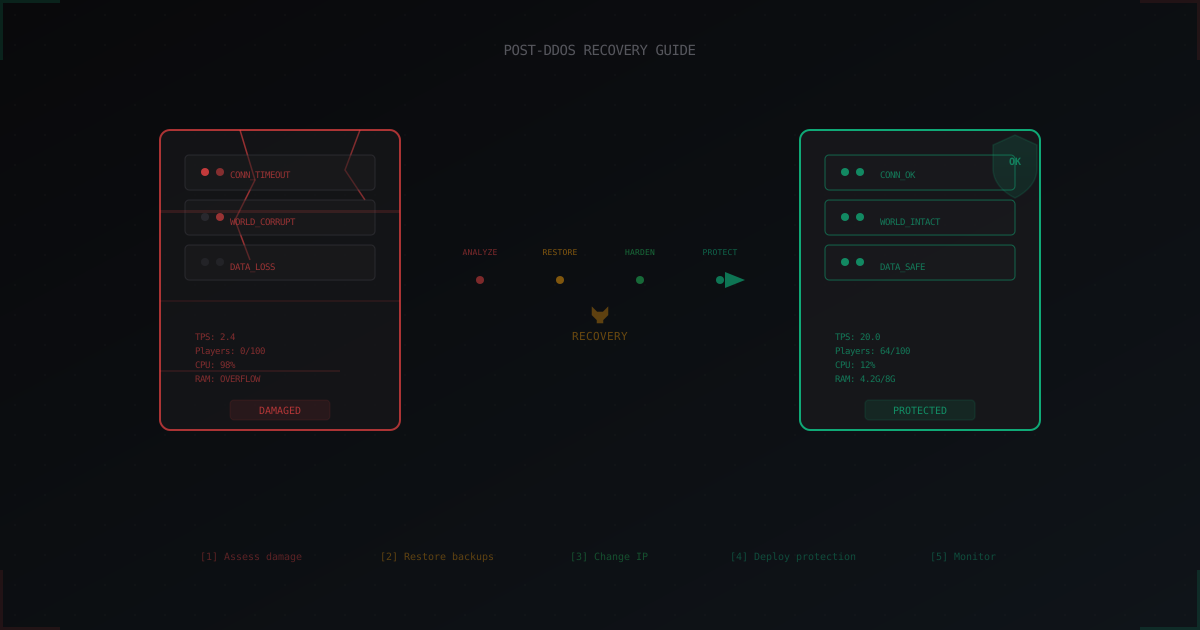
After a DDoS Attack: How to Recover Your Minecraft Server and Prevent Repeats
Step-by-step guide to recovering a Minecraft server after a DDoS attack: data integrity checks, log analysis, IP rotation, protection setup, and a post-mortem template for admins.
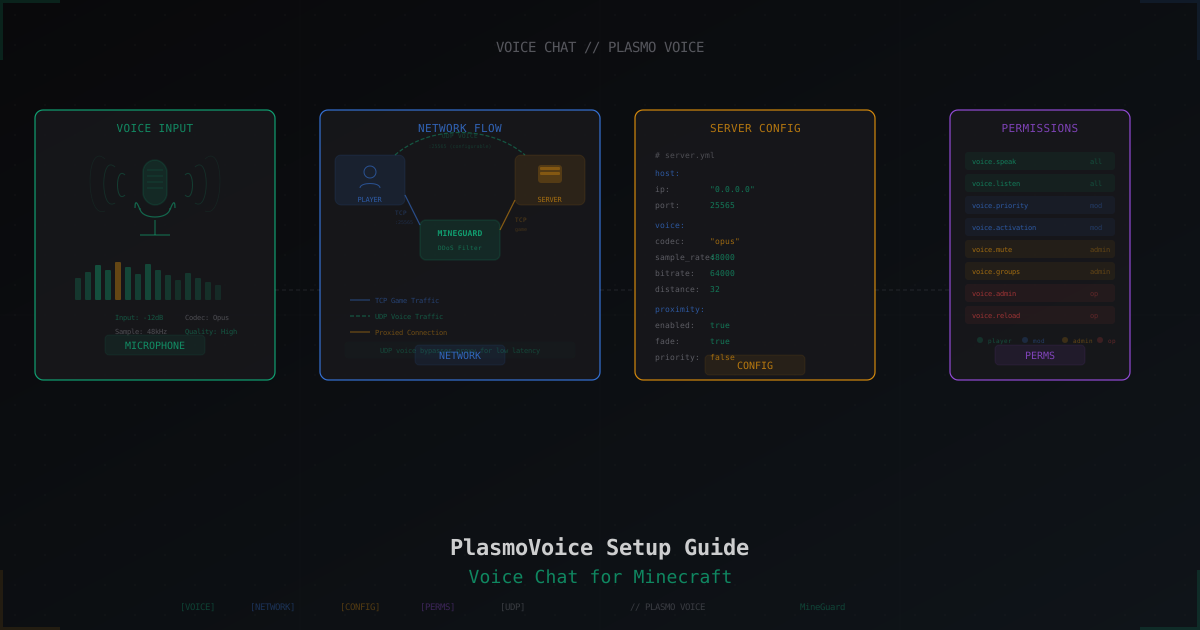
How to Set Up PlasmoVoice on a Minecraft Server
Complete PlasmoVoice setup guide: installation on Paper, Fabric, Forge, UDP port configuration, permissions, activation modes, proximity chat, encryption, and troubleshooting common issues.