Minecraft Server Monitoring: How to Track Attacks in Real Time
Your Minecraft server is running great. Players are building, PvP arenas are buzzing, everything is stable. Then suddenly it all goes down. Players complain about lag, the console is flooded with errors, TPS drops to zero. What happened? Without monitoring, you won't know until it's too late.
Monitoring isn't a luxury for big projects. It's a baseline necessity for any server that accepts players from the internet. In this article, we'll cover everything: from simple terminal commands to a full stack with Prometheus and Grafana, Discord alerts, and automated response scripts.
Why Monitor at All
Simple answer: early detection = fast response. A DDoS attack you spot in 30 seconds is one thing. An attack you learn about 15 minutes later from Discord complaints is a completely different situation.
Without monitoring you're blind. You don't know if the server load is normal or anomalous. You can't tell the difference between lag and an attack. You can't prove to your host that the problem is on their side.
Monitoring gives you three things:
- Visibility - you know what's happening on the server right now
- History - you can look at what happened yesterday, last week, last month
- Automation - the system reacts to anomalies while you sleep
Key Metrics to Watch
Not all metrics are equally important. Here are the ones to prioritize.
Network Metrics
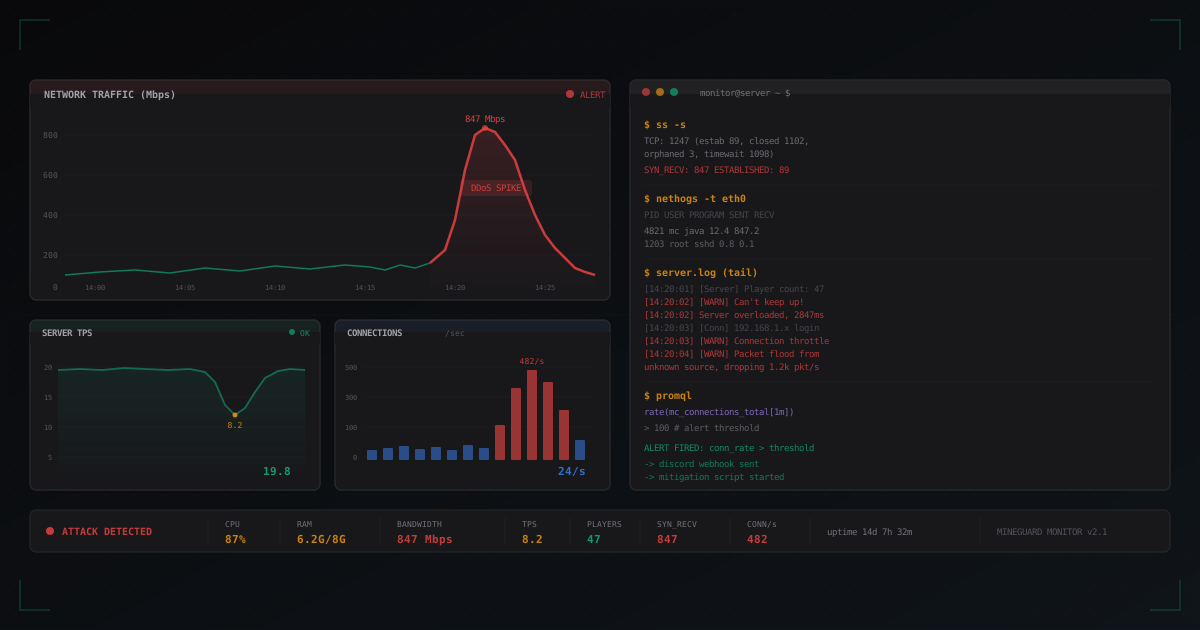
Connections per second (CPS) - the number of new TCP connections per second. Normal for an average server: 1-10 per second. If you see 100+, something's off. 1000+ is almost certainly an attack.
Bandwidth (Mbps) - bandwidth consumption. Minecraft doesn't use much traffic. 50 players generate roughly 10-20 Mbps. If you see 500+ Mbps with 50 players, it's not the players.
Packet rate (pps) - packets per second. Important for detecting packet floods that might not create high traffic volume but kill the CPU with processing overhead.
Server Metrics
CPU - processor load. Minecraft is single-threaded in its main loop, so watch the load on specific cores. One core at 100% while others are free is normal MC behavior under load. All cores maxed out points to a network problem.
RAM - memory usage. Watch not just total usage but GC (garbage collector) behavior. Frequent GC pauses kill TPS.
Disk I/O - read/write activity. Minecraft generates heavy I/O when saving chunks and player data. High I/O wait means lag regardless of attacks.
Minecraft-Specific Metrics
TPS (Ticks Per Second) - the primary health metric for an MC server. 20 TPS = perfect. 18-19 = fine. Below 15 = players start noticing lag. Below 10 = unplayable.
Player count - a sudden jump in connections without organic growth is a red flag. Bot attacks often look like a sharp spike in online count.
Chunk loading - chunk load speed. Slow chunk loading can indicate both an attack and a disk problem.
Basic Linux Tools
Let's start with what's available on any Linux server. No installation required, instant results.
htop: CPU and Memory in Real Time
htop -p $(pgrep -d, java)
This shows only Java processes (your MC server). Watch for:
- %CPU per core
- RES (actual RAM usage)
- VIRT vs RES (VIRT being much higher than RES is normal for Java)
iftop: Network Traffic
sudo iftop -i eth0 -n -P
The -n flag disables DNS resolution (speeds things up), -P shows ports. You'll see who's sending traffic and how much.
nethogs: Traffic by Process
sudo nethogs eth0
Shows which process is consuming traffic. If java is eating 500 Mbps when it normally uses 20, that's a problem.
vnstat: Traffic History
# Install
sudo apt install vnstat

# Today's stats
vnstat -d

# Real-time monitoring
vnstat -l -i eth0
vnstat collects traffic statistics and stores them. This lets you spot patterns: "how much traffic was there yesterday at this same time?"
Connection Analysis with ss
This is your primary tool for diagnosing network attacks. ss is faster than netstat and preferred on modern systems.
Connection Summary
ss -s
Output looks something like:
TCP: 1247 (estab 89, closed 1102, orphaned 3, timewait 1098)
If closed or timewait significantly exceeds estab, that's a sign of SYN flood or connection flood.
Count Connections by State
ss -tan | awk '{print $1}' | sort | uniq -c | sort -rn
Normal:
     89 ESTAB
     12 TIME-WAIT
      3 LISTEN
      1 SYN-SENT
Not normal (attack):
    847 SYN-RECV
     89 ESTAB
    203 TIME-WAIT
      3 LISTEN
847 connections in SYN-RECV state is a textbook SYN flood.
Top IPs by Connection Count
ss -tan | awk '{print $5}' | cut -d: -f1 | sort | uniq -c | sort -rn | head -20
If one IP has 200+ connections to your server, it's either a proxy or an attack. A normal player has 1-3 connections.
Prometheus + Grafana: Serious Monitoring
Basic tools are great for manual diagnosis. But for continuous monitoring with history and alerts, you need a proper stack.
Prometheus Setup
wget https://github.com/prometheus/prometheus/releases/download/v2.51.0/prometheus-2.51.0.linux-amd64.tar.gz
tar xvf prometheus-2.51.0.linux-amd64.tar.gz
cd prometheus-2.51.0.linux-amd64
Configuration prometheus.yml:
global:
  scrape_interval: 15s

scrape_configs:
  - job_name: 'node'
    static_configs:
      - targets: ['localhost:9100']

  - job_name: 'minecraft'
    static_configs:
      - targets: ['localhost:9225']
    metrics_path: /metrics
Node Exporter for System Metrics
sudo tee /etc/systemd/system/node_exporter.service << EOF
[Unit]
Description=Node Exporter
After=network.target

[Service]
User=prometheus
ExecStart=/opt/node_exporter/node_exporter
Restart=always

[Install]
WantedBy=multi-user.target
EOF

sudo systemctl enable --now node_exporter
Minecraft Exporter
Install UnifiedMetrics or PrometheusExporter plugin on your MC server. After that, metrics are available on the configured port (usually 9225):
mc_tps 19.8
mc_players_online 47
mc_loaded_chunks 12847
mc_entities_total 8923
Useful Grafana Queries
New TCP connections per second:
rate(node_netstat_Tcp_PassiveOpens[1m])
Bandwidth consumption:
rate(node_network_receive_bytes_total{device="eth0"}[1m]) * 8
CPU usage per core:
100 - (avg by(cpu) (rate(node_cpu_seconds_total{mode="idle"}[1m])) * 100)
Spark Profiler
Spark is a profiler built specifically for Minecraft. It shows exactly what's slowing your server down.
/spark tps          - current TPS
/spark health       - overall server health
/spark profiler     - start profiling
/spark profiler --stop  - stop and generate report
/spark gc           - garbage collection info
During an attack, TPS usually drops sharply, not gradually. That's the key difference from plugin issues or natural load.
Log Analysis
Minecraft server logs contain a wealth of diagnostic information.
Patterns Indicating an Attack
# "Can't keep up!" messages
grep "Can't keep up" logs/latest.log | tail -20

# Rapid connects/disconnects (bot attack signature)
grep -E "(logged in|lost connection)" logs/latest.log | tail -40
If you see hundreds of "logged in" followed immediately by "lost connection" within the same second, that's a bot attack.
Setting Up Alerts
Discord Webhook
#!/bin/bash
WEBHOOK_URL="https://discord.com/api/webhooks/YOUR_ID/YOUR_TOKEN"

send_alert() {
    curl -s -H "Content-Type: application/json" \
        -X POST "$WEBHOOK_URL" \
        -d "{
            \"embeds\": [{
                \"title\": \"Server Alert\",
                \"description\": \"$1\",
                \"color\": ${2:-16711680},
                \"timestamp\": \"$(date -u +%Y-%m-%dT%H:%M:%SZ)\"
            }]
        }"
}

send_alert "High connection rate detected: 482 conn/s"
Grafana Alerts
Create an Alert Rule in Grafana:
Condition: WHEN avg() OF query(A) IS ABOVE 100
Query A: rate(node_netstat_Tcp_PassiveOpens[1m])
Duration: 30s
Channel: Discord webhook
This fires an alert when new TCP connections exceed 100/sec for 30 seconds straight.
Attack vs Legitimate Traffic Spike
Not every traffic spike is an attack. Key differences:
Attack signs:
- Sudden jump (10 to 500 connections in seconds)
- Many SYN_RECV without transitioning to ESTABLISHED
- TPS drops while real player count stays the same
- Rapid connect/disconnect patterns in logs
Legitimate spike signs:
- Gradual connection growth (minutes, not seconds)
- All connections reach ESTABLISHED state
- TPS drops proportionally to player count
- Coincides with an event (YouTube video, giveaway)
#!/bin/bash
# Quick anomaly detection
syn_recv=$(ss -tan state syn-recv | grep -c ":25565")
established=$(ss -tan state established | grep -c ":25565")

if [ "$established" -eq 0 ]; then ratio=999
else ratio=$((syn_recv / established)); fi

if [ "$ratio" -gt 5 ]; then
    echo "ATTACK: SYN_RECV/ESTABLISHED ratio is $ratio"
else
    echo "NORMAL: $syn_recv SYN_RECV, $established ESTABLISHED"
fi
Automated Response
Basic Auto-Block Script
#!/bin/bash
MC_PORT=25565
CONN_LIMIT=50

ss -tan state established dst :$MC_PORT | \
    awk '{print $5}' | cut -d: -f1 | \
    sort | uniq -c | sort -rn | \
    while read count ip; do
        if [ "$count" -gt "$CONN_LIMIT" ] && [ "$ip" != "" ]; then
            echo "Blocking $ip ($count connections)"
            iptables -A INPUT -s "$ip" -j DROP
            (sleep 3600 && iptables -D INPUT -s "$ip" -j DROP) &
        fi
    done
Preventive Rate Limiting
# Limit new connections to MC port
iptables -A INPUT -p tcp --dport 25565 \
    --syn -m connlimit --connlimit-above 3 \
    --connlimit-mask 32 -j DROP

# Rate limit new connections
iptables -A INPUT -p tcp --dport 25565 \
    --syn -m limit --limit 25/s --limit-burst 50 -j ACCEPT
iptables -A INPUT -p tcp --dport 25565 --syn -j DROP
Integration with DDoS Protection
If your server is behind DDoS protection like MineGuard, monitoring works on two levels: the protection side and your server side.
The MineGuard dashboard shows network metrics in real time: incoming traffic, connection count, blocked packets. But monitoring on your end is still important. Protection filters network attacks but doesn't see what's happening inside your MC server: TPS, chunk loading, plugin state.
The ideal setup: DDoS protection filters traffic at the edge, your monitoring watches application health.
Getting Started: Minimum Viable Monitoring
You don't need to set up Prometheus + Grafana right away. Start small:
- Today: learn
ss -sandiftop. Run them when you suspect issues - This week: install vnstat for traffic history and Spark for TPS monitoring
- This month: set up a Discord alert script for automatic notifications
- When ready: deploy Prometheus + Grafana for full monitoring with history
If you want to know what to do when an attack is already underway, read our separate article. Monitoring helps you spot it before players start complaining.
Protect Your Server from DDoS Attacks
Free protection with 5-minute setup. 1 TB bandwidth included.
Try for FreeRelated Articles
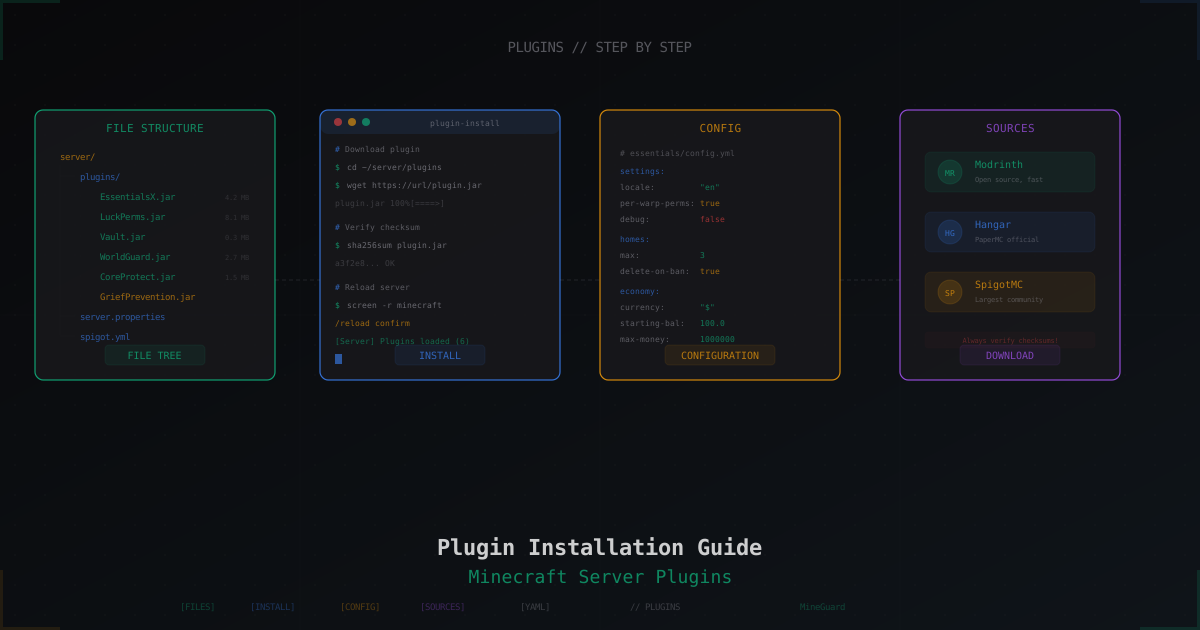
How to Install Plugins on a Minecraft Server: Complete Guide
Step-by-step guide to installing plugins on a Minecraft server: where to download, how to install, how to fix errors. Bukkit, Spigot, Paper - practical walkthrough.
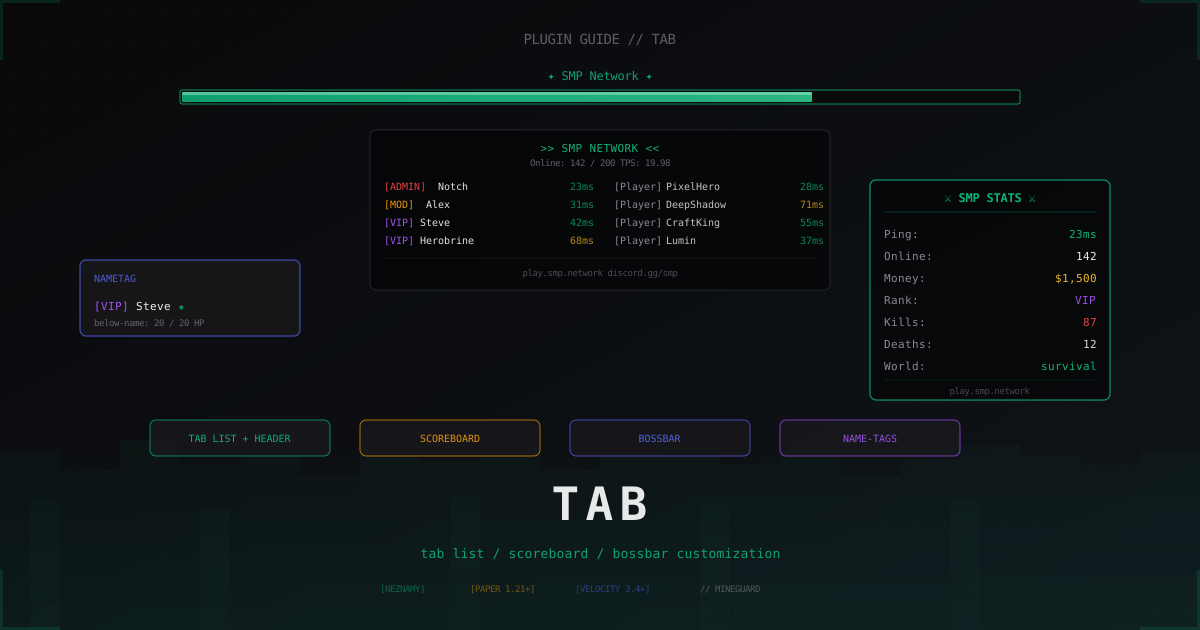
TAB plugin: tab list, scoreboard and BossBar customization (2026)
One plugin covers tab list, scoreboard, BossBar, name-tags and LuckPerms prefixes. We walk through TAB by NEZNAMY: install, proxy mode, sorting, anti-override and real config.yml snippets.
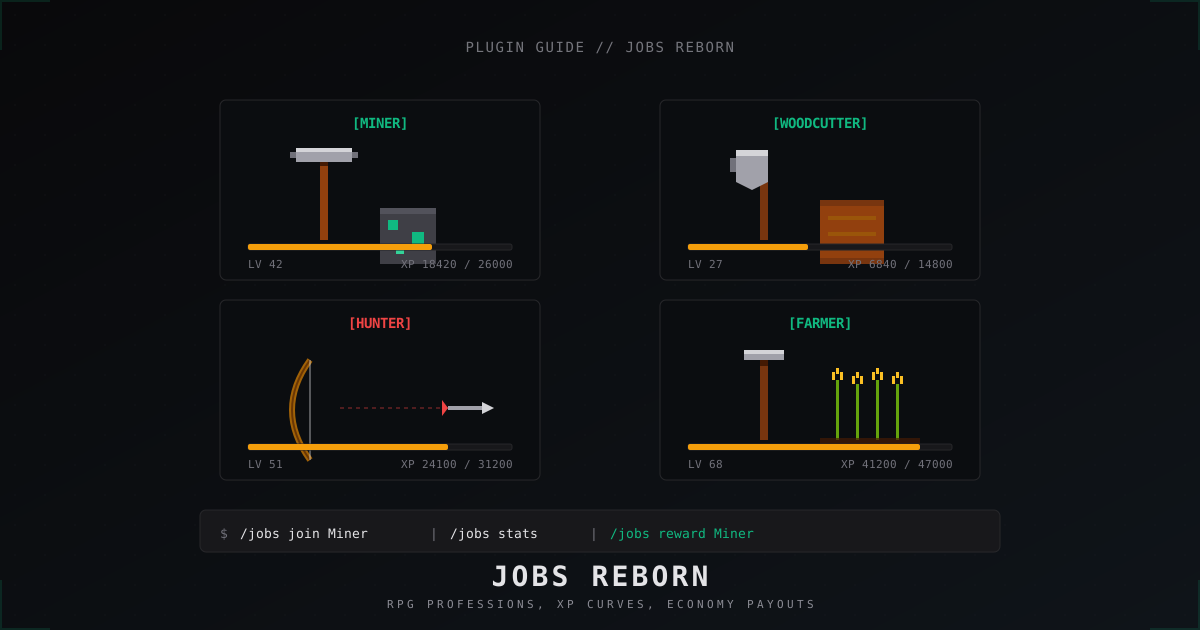
Jobs Reborn: setting up RPG jobs on a Minecraft server (2026)
A full walk-through of Jobs Reborn 5.x in 2026: Vault install, Miner and Woodcutter configs, XP and payment formulas, placed-block anti-abuse, and /jobs reward shops.