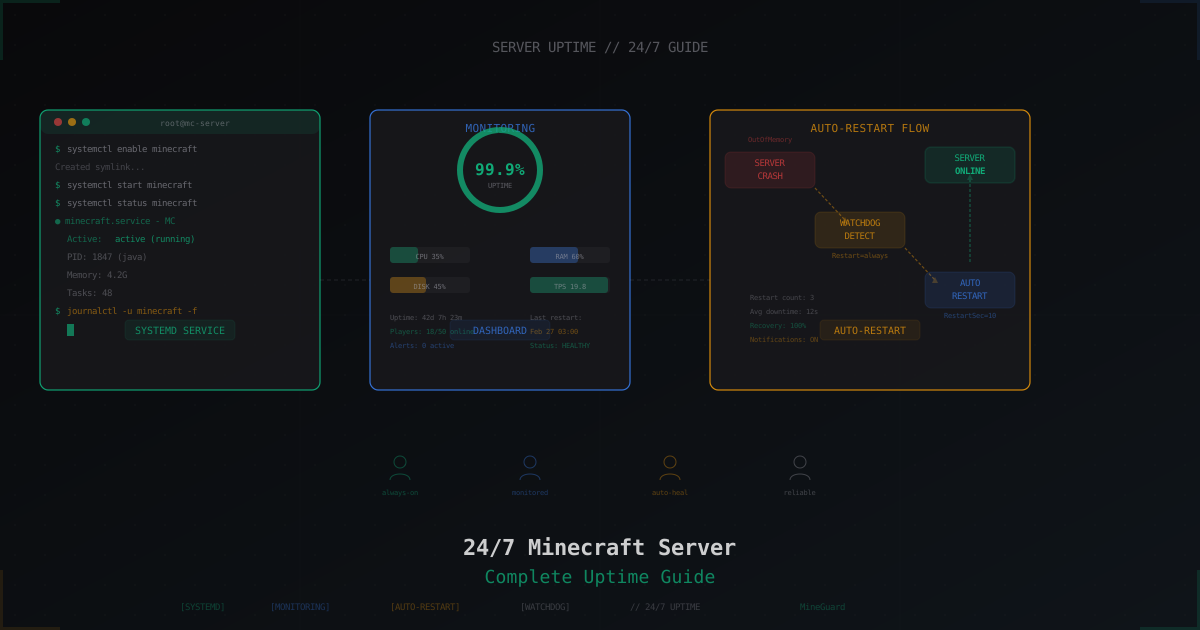
How to Keep a Minecraft Server Running 24/7
You set up a Minecraft server, invited your friends, built a nice base together... and then you shut down your PC and everyone lost access. Sound familiar? If you want your server to stay online even when you're sleeping or at work - this guide is for you.
We'll cover every method of keeping a server running 24/7: from the cheapest option (that old PC under your desk) to the proper way (a VPS with systemd and auto-restart). And yes, there will be actual commands and configs, not vague advice like "just buy hosting."
Home PC vs VPS vs Dedicated Server
Option 1: Your Home Computer
The most obvious route - run the server right on your own machine. Free, fast, no signups needed.
But there are trade-offs:
- Power bill. A PC running 24/7 adds up. An average desktop draws 200-400W, which translates to $20-40/month in electricity depending on your location.
- Internet. Home connections are usually asymmetric: your upload speed is 5-10x lower than download. And the server needs upload. Plus, not everyone has a static public IP.
- Stability. Power flicker - server goes down. Router reboots - server unreachable. Windows decides to update - you know how that ends.
- Noise. Fans running 24/7 - not ideal if the PC is in your bedroom.
For a server with 5-10 friends - totally fine. For anything serious - not so much.
Option 2: VPS (Virtual Private Server)
The sweet spot for most people. A VPS is a virtual machine in a data center with guaranteed bandwidth, uninterruptible power, and a static IP.
What to look for:
- CPU: at least 2 cores, preferably 3.5+ GHz clock speed. Minecraft is single-threaded, so clock speed matters more than core count
- RAM: 2 GB for a vanilla server with 10 players, 4-8 GB for mods/plugins
- Disk: SSD minimum, NVMe ideal. Running Minecraft on HDD in 2026 is a crime
- Location: close to your players. For Europe - Frankfurt or Amsterdam, for North America - New York or Chicago
Prices start at $5-10/month for a decent VPS. Hetzner, Contabo, OVH are well-known options.
Option 3: Dedicated Server
An entire physical machine just for you. Makes sense if you have 100+ concurrent players or a network of multiple servers. Prices start around $40-50/month.
Choosing an Operating System
Short answer: Linux. Specifically Ubuntu 22.04/24.04 or Debian 12.
Why not Windows?
- Linux uses less RAM (no GUI eating 1-2 GB for nothing)
- Better network performance under load
- systemd, screen, tmux - all automation tools are built for Linux
- 99% of tutorials and solutions online are for Linux
If you've never used Linux before - don't worry. Managing a Minecraft server requires knowing maybe 10-15 commands total.
Method 1: screen/tmux (Quick Start)
The simplest way to keep the server running after you disconnect from SSH.
screen
# Install
sudo apt install screen

# Create a session
screen -S minecraft

# Start the server
cd /home/minecraft/server
java -Xms2G -Xmx4G -jar paper-1.21.4.jar nogui

# Detach: Ctrl+A, then D

# Reattach later
screen -r minecraft
tmux
# Install
sudo apt install tmux

# Create a session
tmux new -s minecraft

# Start the server
cd /home/minecraft/server
java -Xms2G -Xmx4G -jar paper-1.21.4.jar nogui

# Detach: Ctrl+B, then D

# Reattach later
tmux attach -t minecraft
Pros: simple, fast, works out of the box.
Cons: if the server crashes - it won't restart automatically. If the VPS reboots - the screen/tmux session is gone.
For testing and "friends only" servers this is enough. For serious projects - keep reading.
Method 2: systemd Service (The Proper Way)
systemd is the process management system in Linux. It can:
- Start your server automatically on boot
- Restart it if it crashes
- Write logs
- Gracefully stop the server
Create a unit file
sudo nano /etc/systemd/system/minecraft.service
[Unit]
Description=Minecraft Server
After=network.target

[Service]
User=minecraft
WorkingDirectory=/home/minecraft/server
ExecStart=/usr/bin/java -Xms2G -Xmx4G -jar paper-1.21.4.jar nogui
ExecStop=/bin/kill -SIGINT $MAINPID
Restart=on-failure
RestartSec=10
StandardInput=null
StandardOutput=journal
StandardError=journal

[Install]
WantedBy=multi-user.target
Enable and start
# Reload systemd configs
sudo systemctl daemon-reload

# Enable auto-start on boot
sudo systemctl enable minecraft

# Start the server
sudo systemctl start minecraft

# Check status
sudo systemctl status minecraft

# View logs
sudo journalctl -u minecraft -f
Now your server will:
- Start automatically after a VPS reboot
- Restart 10 seconds after a crash
- Write logs via journald (viewable with
journalctl)
Sending commands to the console
With systemd you lose the interactive console. But there's a solution - mcrcon:
# Enable RCON in server.properties
enable-rcon=true
rcon.password=your_secret_password
rcon.port=25575

# Install mcrcon
sudo apt install mcrcon

# Send commands
mcrcon -H 127.0.0.1 -P 25575 -p your_secret_password "say Server restarting in 5 minutes"
Auto-Restart Script (systemd Alternative)
If systemd feels too complex, you can use a simple bash script:
#!/bin/bash
# restart.sh

SERVER_DIR="/home/minecraft/server"
JAR="paper-1.21.4.jar"

cd "$SERVER_DIR"

while true; do
    echo "$(date) - Starting server..."
    java -Xms2G -Xmx4G -jar "$JAR" nogui

    echo "$(date) - Server stopped. Restarting in 10 seconds..."
    sleep 10
done
Run it inside screen: screen -S minecraft bash restart.sh
If the server crashes, the script will restart it after 10 seconds. Simple but effective.
Monitoring Uptime
Your server runs 24/7, but how do you know it's actually reachable? A few options:
Simple ping script
#!/bin/bash
# check_minecraft.sh

pip install mcstatus
mcstatus localhost:25565 ping

if [ $? -ne 0 ]; then
    echo "Server not responding! Restarting..."
    sudo systemctl restart minecraft
fi
Add to crontab: */5 * * * * /home/minecraft/check_minecraft.sh
External monitoring
Use services like UptimeRobot or HetrixTools - they'll ping your server from outside and send notifications if it goes down.
Optimization for 24/7 Operation
A few important settings:
JVM Flags
Don't just use -Xmx4G. Use Aikar's optimized flags:
java -Xms4G -Xmx4G \
  -XX:+UseG1GC \
  -XX:+ParallelRefProcEnabled \
  -XX:MaxGCPauseMillis=200 \
  -XX:+UnlockExperimentalVMOptions \
  -XX:+DisableExplicitGC \
  -XX:+AlwaysPreTouch \
  -XX:G1NewSizePercent=30 \
  -XX:G1MaxNewSizePercent=40 \
  -XX:G1HeapRegionSize=8M \
  -XX:G1ReservePercent=20 \
  -XX:G1HeapWastePercent=5 \
  -XX:G1MixedGCCountTarget=4 \
  -XX:InitiatingHeapOccupancyPercent=15 \
  -XX:G1MixedGCLiveThresholdPercent=90 \
  -XX:G1RSetUpdatingPauseTimePercent=5 \
  -XX:SurvivorRatio=32 \
  -XX:+PerfDisableSharedMem \
  -XX:MaxTenuringThreshold=1 \
  -jar paper-1.21.4.jar nogui
Automatic Backups
A 24/7 server means data accumulates constantly. Set up backups:
#!/bin/bash
# backup.sh
BACKUP_DIR="/home/minecraft/backups"
SERVER_DIR="/home/minecraft/server"
DATE=$(date +%Y-%m-%d_%H-%M)

# Disable auto-save
mcrcon -H 127.0.0.1 -P 25575 -p password "save-off"
mcrcon -H 127.0.0.1 -P 25575 -p password "save-all"
sleep 5

# Create archive
tar -czf "$BACKUP_DIR/backup-$DATE.tar.gz" "$SERVER_DIR/world" "$SERVER_DIR/world_nether" "$SERVER_DIR/world_the_end"

# Re-enable auto-save
mcrcon -H 127.0.0.1 -P 25575 -p password "save-on"

# Delete backups older than 7 days
find "$BACKUP_DIR" -name "*.tar.gz" -mtime +7 -delete

echo "$(date) - Backup created: backup-$DATE.tar.gz"
24/7 Server = DDoS Target
Here's something many people overlook. Once your server is running around the clock and attracting players, it becomes visible. And a visible server attracts attention not just from players, but from people who enjoy breaking other people's projects.
DDoS attacks on Minecraft servers are extremely common. Competitors, salty banned players, bored kids with a booter - the reasons vary. The result is the same: your carefully configured 24/7 server goes offline.
A regular VPS won't protect you from DDoS. Your hosting provider will, at best, null-route your IP for a couple of hours to protect their other customers.
The solution is specialized protection. MineGuard filters DDoS traffic at the network level, only allowing legitimate Minecraft connections through. You simply route traffic through a protected proxy and your real IP stays hidden. Setup takes 5 minutes, and your server stays online even during an attack.
Checklist: 24/7 Server
Let's wrap up. To keep your Minecraft server running reliably around the clock:
- VPS or dedicated server (not a home PC for serious projects)
- Linux (Ubuntu/Debian)
- systemd service with
Restart=on-failure - Optimized JVM flags (Aikar's flags)
- Automated backups on a schedule
- Uptime monitoring (external ping)
- DDoS protection (MineGuard or similar)
- RCON for remote management
Follow this guide and your server will run stably, restart on issues, and stay protected. Good luck with your setup!
Protect Your Server from DDoS Attacks
Free protection with 5-minute setup. 1 TB bandwidth included.
Try for FreeRelated Articles
Free DDoS Protection for Minecraft Servers: How It Actually Works
Proper DDoS protection for Minecraft does not have to cost a fortune. Learn about MineGuard's free plan: what's included, who it's for, and when it makes sense to upgrade.
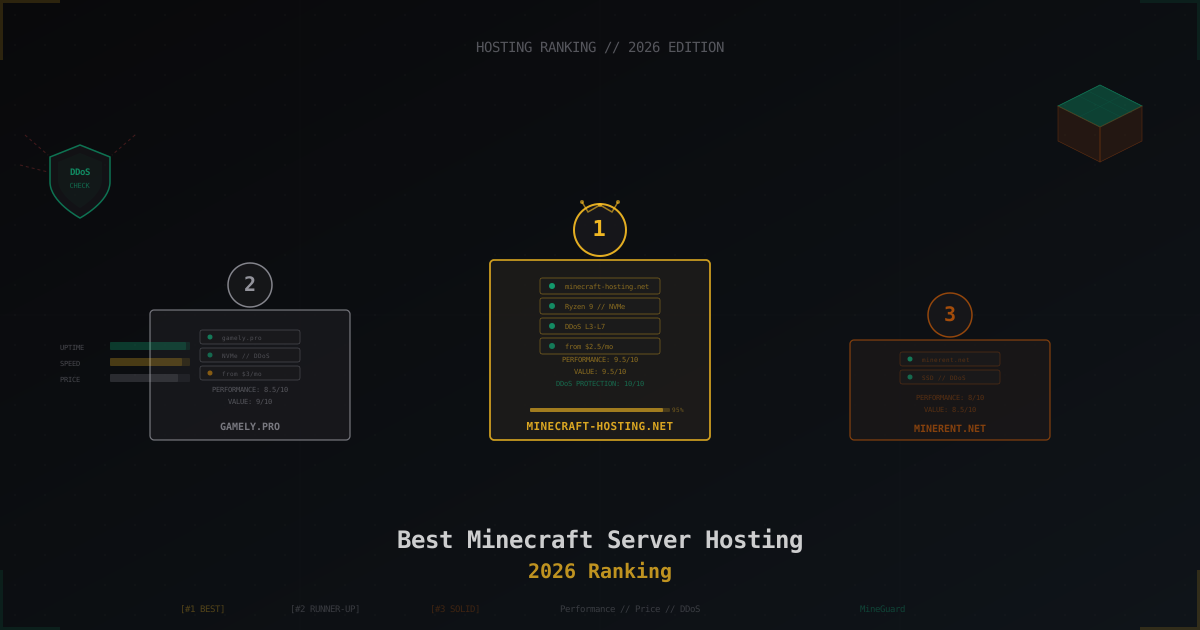
Best Minecraft Server Hosting 2026 - Ranking & Comparison
Honest ranking of Minecraft hosting providers in 2026. We test performance, compare prices, and check DDoS protection. Top 10 providers with detailed pros and cons for each.
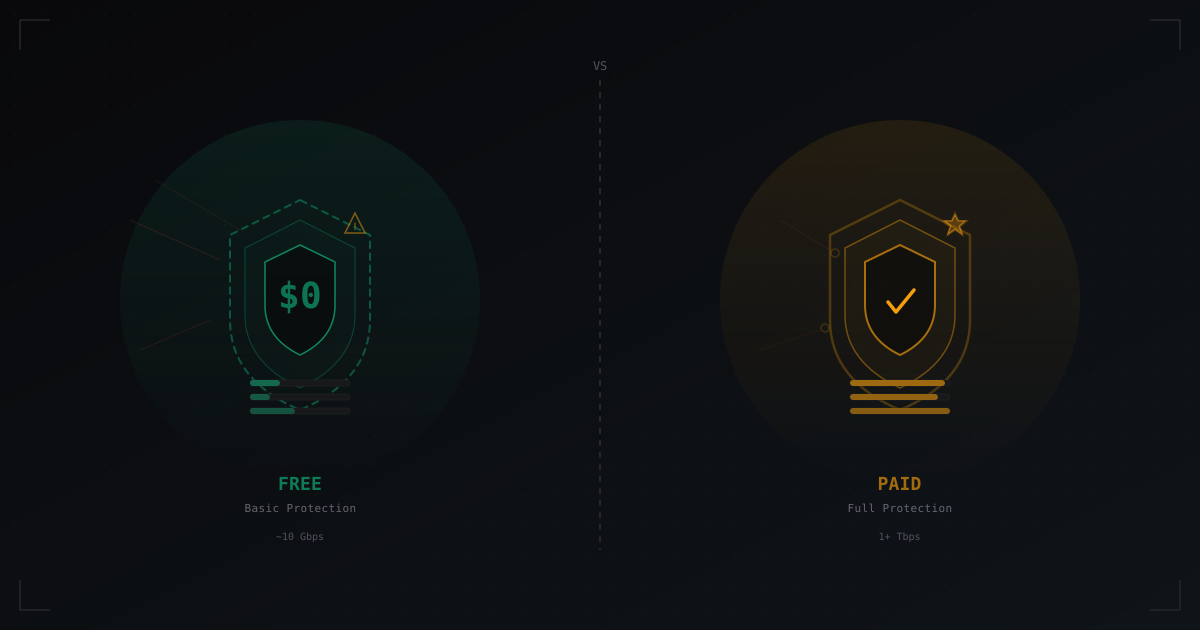
Free vs Paid DDoS Protection: What's the Real Difference
An honest comparison of free and paid solutions for protecting game servers. We examine OVH Game DDoS Protection, Cloudflare, built-in hosting protection, and specialized services - with tables, numbers, and real scenarios.