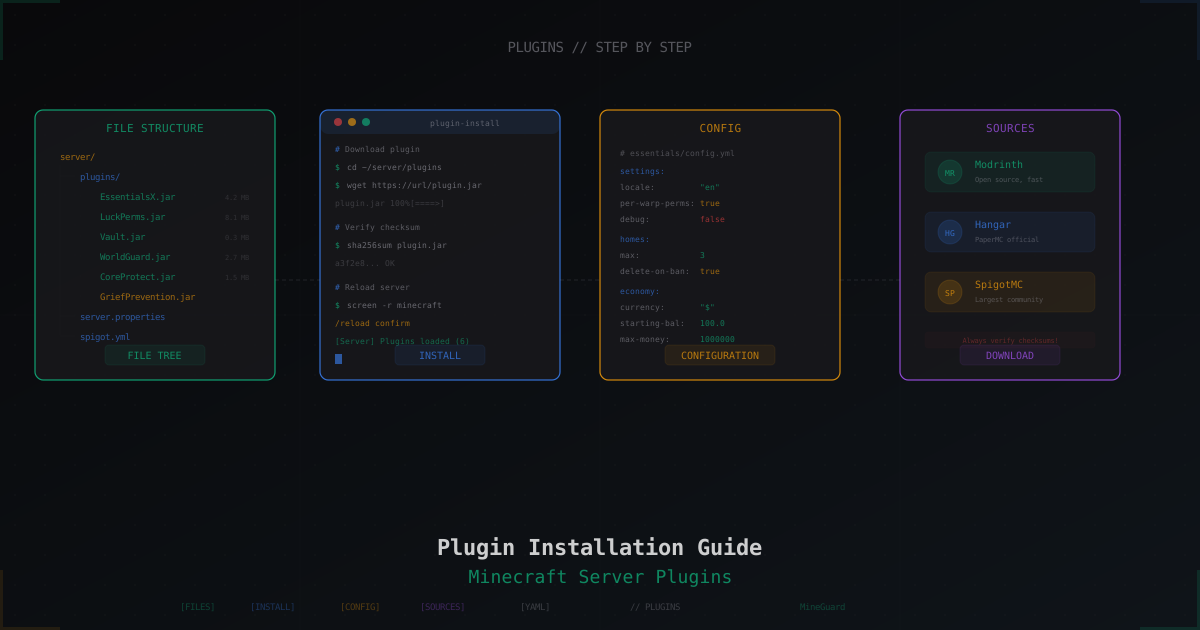
How to Install Plugins on a Minecraft Server: Complete Guide
Plugins are what make Minecraft servers actually interesting. Without them, you've got a plain vanilla server with no permissions, no grief protection, no economy, no teleports. If you just set up your first Spigot or Paper server and aren't sure how plugins work, this guide covers everything you need.
Plugins vs Mods: What's the Difference
People mix these up all the time, but they're fundamentally different.
Mods (Forge, Fabric, NeoForge) modify both the client and server. They add new blocks, mobs, and mechanics. Players need the same mods installed on their client to join your server.
Plugins (Bukkit, Spigot, Paper) run only on the server side. They use the server's API to add functionality: commands, permissions, teleports, economy. Players don't need to install anything - they join with a regular client.
Plugin format is simple: .jar files that go into the plugins/ folder on your server. That's it.
Which Server Software Supports Plugins
The vanilla server.jar from Mojang does not support plugins. You need a server platform with Bukkit API support:
- Paper - the recommended choice. A fork of Spigot with tons of optimizations and patches. Most plugins are built and tested for Paper.
- Spigot - the classic. Works fine, but Paper is faster and more stable.
- Purpur - a Paper fork with extra configuration options. For power users.
- Folia - for multi-threaded servers. Not all plugins are compatible.
If you haven't picked a platform yet - go with Paper. Download it from papermc.io.
Where to Download Plugins
Rule number one: never download plugins from random websites. The .jar files execute arbitrary code on your server. A malicious plugin can delete all your files, steal data, or give an attacker full access.
Trusted sources:
- Modrinth - modern platform, good moderation, fast search
- Hangar - official PaperMC plugin platform
- SpigotMC - the largest plugin database, though moderation is looser
- GitHub - many developers publish releases directly on GitHub
Before downloading, check: last update date, compatibility with your MC version, download count, and reviews.
Installation: Step by Step
1. Download the Plugin
Grab the .jar file for the plugin you want. For example, EssentialsX:
wget https://ci.ender.zone/job/EssentialsX/lastSuccessfulBuild/artifact/jars/EssentialsX-2.20.1.jar
2. Drop It in the Plugins Folder
# Server structure
/home/minecraft/server/
├── server.jar
├── server.properties
├── plugins/           <-- plugin .jar files go here
│   ├── EssentialsX-2.20.1.jar
│   └── LuckPerms-Bukkit-5.4.131.jar
├── world/
└── logs/
cp EssentialsX-2.20.1.jar /home/minecraft/server/plugins/
3. Restart the Server
# If running in screen/tmux
screen -r minecraft
> stop

# Start it again
java -Xms2G -Xmx4G -jar server.jar nogui
On startup you'll see something like:
[15:23:41 INFO]: [EssentialsX] Loading EssentialsX v2.20.1
[15:23:41 INFO]: [EssentialsX] Enabling EssentialsX v2.20.1
[15:23:42 INFO]: [EssentialsX] Successfully loaded.
4. Verify It Works
Join your server and type:
/plugins
You'll see a list of loaded plugins. Green means working, red means something went wrong.
Plugins (3): EssentialsX, LuckPerms, WorldGuard
Configuring Plugins
After the first run, each plugin creates its own folder inside plugins/:
/home/minecraft/server/plugins/
├── EssentialsX-2.20.1.jar
├── Essentials/
│   ├── config.yml          <-- main config file
│   ├── messages.properties
│   └── userdata/
├── LuckPerms-Bukkit-5.4.131.jar
└── LuckPerms/
    └── config.yml
Configs are typically config.yml files in YAML format. Edit them with any text editor:
nano /home/minecraft/server/plugins/Essentials/config.yml
After editing, most plugins can be reloaded without restarting the server:
/essentials reload
Some plugins require a full restart though. Check the specific plugin's documentation.
Plugin Dependencies
Some plugins require other plugins to function. For example:
- WorldEdit is required by WorldGuard
- Vault is required by economy plugins
- ProtocolLib is required by many packet-level plugins
If a dependency is missing, you'll see an error on startup:
[15:23:41 ERROR]: Could not load 'plugins/WorldGuard-7.0.9.jar'
org.bukkit.plugin.UnknownDependencyException: Unknown dependency WorldEdit.
Please download and install WorldEdit to run this plugin.
Fix: download and install the missing plugin.
Common Errors and Fixes
Wrong Minecraft Version
[15:23:41 ERROR]: Could not load 'plugins/SomePlugin-1.0.jar'
org.bukkit.plugin.InvalidPluginException: Plugin requires Minecraft 1.20+
The plugin was built for a different MC version. Download a version compatible with your server.
Deprecated API
[15:23:41 WARN]: Plugin SomePlugin v1.0 uses deprecated API methods.
This plugin may not work correctly on future versions.
The plugin uses old API methods. Usually it keeps working, but look for an update or alternative.
Plugin Conflicts
[15:23:42 ERROR]: Error occurred while enabling SomePlugin v2.0
java.lang.NoClassDefFoundError: com/sk89q/worldedit/WorldEdit
Usually a dependency issue or a conflict between two plugins doing the same thing. Don't run two plugins that handle the same functionality.
config.yml Syntax Error
[15:23:41 ERROR]: Cannot load plugins/MyPlugin/config.yml
org.yaml.snakeyaml.scanner.ScannerException: mapping values are not allowed here
YAML syntax error. Check your indentation (spaces only, no tabs!) and quoting. Run the file through yamllint.com.
Updating Plugins
Keeping plugins updated matters - updates bring bug fixes, new features, and security patches.
# 1. Stop the server
# 2. Make a backup
cp -r plugins/ plugins_backup_$(date +%Y%m%d)/

# 3. Replace the .jar file
rm plugins/EssentialsX-2.20.0.jar
cp EssentialsX-2.20.1.jar plugins/

# 4. Start the server
Don't update everything at once. Update one plugin at a time and verify nothing breaks.
Essential Starter Plugins
A minimal set for a new server:
| Plugin | Purpose |
|---|---|
| EssentialsX | Core commands: /home, /spawn, /tpa, /warp, moderation tools |
| LuckPerms | Permission and group management. The best solution available |
| WorldGuard | Region protection against griefers (requires WorldEdit) |
| Vault | Economy and permissions API. Required by many plugins |
| CoreProtect | Block change logging. Essential for investigating griefing |
DDoS Protection
Once your server grows, it becomes a target for DDoS attacks. Plugins inside the server can't protect against network-level attacks - you need external protection at the traffic level.
MineGuard works as a proxy in front of your server, filtering malicious traffic before it reaches your game server. The MineGuard plugin for Paper/Spigot lets the server receive real player IP addresses through a secure channel - without it, all players appear to connect from the proxy's IP.
Installing the MineGuard plugin works the same as any other - download the .jar from your dashboard and drop it in plugins/. The config generates automatically on first start.
Wrapping Up
Installing plugins is a fundamental skill for any Minecraft server admin. The process is straightforward: download the .jar, put it in plugins/, restart the server. Complexity comes with configuration and compatibility, but almost every error can be solved by reading the logs.
Start with EssentialsX + LuckPerms + Vault, get the basics configured, then add plugins as needed. Don't install 50 plugins at once - that's a fast track to performance problems and conflicts.
Protect Your Server from DDoS Attacks
Free protection with 5-minute setup. 1 TB bandwidth included.
Try for FreeRelated Articles
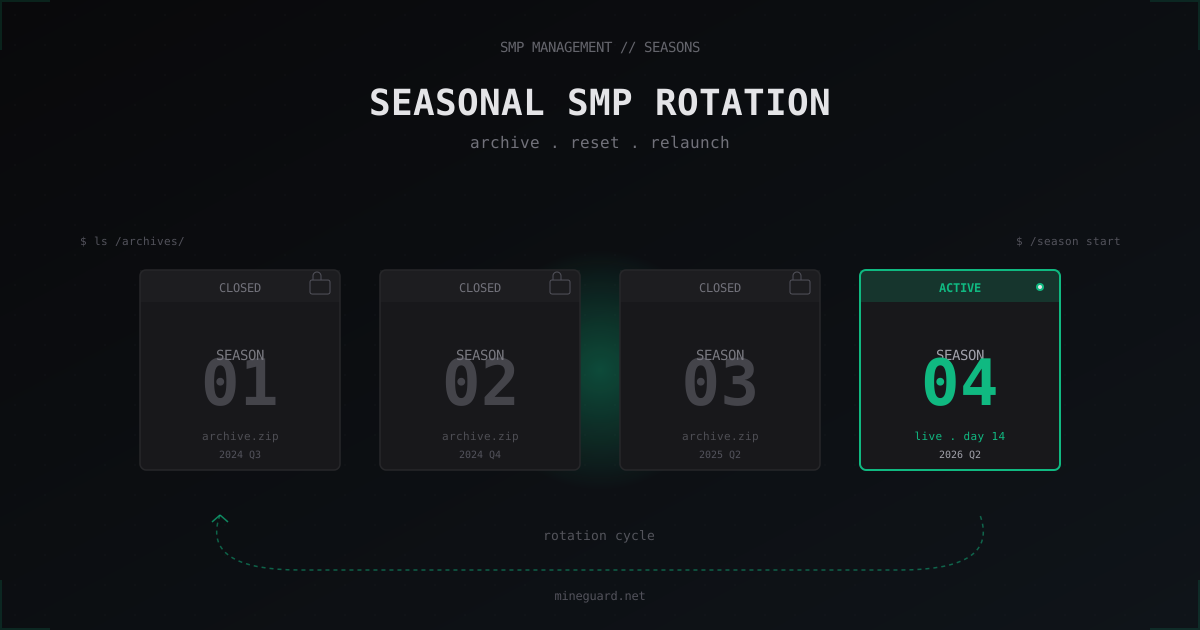
Seasonal SMP: How to Run Season Rotations on Your Minecraft Server
Season length, what carries over, how to archive worlds and launch the next SMP without losing your community. With commands and Chunky pre-gen.
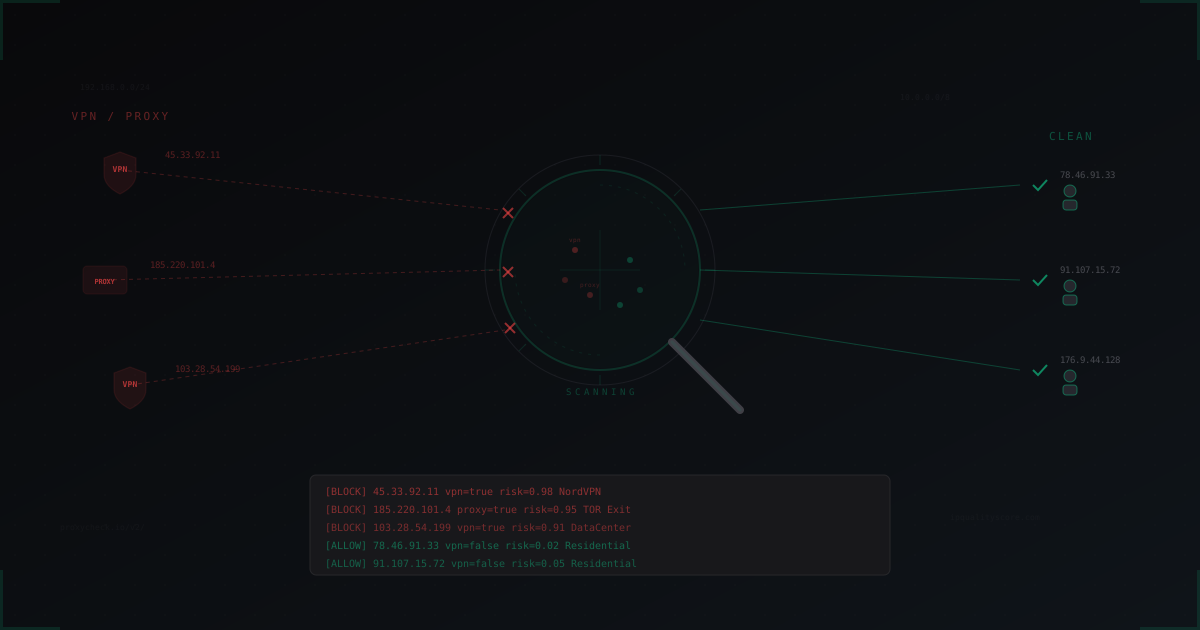
VPN and Proxy Detection on Minecraft Servers: Why and How
A complete guide to detecting VPN and proxy connections on Minecraft servers. Detection methods, API services, plugins, false positives, and balancing security with accessibility.
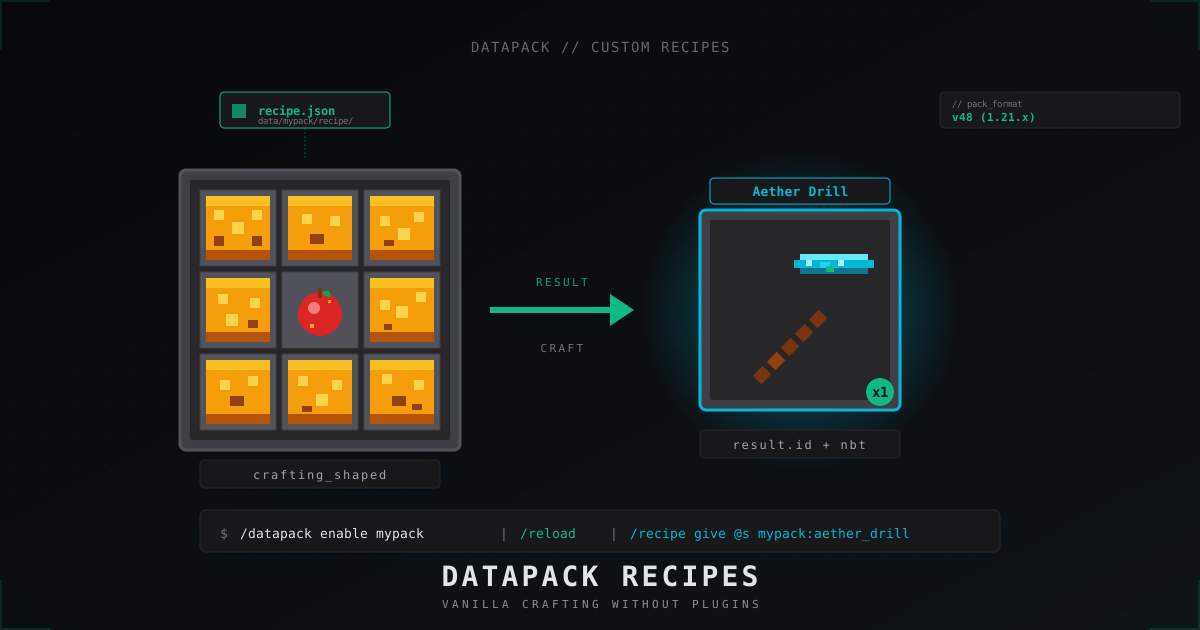
Custom Minecraft recipes with datapacks: step-by-step tutorial (2026)
Ship custom crafting recipes on a Minecraft 1.21 server without plugins: data pack layout, pack_format, JSON for shaped, shapeless, smelting, smithing, stonecutter, tag ingredients, vanilla overrides.