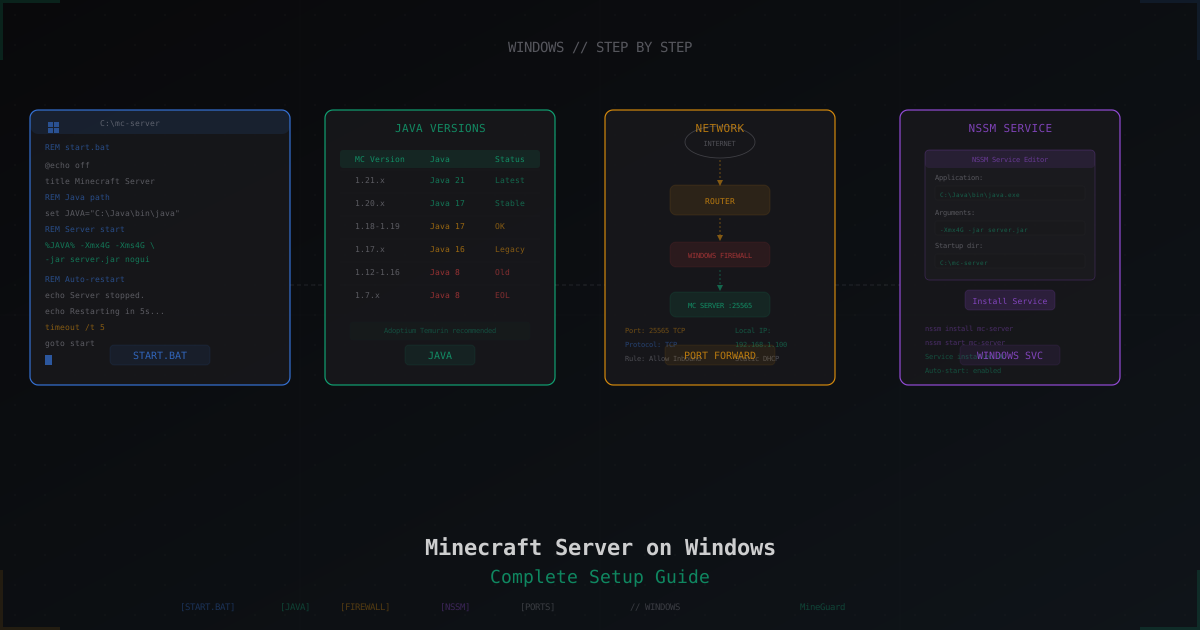
Minecraft Server on Windows: Step-by-Step Setup Guide
Windows is on almost every desktop. If you want to quickly spin up a server for friends or test plugins before migrating to a VPS, Windows works just fine. This guide walks through the entire process: from installing Java to auto-starting the server on boot.
What You Need
- Windows 10 or 11 (64-bit)
- At least 4 GB of free RAM
- Stable internet connection (wired preferred over Wi-Fi)
- Administrator privileges on the machine
This is enough for a server with 5-10 players. For larger servers, check out how much RAM a Minecraft server needs.
Step 1. Install Java
The Minecraft server runs on Java. Which version you need depends on the game version:
| Minecraft | Java |
|---|---|
| 1.17 and below | Java 8 or Java 16 |
| 1.18 - 1.20.4 | Java 17 |
| 1.20.5 and above | Java 21 |
For current versions (1.21.x), you need Java 21. Download Eclipse Temurin (Adoptium) - it is a free, well-tested OpenJDK build. Avoid Oracle JDK since it requires a commercial license for server use.
- Go to adoptium.net
- Select Temurin 21, platform Windows x64, package type JDK
- Download the
.msiinstaller - During installation, check "Add to PATH" and "Set JAVA_HOME" - this is critical
After installation, open Command Prompt (Win+R, type cmd) and verify:
java -version
You should see something like openjdk version "21.0.x". If you get "'java' is not recognized as an internal command" - Java was not added to PATH. See the troubleshooting section below.
Step 2. Download the Server File
You have two options: the vanilla server from Mojang or Paper. I recommend Paper - it runs faster, supports plugins, and is better optimized for production.
Paper (recommended):
- Go to papermc.io/downloads
- Select your Minecraft version
- Download the latest build
Vanilla (official):
- Go to minecraft.net/download/server
- Download
server.jar
Create a dedicated folder for the server, for example: C:\MinecraftServer. Place the downloaded jar file there and rename it to server.jar for simplicity.
Avoid paths with spaces or special characters (like C:\My Server). This causes problems more often than you would expect.
Step 3. Create start.bat
Create a file called start.bat in your server folder. Open Notepad, paste the following, and save it with the .bat extension:
@echo off
title Minecraft Server
java -Xms2G -Xmx4G -XX:+UseG1GC -XX:+ParallelRefProcEnabled -XX:MaxGCPauseMillis=200 -XX:+UnlockExperimentalVMOptions -XX:+DisableExplicitGC -XX:G1NewSizePercent=30 -XX:G1MaxNewSizePercent=40 -XX:G1HeapRegionSize=8M -XX:G1ReservePercent=20 -XX:G1MixedGCCountTarget=4 -XX:InitiatingHeapOccupancyPercent=15 -XX:G1MixedGCLiveThresholdPercent=90 -XX:SurvivorRatio=32 -jar server.jar --nogui
pause
Key parameters explained:
- -Xms2G - initial memory allocation (2 GB)
- -Xmx4G - maximum memory allocation (4 GB)
- -XX:+UseG1GC - G1 garbage collector, optimal for Minecraft
- --nogui - runs without the graphical interface (saves resources)
Adjust -Xms and -Xmx based on your available RAM. Do not set -Xmx higher than 70% of your free memory - the operating system needs resources too.
Step 4. First Launch and EULA
Double-click start.bat. The server will create several files and stop with a message about the EULA.
Open eula.txt in Notepad and change:
eula=false
to:
eula=true
Save and run start.bat again. The server will start generating the world. When you see Done! For help, type "help" - the server is running.
Step 5. Configure server.properties
Key settings to review:
server-port=25565
max-players=20
view-distance=10
simulation-distance=8
online-mode=true
motd=My Minecraft Server
If your machine is underpowered, lower view-distance to 8 and simulation-distance to 6. This significantly reduces CPU load.
Step 6. Windows Firewall
Windows Firewall blocks incoming connections by default. You need to create a rule for port 25565.
Through the GUI:
- Open "Windows Defender Firewall with Advanced Security" (Win+R ->
wf.msc) - Click "Inbound Rules" on the left
- Click "New Rule" on the right
- Select "Port" -> Next
- TCP, port 25565 -> Next
- "Allow the connection" -> Next
- All profiles -> Next
- Name: "Minecraft Server TCP" -> Finish
- Repeat steps 3-8 for UDP port 25565
Through Command Prompt (as Administrator):
netsh advfirewall firewall add rule name="Minecraft Server TCP" dir=in action=allow protocol=TCP localport=25565
netsh advfirewall firewall add rule name="Minecraft Server UDP" dir=in action=allow protocol=UDP localport=25565
Step 7. Port Forwarding on Your Router
For friends outside your local network to connect, you need to forward the port on your router.
- Find your local IP: open
cmdand typeipconfig. Look for "IPv4 Address" - usually something like192.168.1.xor192.168.0.x - Open your router's web interface (typically
192.168.1.1or192.168.0.1in your browser) - Find the "Port Forwarding" or "NAT" section
- Create a rule: external port 25565 -> your computer's internal IP, port 25565, protocol TCP+UDP
Your external IP (the one friends use to connect) can be found at whatismyip.com. Share this address with your friends.
If your ISP uses carrier-grade NAT (CGNAT), port forwarding will not work. In that case, you will need a VPN tunnel (like Radmin VPN) or move your server to a VPS.
Step 8. Allocating RAM Properly
A common mistake is allocating too little or too much memory.
Guidelines:
- 5-10 players, vanilla map: 2-3 GB
- 10-20 players, with plugins: 4-6 GB
- 20+ players, with mods: 6-8 GB
Set -Xms equal to (or slightly less than) -Xmx - this reduces memory fragmentation. Do not allocate 16 GB "just in case" - an oversized heap causes long garbage collection pauses.
Step 9. Auto-Start with NSSM (Windows Service)
If you want the server to start automatically when the computer boots and run in the background, use NSSM (Non-Sucking Service Manager).
- Download NSSM from nssm.cc/download
- Extract the archive, find
nssm.exein thewin64folder - Open an administrator Command Prompt in that folder
- Run:
nssm install MinecraftServer
-
In the dialog that opens, fill in:
- Path:
C:\Program Files\Eclipse Adoptium\jdk-21.0.x-hotspot\bin\java.exe(path to your java.exe) - Startup directory:
C:\MinecraftServer - Arguments:
-Xms2G -Xmx4G -XX:+UseG1GC -jar server.jar --nogui
- Path:
-
On the "I/O" tab, set output redirection:
- Output:
C:\MinecraftServer\logs\service-stdout.log - Error:
C:\MinecraftServer\logs\service-stderr.log
- Output:
-
Click "Install service"
Now you can manage the server with:
nssm start MinecraftServer
nssm stop MinecraftServer
nssm restart MinecraftServer
The service will automatically start when Windows boots.
Common Windows Issues
"'java' is not recognized as an internal command"
Java is not in your PATH. Open "Environment Variables" (Win+R -> sysdm.cpl -> Advanced -> Environment Variables), find Path in System Variables, and add the path to your Java bin folder. For example: C:\Program Files\Eclipse Adoptium\jdk-21.0.x-hotspot\bin
Server starts but friends cannot connect Three possible causes: 1) firewall is blocking the port 2) port is not forwarded on the router 3) your ISP uses CGNAT. Check in that order.
"Address already in use" / port conflict Another program is using port 25565. Find it:
netstat -ano | findstr 25565
Note the PID (last column) and close the process through Task Manager, or change the port in server.properties.
Server lags despite good hardware On Windows, background updates, antivirus scanning, and disk indexing add overhead. Add your server folder to antivirus exclusions. Disable indexing for the server folder (right-click -> Properties -> uncheck "Allow files in this folder to have contents indexed").
Windows vs Linux for Minecraft Servers
Windows works well for testing, small servers with 5-10 friends, and temporary projects. But for a serious server, Linux has clear advantages:
- Lower RAM usage (no graphical desktop environment)
- More stable under long uptimes
- Easier to automate backups and updates
- Better networking stack with lower latency
If you plan to grow, start on Windows, learn the basics, and then migrate to a Linux VPS. The migration is straightforward - copy the server folder and create an equivalent startup script.
DDoS Protection
Once you forward the port and share your IP address, your server is visible from the internet. Anyone can try to attack it. On a home machine, even a small DDoS attack will cause serious problems - not just for the server, but for your entire internet connection.
MineGuard solves this problem. Instead of connecting directly to your IP, players connect through MineGuard's protected proxy servers, which filter malicious traffic and only allow legitimate players through. Your real IP stays hidden.
Setup takes a couple of minutes and requires no changes to the server itself - just point your domain to the MineGuard address.
Protect Your Server from DDoS Attacks
Free protection with 5-minute setup. 1 TB bandwidth included.
Try for FreeRelated Articles
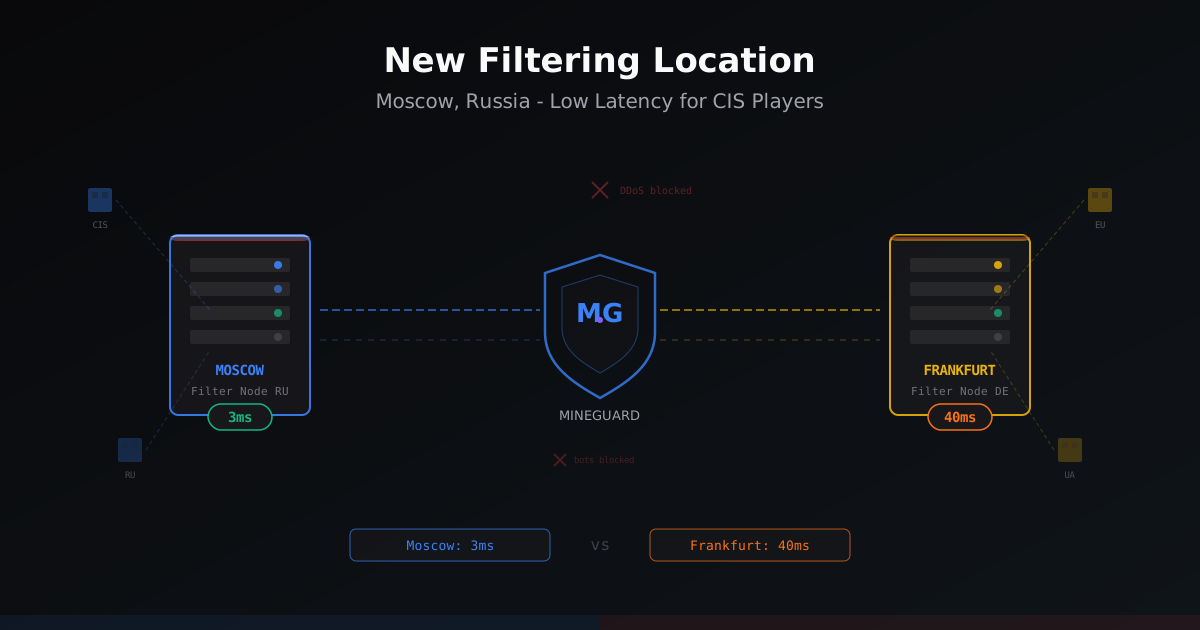
New Filtering Location in Russia - Moscow
MineGuard launched a filtering node in Moscow, Russia. CIS players get 30-40ms lower ping while European and Ukrainian traffic still routes through Germany. Learn how it works and who should enable it.
Beginner's Guide: How to Protect Your Minecraft Server
A step-by-step guide to protecting your Minecraft server from DDoS attacks, bots, and other threats. What to look for in a protection provider and how to configure your server properly.
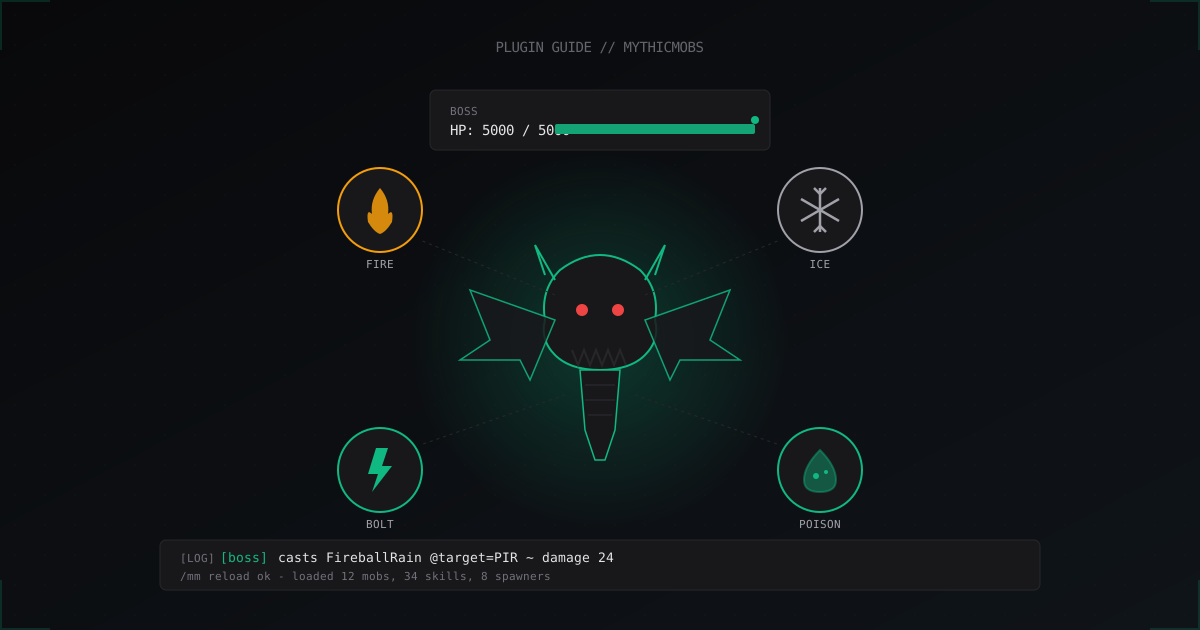
MythicMobs: Custom Mobs and Bosses Guide for Minecraft
MythicMobs install, YAML format, skills with triggers, drops and spawners. Real boss configs and TPS optimization tips from production.