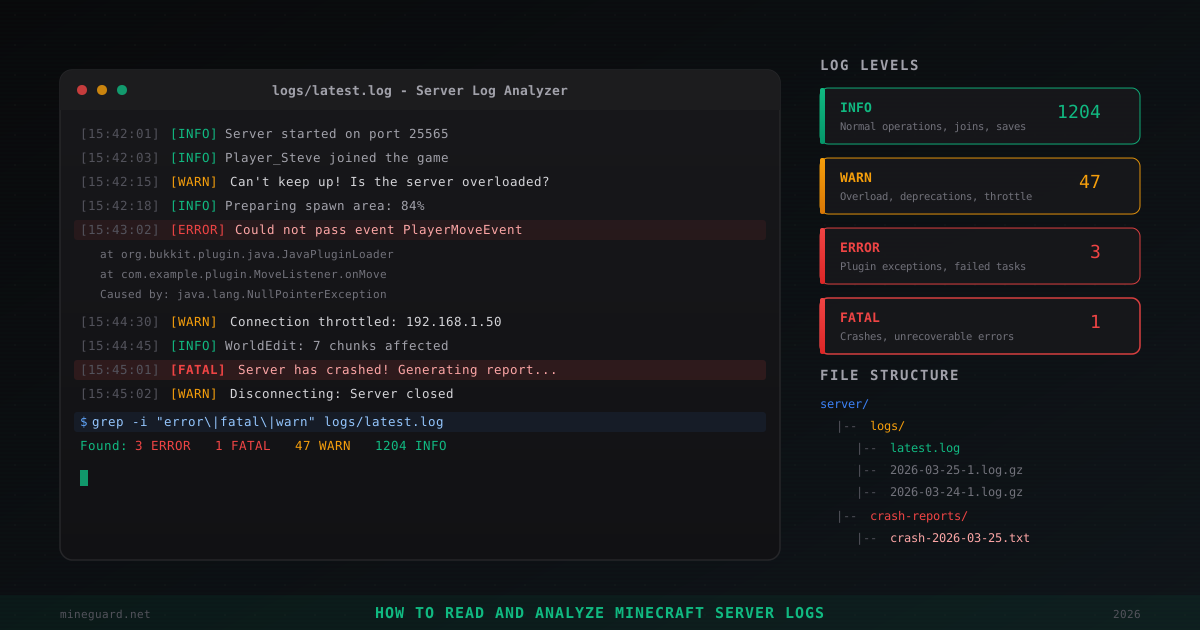
How to Read and Analyze Minecraft Server Logs
The server crashed at 3 AM. Players are telling you "everything froze and then we got kicked." You log in the next morning, and the server is running fine - the watchdog restarted it. What happened? Without logs, you'll never know.
Logs are the only reliable source of truth about what happens on your server. Not "I think," not "maybe the plugin is buggy," but concrete records with exact timestamps, severity levels, and problem descriptions. If you run a Minecraft server and can't read logs, you're flying blind.
This article covers everything: where logs live, how entries are formatted, what log levels mean, how to spot common problems, and how to automate the analysis.
Where Logs Are Stored
latest.log
The main file is logs/latest.log in the server root. Everything since the last startup gets written here. When the server restarts, the previous latest.log gets compressed and archived.
server/
├── logs/
│   ├── latest.log              <-- current session
│   ├── 2026-03-25-1.log.gz     <-- yesterday's log (compressed)
│   ├── 2026-03-24-1.log.gz
│   ├── 2026-03-24-2.log.gz     <-- if server restarted twice that day
│   └── ...
├── crash-reports/
│   └── crash-2026-03-25-server.txt
└── ...
Archives are stored as gzip. To read an old log:
# View a compressed log
zcat logs/2026-03-25-1.log.gz | less

# Search a compressed log
zgrep "ERROR" logs/2026-03-25-1.log.gz
crash-reports/
When the server crashes with a fatal error, it creates a file in crash-reports/. This is different from the regular log - a crash report contains a detailed snapshot of the server state at the moment of the crash: stack trace, loaded plugins, system info, memory state.
File names include date and time: crash-2026-03-25-151432-server.txt.
debug/
On Paper servers, there's a debug/ directory where thread dumps and other diagnostic data end up. More on that below.
Log Entry Format
Every line in the log follows a standard format:
[15:42:01] [Server thread/INFO]: Player_Steve joined the game
[15:42:15] [Server thread/WARN]: Can't keep up! Is the server overloaded?
[15:43:02] [Server thread/ERROR]: Could not pass event PlayerMoveEvent
Breaking it down:
[15:42:01]- timestamp (HH:MM:SS)[Server thread/INFO]- thread name and log level- Text after
:- the actual message
The thread matters. Server thread is the main tick thread that runs all game logic. If an error occurs in Async Chat Thread or Netty Epoll Server IO, that's a different story with different causes.
Log Levels
INFO
Normal informational messages. Player connections, plugin loading, world saves. This makes up 95% of your log.
[15:42:01] [Server thread/INFO]: Starting minecraft server version 1.20.4
[15:42:03] [Server thread/INFO]: Loading properties
[15:42:05] [Server thread/INFO]: Done (4.832s)! For help, type "help"
INFO messages can usually be ignored when hunting for problems. But sometimes useful info hides here - for example, plugin load times can reveal which one is slowing down startup.
WARN
Warnings. The server hit something undesirable but keeps running.
[15:42:15] [Server thread/WARN]: Can't keep up! Is the server overloaded?
    Running 5023ms or 100 ticks behind
The most famous Minecraft warning. It means the server can't process ticks on time. Occasional appearances are fine. Every few seconds means you have a serious performance problem.
Other common WARNs:
[WARN]: Ambiguity between arguments [...]  -- command ambiguity, harmless
[WARN]: UUID of player X is ...             -- UUID issues, often in offline-mode
[WARN]: Connection throttled: 192.168.1.50  -- too many connections from one IP
ERROR
Errors. Something broke. A plugin crashed, a world failed to load, a config is invalid.
[15:43:02] [Server thread/ERROR]: Could not pass event PlayerMoveEvent to ExamplePlugin v1.0
org.bukkit.event.EventException: null
    at org.bukkit.plugin.java.JavaPluginLoader$1.execute(JavaPluginLoader.java:310)
    at org.bukkit.plugin.RegisteredListener.callEvent(RegisteredListener.java:70)
    ...
Caused by: java.lang.NullPointerException
    at com.example.plugin.MoveListener.onPlayerMove(MoveListener.java:45)
This demands attention. ERROR always needs investigation. After the ERROR line, you'll usually see a stack trace - the chain of method calls that led to the error. How to read it - covered below.
FATAL
Critical error that usually stops the server. Rare, but when you see FATAL, it's serious.
[15:45:01] [Server thread/FATAL]: Encountered an unexpected exception
java.lang.OutOfMemoryError: Java heap space
Out of memory, corrupted world data, core server bugs - all of these can trigger FATAL.
How to Read Stack Traces
A stack trace is the chain of method calls that led to an error. You read it top to bottom, but you find the root cause bottom to top.
[ERROR]: Could not pass event PlayerInteractEvent to ShopPlugin v2.1
org.bukkit.event.EventException: null
    at org.bukkit.plugin.java.JavaPluginLoader$1.execute(JavaPluginLoader.java:310)
    at org.bukkit.plugin.RegisteredListener.callEvent(RegisteredListener.java:70)
    at org.bukkit.plugin.SimplePluginManager.callEvent(SimplePluginManager.java:545)
    at org.bukkit.craftbukkit.event.CraftEventFactory.callPlayerInteractEvent(CraftEventFactory.java:540)
    at net.minecraft.server.level.ServerPlayerGameMode.useItemOn(ServerPlayerGameMode.java:532)
Caused by: java.lang.NullPointerException: Cannot invoke "org.bukkit.inventory.ItemStack.getType()" because "item" is null
    at com.example.shop.ShopListener.onInteract(ShopListener.java:78)
    at sun.reflect.NativeMethodAccessorImpl.invoke0(Native Method)
How to read it:
-
First line - what happened: "Could not pass event PlayerInteractEvent to ShopPlugin." Problem is in ShopPlugin when handling a player click.
-
"Caused by" - the actual cause.
NullPointerException: Cannot invoke "getType()" because "item" is null. The plugin tries to get an item type, but the item is null. -
The line with your plugin -
ShopListener.java:78. That's line 78 in ShopListener.java. If it's your plugin, go fix that line. If it's someone else's, file an issue on GitHub or look for an update.
Lines from org.bukkit, net.minecraft, java.lang, and sun.reflect are server and Java internals. They're typically not the cause - they just show the execution path.
Common Errors and What to Do
"Can't keep up! Is the server overloaded?"
Already mentioned above. The server is falling behind the normal 20 ticks per second. Causes:
- Too many entities
- Heavy plugin on the main thread
- Not enough RAM and frequent GC pauses
- Slow disk (SSD is mandatory for servers)
Detailed lag diagnostics in our server lag guide.
"Connection throttled"
[WARN]: Connection throttled: 185.220.101.34
Someone is connecting too frequently. Could be a bot, could be an application-level DDoS attack. If you see one IP with hundreds of throttles, block it through your firewall.
"Disconnect: Outdated client/server"
[INFO]: Disconnect: com.mojang.authlib.GameProfile@... (Outdated client! Please use 1.20.4)
Player is trying to join with the wrong version. If you see lots of these from one IP, it's likely a scanner brute-forcing protocol versions.
OutOfMemoryError
[FATAL]: java.lang.OutOfMemoryError: Java heap space
Out of memory. Check your startup flags - how much memory is allocated via -Xmx. Use proper JVM flags. Could also be a memory leak in a plugin - the plugin creates objects and never releases them.
"IOException: Connection reset by peer"
[WARN]: IOException: Connection reset by peer
Client dropped the connection. Usually harmless - player crashed or closed the game. But if it's happening en masse, could be an attack. Check which IPs are generating these disconnects.
"Moved too quickly!"
[WARN]: Player_Steve moved too quickly! (23.45, 0.0, 18.76)
Player moved faster than expected. Either lag or a cheater using speed hacks. Isolated cases are normal (lag). If one player consistently triggers this, investigate.
Crash Reports
Crash reports contain more detail than regular logs. Open a file from crash-reports/ - it's organized in sections:
---- Minecraft Crash Report ----

Time: 2026-03-25 15:14:32
Description: Exception in server tick loop

java.lang.OutOfMemoryError: Java heap space
    at net.minecraft.nbt.CompoundTag.copy(CompoundTag.java:265)
    ...

-- System Details --
Minecraft Version: 1.20.4
Operating System: Linux (amd64) version 5.15.0
Java Version: 17.0.9
Memory: 234217728 bytes / 8589934592 bytes
Plugins:
  EssentialsX v2.20.1
  WorldGuard v7.0.9
  ShopPlugin v2.1
  ...

-- World Details --
Loaded chunks: 4521
Entities: 18432
What to look at:
- Description - brief summary of why it crashed
- Stack trace - where exactly the error occurred
- Memory - how much was used vs available. If usage is near the max, it's OOM
- Entities - if the number is huge (10000+), that might be the cause
- Plugins - list of loaded plugins. If the stack trace mentions one, that's your prime suspect
Thread Dumps
A thread dump is a snapshot of all server threads at a specific moment. Useful when the server is "hung" - not crashing, but not responding either.
On Paper servers:
/paper dump threads
Or via kill signal:
kill -3 $(cat server.pid)
# or
jstack $(cat server.pid) > thread_dump.txt
In the thread dump, look for threads in BLOCKED or WAITING state. If Server thread is blocked, the server is frozen. Look at what call it's stuck on:
"Server thread" #1 prio=5 os_prio=0 tid=0x00007f... nid=0x1a23 waiting for monitor entry
   java.lang.Thread.State: BLOCKED (on object monitor)
    at com.example.plugin.Database.query(Database.java:156)
    - waiting to lock <0x000000076ab8c120>
    at com.example.plugin.Handler.onEvent(Handler.java:42)
Here you can see the main thread is blocked on a database query in some plugin. The plugin is making a synchronous database call on the main thread - a classic mistake that freezes the entire server.
Detecting Hack Attempts in Logs
Logs are your security system. If someone tries to compromise your server, traces remain. Here's what to look for:
Suspicious Commands
grep -i "issued server command" logs/latest.log | grep -i "op\|deop\|ban\|perm\|gamemode\|give"
Find who executed admin commands. If a player who shouldn't be an operator suddenly runs /op or /gamemode, that's a breach.
Exploit Attempts
# Look for suspiciously long messages (possible book exploit)
grep "AsyncChat" logs/latest.log | awk '{if(length($0) > 500) print}'

# Look for attempts to use server-side selectors via chat
grep -i "selector\|@a\|@e\|@r\|@p" logs/latest.log
Mass Connections
# Who connected most often
grep "logged in with entity" logs/latest.log | awk -F'[/:]' '{print $2}' | sort | uniq -c | sort -rn | head 20
If one nick or IP logs in hundreds of times, it's a bot or an attack. Consider setting up rate limiting.
Unusual Nighttime Activity
# What happened between 3:00 and 5:00 AM
grep "^\[0[3-4]:" logs/latest.log | grep -v "INFO.*save\|INFO.*Saving"
If something unusual happens at night when nobody plays, investigate.
For more on security: Minecraft server security checklist and attack monitoring.
Essential grep Commands
Grep is your best friend for log analysis. Here are the commands I use constantly:
# All errors from the current session
grep "ERROR\|FATAL" logs/latest.log

# Errors from a specific plugin
grep "PluginName" logs/latest.log | grep -i "error\|exception\|warn"

# Count each log level
grep -c "INFO\]" logs/latest.log
grep -c "WARN\]" logs/latest.log
grep -c "ERROR\]" logs/latest.log

# Who joined the server
grep "joined the game\|left the game" logs/latest.log

# All commands players executed
grep "issued server command" logs/latest.log

# Errors in archived logs
zgrep "ERROR" logs/2026-03-*.log.gz

# Last 50 errors with context (3 lines before and after)
grep -n "ERROR" logs/latest.log | tail -50
grep -B3 -A3 "ERROR" logs/latest.log | tail -100

# Find which archived logs contain OOM errors
zgrep -l "OutOfMemoryError" logs/*.log.gz
Real-Time Monitoring
# Watch the log live
tail -f logs/latest.log

# Only errors in real time
tail -f logs/latest.log | grep --line-buffered "ERROR\|WARN\|FATAL"

# With color highlighting (if ccze is installed)
tail -f logs/latest.log | ccze -A
Timings and spark Reports
For performance analysis, logs alone aren't enough. Timings (deprecated) and spark (modern) give you a detailed picture of what the server does every tick.
A spark report shows:
- How much time each plugin takes
- Where CPU resources are being spent
- Memory state and GC pauses
- Specific methods that are slowing things down
/spark profiler start
# wait 3-5 minutes
/spark profiler stop
spark generates a link to a web report. Open it and look for the heaviest branches. More on profiling in our lag diagnostics article.
Log Rotation and Storage
By default, Minecraft keeps all archived logs forever. On a long-running server, that's gigabytes. Set up rotation:
# Script to delete old logs (older than 30 days)
find /path/to/server/logs -name "*.log.gz" -mtime +30 -delete
Add to cron:
0 4 * * 0 find /path/to/server/logs -name "*.log.gz" -mtime +30 -delete
Don't delete logs too early though - you might need them for incident investigation. 30 days is a reasonable minimum. If disk space allows, keep 90 days.
Automating Analysis
Instead of manually parsing logs every day, write a simple script:
#!/bin/bash
LOG="logs/latest.log"

echo "=== Server Log Summary ==="
echo "Errors:   $(grep -c 'ERROR\]' $LOG)"
echo "Warnings: $(grep -c 'WARN\]' $LOG)"
echo "Fatals:   $(grep -c 'FATAL\]' $LOG)"
echo ""
echo "=== Top Errors ==="
grep 'ERROR\]' $LOG | sed 's/\[.*ERROR\]: //' | sort | uniq -c | sort -rn | head -10
echo ""
echo "=== Player Activity ==="
echo "Joins:  $(grep -c 'joined the game' $LOG)"
echo "Leaves: $(grep -c 'left the game' $LOG)"
echo ""
echo "=== Overload Warnings ==="
grep -c "Can't keep up" $LOG
Run it in the morning - you'll see the overnight picture in under a minute.
For more serious monitoring, use dedicated tools. Read about setting up full monitoring in our server monitoring article.
Summary
Logs aren't just text files eating up disk space. They're your black box, your detective, your source of truth.
The minimum every admin should do:
- Check logs after every restart - look for errors
- Monitor ERROR and FATAL - these always need attention
- Analyze crash reports - they contain everything you need for diagnosis
- Periodically audit logs for security - look for suspicious commands and mass connections
- Set up rotation - so your disk doesn't fill up
- Learn basic grep commands - it'll save you hours
Don't wait for players to come complaining. Read your logs proactively - most problems leave traces long before they become critical.
Protect Your Server from DDoS Attacks
Free protection with 5-minute setup. 1 TB bandwidth included.
Try for FreeRelated Articles

Free vs Paid DDoS Protection: What's the Real Difference
An honest comparison of free and paid solutions for protecting game servers. We examine OVH Game DDoS Protection, Cloudflare, built-in hosting protection, and specialized services - with tables, numbers, and real scenarios.
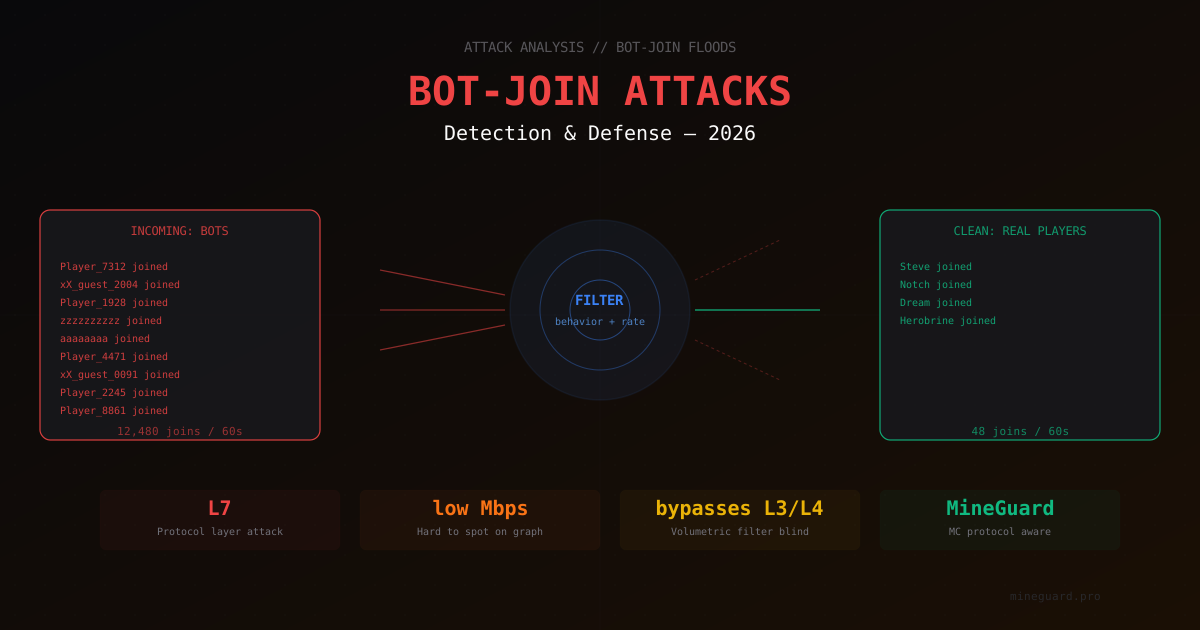
Bot-Join Attacks on Minecraft 2026: How to Tell a Bot from a Real Player
In-depth look at bot-join attacks on Minecraft servers in 2026. How bot connections look in logs, what signals filters use for detection, and which defensive measures actually work.
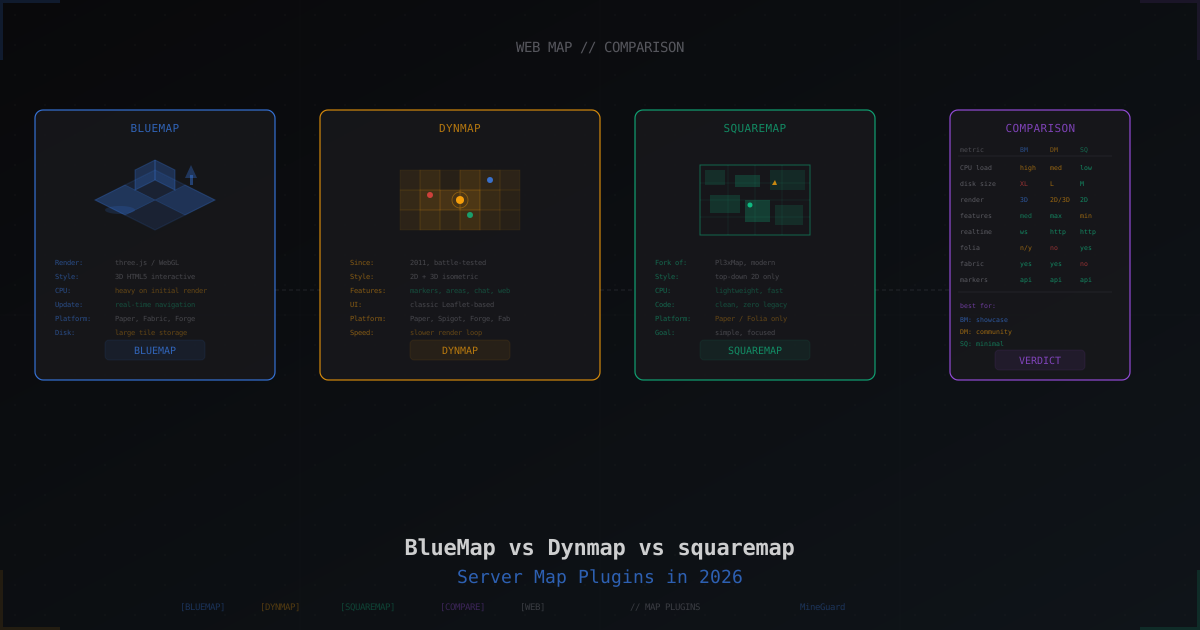
BlueMap vs Dynmap vs squaremap: Which Server Map to Pick in 2026
Three main web map plugins for Minecraft: 3D BlueMap, classic Dynmap, and lightweight squaremap. We compare performance, features, setup, and pick the right one for the job.