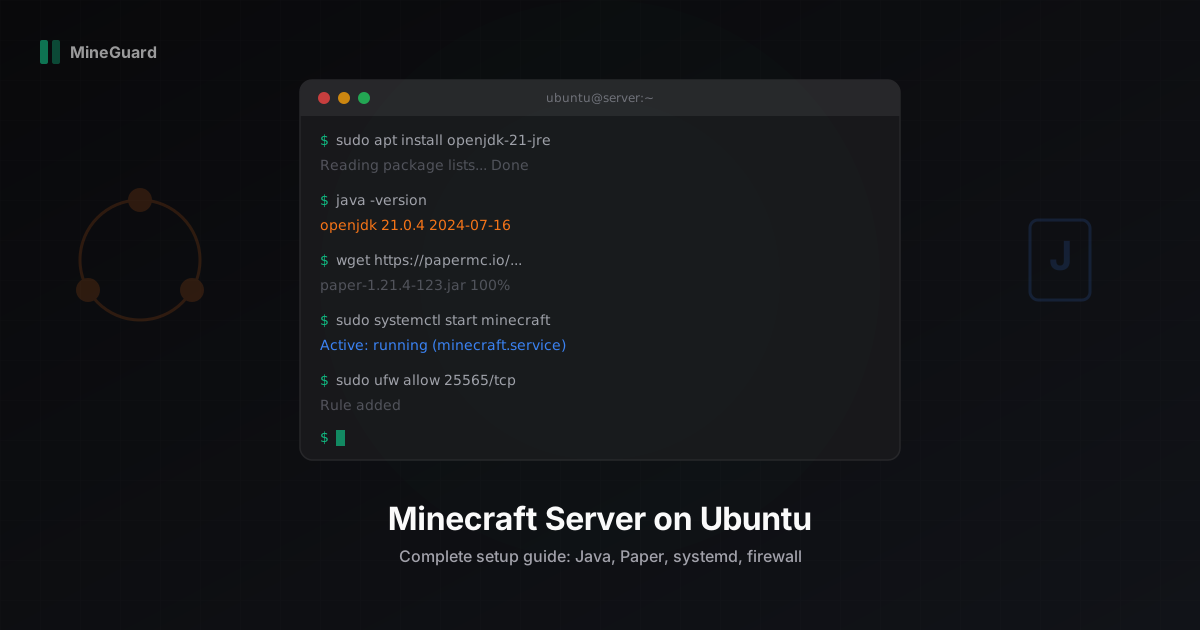
Minecraft Server Setup on Ubuntu Linux: Step-by-Step Guide
Setting up your own Minecraft server on Ubuntu Linux is one of the most rewarding things you can do as a server admin. You get full control over plugins, performance tuning, and security. At MineGuard, we help hundreds of server owners protect their servers, and the vast majority run on Ubuntu. In this guide, we walk you through every step from a fresh Ubuntu install to a production-ready Minecraft server.
Requirements
Before you start, make sure you have:
- Ubuntu 22.04 LTS or Ubuntu 24.04 LTS (we recommend 24.04 for new setups)
- Java 21 (required for Minecraft 1.21+)
- At least 2 GB of RAM (4 GB+ recommended for 10+ players)
- A VPS or dedicated server with root or sudo access
- A stable internet connection with at least 10 Mbps upload
If you are running this at home, you will also need to configure port forwarding on your router. We cover that at the end.
Step 1: Update Your System
Always start with a fresh package update:
sudo apt update && sudo apt upgrade -y
This ensures all security patches are applied and your package index is current.
Step 2: Install Java 21
Minecraft 1.21+ requires Java 21. Install the JRE (Java Runtime Environment):
sudo apt install openjdk-21-jre-headless -y
Verify the installation:
java -version
You should see output like:
openjdk version "21.0.4" 2024-07-16
If your distro does not have Java 21 in its default repos, add the Adoptium repository:
sudo apt install wget apt-transport-https -y
wget -qO - https://packages.adoptium.net/artifactory/api/gpg/key/public | sudo tee /etc/apt/trusted.gpg.d/adoptium.asc
echo "deb https://packages.adoptium.net/artifactory/deb $(lsb_release -cs) main" | sudo tee /etc/apt/sources.list.d/adoptium.list
sudo apt update
sudo apt install temurin-21-jre -y
Step 3: Create a Dedicated User
Never run your Minecraft server as root. Create a dedicated user:
sudo useradd -r -m -d /opt/minecraft -s /bin/bash minecraft
This creates a system user minecraft with a home directory at /opt/minecraft.
Step 4: Download Paper (or Purpur)
We recommend Paper for most servers. It offers the best balance of performance and plugin compatibility. If you want extra customization, try Purpur.
Switch to the minecraft user and download the server jar:
sudo su - minecraft
mkdir -p /opt/minecraft/server
cd /opt/minecraft/server
wget -O paper.jar https://api.papermc.io/v2/projects/paper/versions/1.21.4/builds/123/downloads/paper-1.21.4-123.jar
Replace the URL with the latest build from the Paper downloads page.
Step 5: Accept the EULA
Run the server once to generate config files:
java -jar paper.jar --nogui
The server will stop and ask you to accept the EULA. Edit the file:
nano eula.txt
Change eula=false to:
eula=true
Save and exit (Ctrl+X, Y, Enter).
Step 6: Configure server.properties
Edit the main configuration file:
nano server.properties
Key settings to adjust:
server-port=25565
max-players=50
view-distance=10
simulation-distance=8
motd=My Minecraft Server
online-mode=true
enable-command-block=false
spawn-protection=16
Important: Keep online-mode=true unless you are running behind a proxy like Velocity. Disabling it allows anyone to join with any username.
Step 7: Aikar's JVM Flags
These JVM flags are the gold standard for Minecraft server performance. They optimize garbage collection and memory usage:
java -Xms2G -Xmx2G -XX:+UseG1GC -XX:+ParallelRefProcEnabled \
  -XX:MaxGCPauseMillis=200 -XX:+UnlockExperimentalVMOptions \
  -XX:+DisableExplicitGC -XX:+AlwaysPreTouch \
  -XX:G1NewSizePercent=30 -XX:G1MaxNewSizePercent=40 \
  -XX:G1HeapRegionSize=8M -XX:G1ReservePercent=20 \
  -XX:G1MixedGCCountTarget=4 -XX:InitiatingHeapOccupancyPercent=15 \
  -XX:G1MixedGCLiveThresholdPercent=90 \
  -XX:G1RSetUpdatingPauseTimePercent=5 -XX:SurvivorRatio=32 \
  -XX:+PerfDisableSharedMem -XX:MaxTenuringThreshold=1 \
  -jar paper.jar --nogui
Adjust -Xms and -Xmx to match your available RAM. Always set them to the same value. Do not allocate all system RAM; leave at least 1 GB for the OS.
Step 8: Create a systemd Service
Using screen or tmux works for testing, but for production you should use systemd. It handles auto-start on boot and automatic restarts on crash.
Exit back to your sudo user first:
exit
Create the service file:
sudo nano /etc/systemd/system/minecraft.service
Paste this configuration:
[Unit]
Description=Minecraft Server
After=network.target

[Service]
User=minecraft
Group=minecraft
WorkingDirectory=/opt/minecraft/server

ExecStart=/usr/bin/java -Xms2G -Xmx2G -XX:+UseG1GC -XX:+ParallelRefProcEnabled \
  -XX:MaxGCPauseMillis=200 -XX:+UnlockExperimentalVMOptions \
  -XX:+DisableExplicitGC -XX:+AlwaysPreTouch \
  -XX:G1NewSizePercent=30 -XX:G1MaxNewSizePercent=40 \
  -XX:G1HeapRegionSize=8M -XX:G1ReservePercent=20 \
  -XX:G1MixedGCCountTarget=4 -XX:InitiatingHeapOccupancyPercent=15 \
  -XX:G1MixedGCLiveThresholdPercent=90 \
  -XX:G1RSetUpdatingPauseTimePercent=5 -XX:SurvivorRatio=32 \
  -XX:+PerfDisableSharedMem -XX:MaxTenuringThreshold=1 \
  -jar paper.jar --nogui

Restart=on-failure
RestartSec=10

StandardInput=null
StandardOutput=journal
StandardError=journal

[Install]
WantedBy=multi-user.target
Enable and start the service:
sudo systemctl daemon-reload
sudo systemctl enable minecraft.service
sudo systemctl start minecraft.service
Check the status:
sudo systemctl status minecraft.service
View live logs:
sudo journalctl -u minecraft.service -f
Screen/tmux vs systemd
Many guides still recommend screen or tmux. These work fine for development, but they have downsides for production:
- They do not start automatically after a reboot
- They do not restart the server on crash
- You have to manually reattach to the session
systemd handles all of this automatically. If you still need console access, consider using a wrapper like mcrcon to send commands to the server via RCON.
Step 9: Configure the Firewall
Ubuntu comes with ufw (Uncomplicated Firewall). Allow Minecraft traffic:
sudo ufw allow 25565/tcp
If you also need SSH access (you probably do):
sudo ufw allow ssh
Enable the firewall:
sudo ufw enable
Check the status:
sudo ufw status
You should see port 25565/tcp listed as ALLOW.
If your server uses GeyserMC for Bedrock players, also open the UDP port:
sudo ufw allow 19132/udp
Step 10: File Permissions
Make sure all server files belong to the minecraft user:
sudo chown -R minecraft:minecraft /opt/minecraft
Set proper directory and file permissions:
sudo find /opt/minecraft -type d -exec chmod 750 {} \;
sudo find /opt/minecraft -type f -exec chmod 640 {} \;
sudo chmod 750 /opt/minecraft/server/paper.jar
This prevents other users on the system from reading or modifying your server files.
Connecting from Outside
VPS / Dedicated Server
If your server is on a VPS or dedicated server with a public IP, players can connect directly using your IP address and port 25565. No extra configuration is needed beyond the firewall rules above.
Home Network
If you are running the server at home, you need to set up port forwarding:
- Find your server's local IP:
ip addr show - Log into your router's admin panel (usually 192.168.1.1 or 192.168.0.1)
- Find the port forwarding section
- Forward external port 25565 (TCP) to your server's local IP, port 25565
- Share your public IP with players (find it at whatismyip.com)
For a more professional setup, consider renting a VPS. Providers like Hetzner, OVH, and Netcup offer affordable options starting at around $5/month.
Auto-Restart on Crash
The systemd service we created already handles restarts with Restart=on-failure. If the Java process crashes, systemd will wait 10 seconds and start it again.
To make it even more robust, you can add a watchdog. Add these lines to the [Service] section:
WatchdogSec=120
This tells systemd to kill and restart the service if it becomes unresponsive for 120 seconds. Note that Paper does not send watchdog signals by default, so this works as a last-resort timeout.
Protect Your Server with MineGuard
Once your Minecraft server is up and running, it becomes a target. DDoS attacks are incredibly common in the Minecraft community, and even small servers get hit. We built MineGuard specifically for this problem.
Our free plan gives you DDoS protection with zero configuration. Just point your domain to our filter, and we handle the rest. No plugins required, no changes to your server software. Setup takes about 5 minutes and works with Paper, Purpur, Velocity, and any other server software.
Summary
Here is what we covered in this guide:
- Updated Ubuntu and installed Java 21
- Created a dedicated
minecraftuser (never run as root) - Downloaded Paper server
- Accepted the EULA and configured server.properties
- Applied Aikar's JVM flags for optimal performance
- Created a systemd service for auto-start and crash recovery
- Configured ufw firewall rules
- Set proper file permissions
- Covered port forwarding for home networks
Your server is now ready for players. If you have any questions about protecting it from attacks, check out our documentation or reach out through the dashboard. We are always happy to help.
Protect Your Server from DDoS Attacks
Free protection with 5-minute setup. 1 TB bandwidth included.
Try for FreeRelated Articles
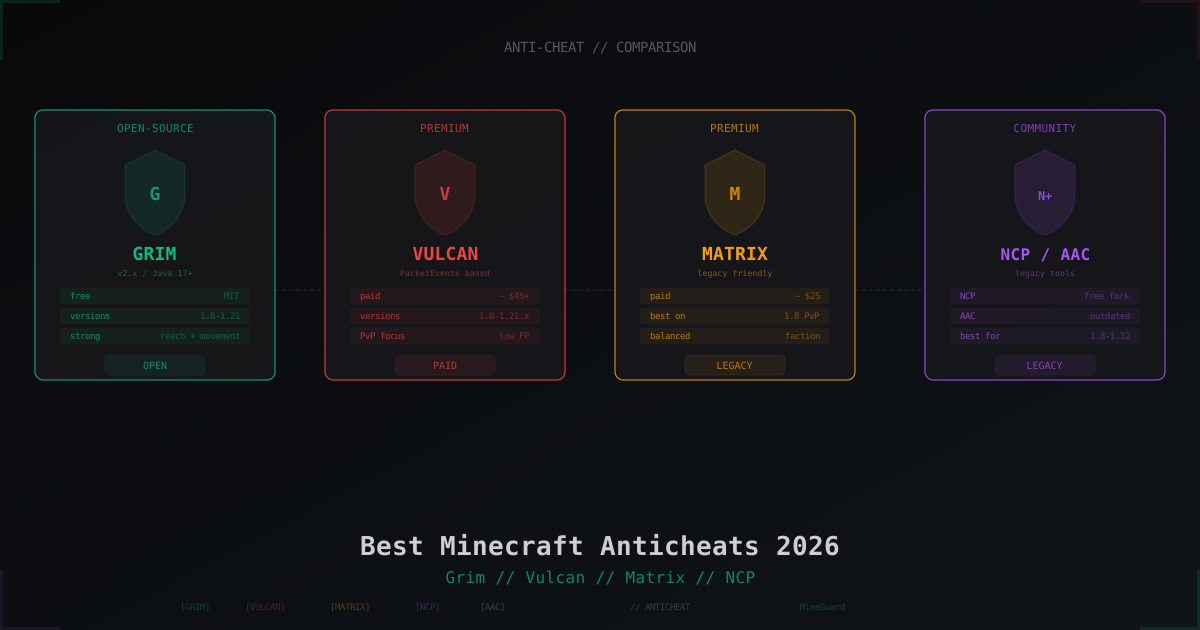
Best Minecraft Anticheats 2026: Grim, Vulcan, Matrix, AAC, NCP Compared
KillAura, Reach, Fly, Scaffold - cheaters break PvP and server economy. We compare Grim, Vulcan, Matrix, AAC and NCP: pricing, version support, false positives and which one fits your server type.
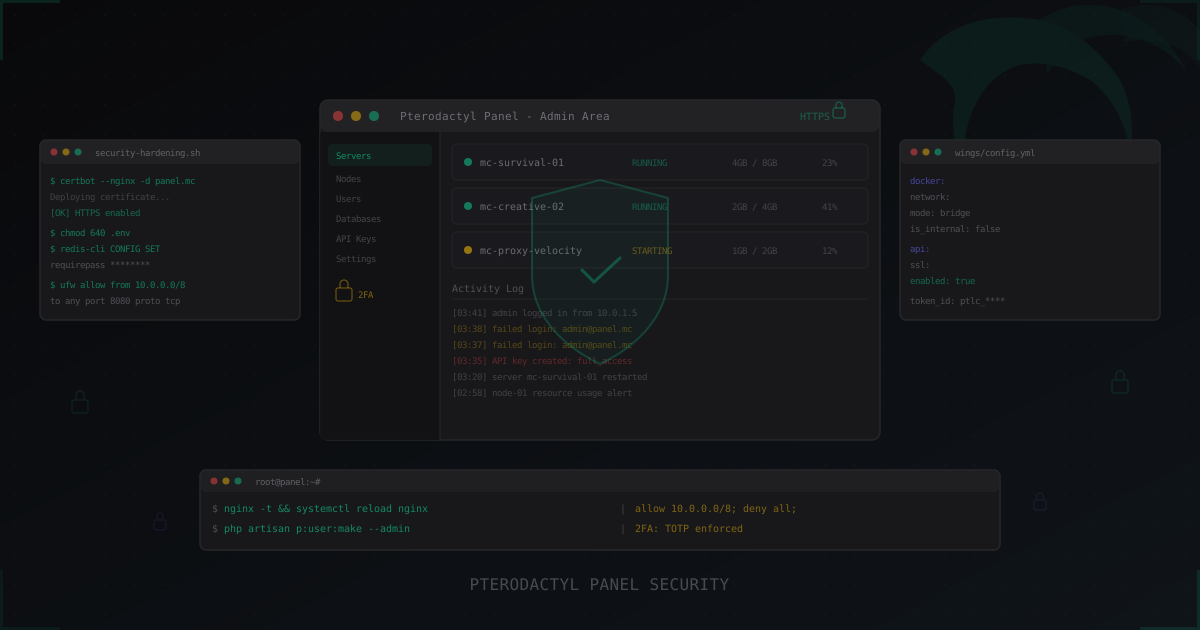
Pterodactyl Panel Security: How to Secure Your Server Management Panel
Complete guide to securing Pterodactyl Panel: SSL, 2FA, Wings hardening, Docker isolation, database and Redis security, API key management, monitoring, and brute-force protection. Plus a look at Pelican as the Pterodactyl successor.
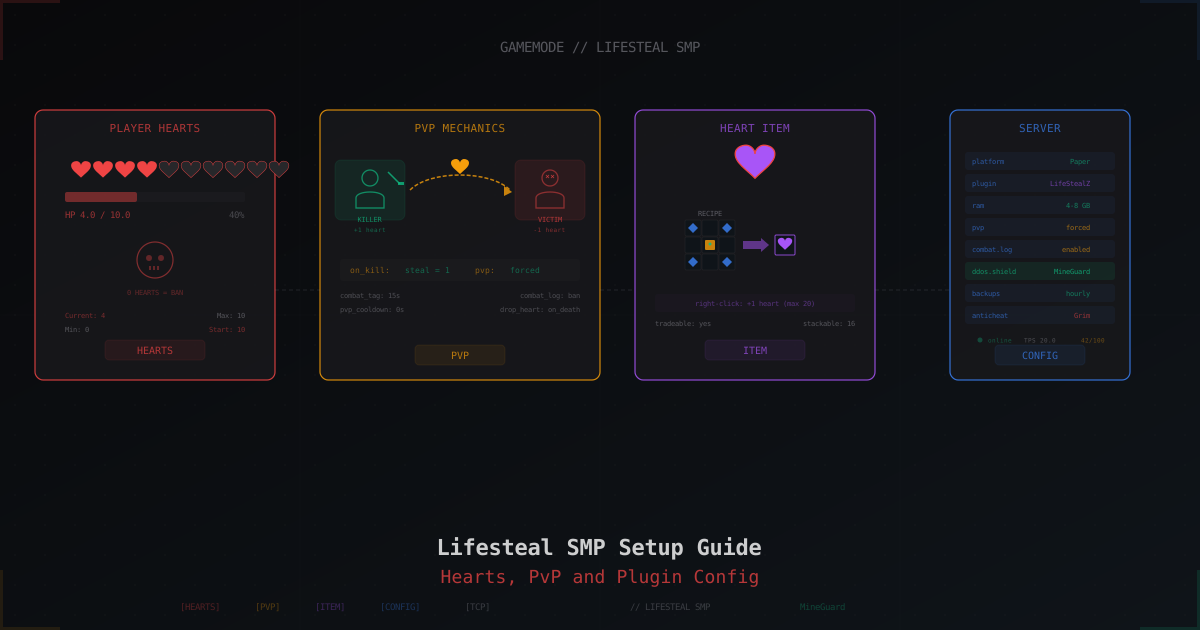
Lifesteal SMP Server: How to Set It Up From Scratch (2026)
Lifesteal SMP is the hottest gamemode on Minecraft YouTube. Kill a player, steal their heart. Zero hearts means permanent ban. Here is the full plugin, config and rules setup.