How to Connect Your Minecraft Server to MineGuard: Step-by-Step Guide
Why does your Minecraft server need protection?
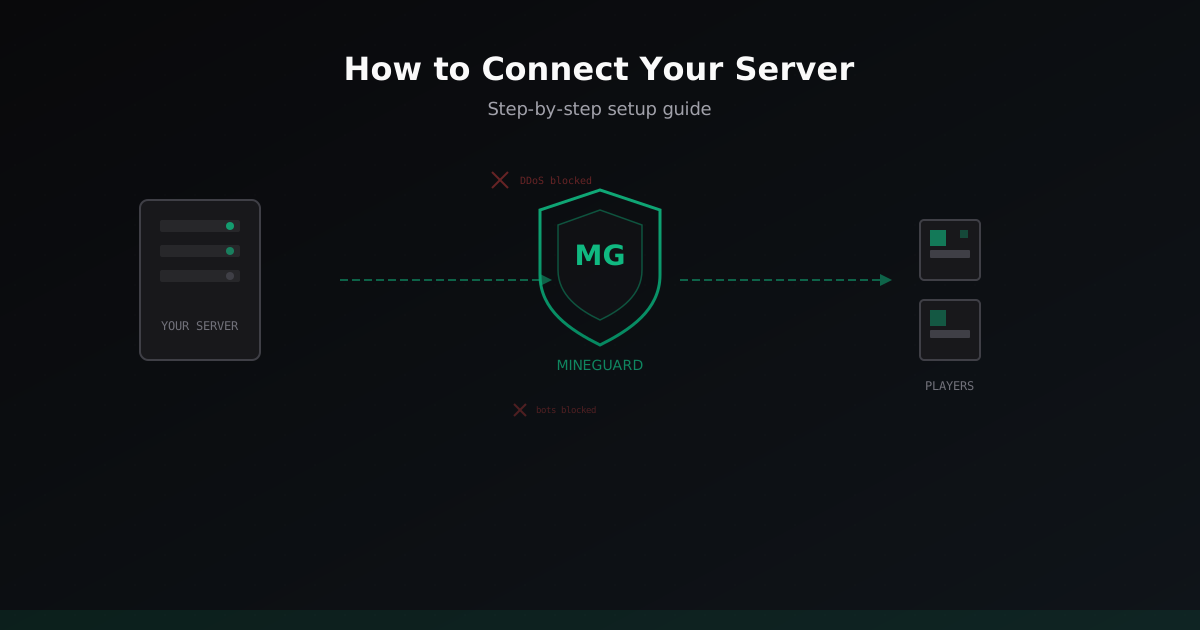
If you run a public Minecraft server, sooner or later you will face DDoS attacks. It is not a question of "if" but "when". Bots, connection flooding, network overload - all of this can take your server down in seconds. We built MineGuard to sit between the internet and your server, filtering all malicious traffic and letting only real players through.
The good news: setup takes about 5 minutes. Seriously. Let us walk through each step.
Step 1: Register on mineguard.pro
First things first - create an account on mineguard.pro. Head to the website and click "Register". You will need an email and a password. After confirming your email, you will land in the dashboard.
Nothing complicated here. Standard registration, just like any other website. No hidden fees at this stage - take your time and look around.
Step 2: Choose a plan
We offer several plans, and the best part - there is a free plan. Yes, you can start using protection completely free of charge. The free plan includes basic DDoS protection and works great for smaller servers just getting started.
Tip: start with the free plan to test everything out. If your server needs more power or advanced features, you can upgrade anytime right from the dashboard. No downtime required.
Step 3: Add your network (server)
After choosing a plan, we get to the main part - adding your network. In the dashboard, click "Add Network" and enter your server name. This is just a label for you, making it easy to manage things if you have multiple servers.
Once the network is created, you get access to everything: connection status, traffic analytics, firewall settings, and more.
Step 4: Add a domain (protected address)
Now you need to add a domain to your network. We will give you a protected address that players will use to connect to your server. Instead of giving players your direct server IP (which is unsafe), you give them the MineGuard address.
Enter your real server IP address and port. MineGuard will proxy all traffic, filtering attacks on the fly.
Important: after setting up the domain, players should connect through the MineGuard address only, not directly. Otherwise the whole point of protection is lost.
Step 5: Set up DNS / connect through the proxy
If you have your own domain (for example, play.myserver.com), you can configure a DNS record to point to your protected MineGuard address. Create an SRV record or A record in your DNS provider panel.
Example SRV record:
_minecraft._tcp.play.myserver.com. 86400 IN SRV 0 5 25565 protected-address.mineguard.pro.
If you do not have your own domain - no problem. Just use the address we gave you in the previous step. Players can connect using it directly.
Step 6: Configure Proxy Protocol (Velocity / BungeeCord)
If your server runs behind a proxy (Velocity, BungeeCord, Waterfall), you may need to enable Proxy Protocol support. This ensures your server sees the real IP addresses of players rather than the MineGuard IP.
For Velocity
In your velocity.toml file, find the advanced section and make sure haproxy-protocol is enabled:
[advanced]
haproxy-protocol = true
For BungeeCord / Waterfall
In the BungeeCord config.yml, add:
proxy_protocol: true
For Paper / Spigot (without a proxy)
If you use Paper or Spigot directly without BungeeCord/Velocity, no additional Proxy Protocol configuration is needed. MineGuard works transparently.
Tip: after enabling Proxy Protocol, make sure to restart your proxy server for the changes to take effect.
Step 7: Configure your firewall - whitelist MineGuard IPs
This is a crucial step that many people skip. For the protection to work effectively, your server should only accept connections from MineGuard IP addresses. This hides your real IP and makes direct attacks impossible.
You can find the current MineGuard IP addresses for whitelisting in the dashboard under "Network Settings". Add them to your firewall rules:
# Example for iptables (replace IPs with current ones from dashboard)
iptables -A INPUT -p tcp --dport 25565 -s MINEGUARD_IP_1 -j ACCEPT
iptables -A INPUT -p tcp --dport 25565 -s MINEGUARD_IP_2 -j ACCEPT
iptables -A INPUT -p tcp --dport 25565 -j DROP
If you use a hosting panel (Pterodactyl, AMP, etc.), configure the firewall through their interface.
Important: do not forget to keep access open for SSH and other necessary ports! Only block the game port for external connections.
Step 8: Verify everything works
Time to test! Here is your checklist:
- Open Minecraft and connect through the protected MineGuard address
- Make sure you get into the server without issues
- Check the MineGuard dashboard to see your connection in the analytics
- Ask a friend to connect and verify their IP shows correctly (not the MineGuard IP)
- Try connecting directly to the server IP - if the firewall is set up correctly, the connection should fail
If something is not working - check the help section in the dashboard or contact our support. We usually respond quickly.
Step 9: Explore dashboard features
Now that your server is connected and protected, take some time to explore what MineGuard can do:
- Real-time analytics - see how many players are online, what traffic is flowing, and whether there have been any attack attempts
- Firewall rules - create custom rules: block specific countries, IP ranges, or suspicious patterns
- Captcha verification - enable captcha checks to protect against bots. We support several types: slider, item selection, image rotation
- VPN/Proxy detection - block or verify players connecting through VPNs
- Logs and history - all events are saved, so you can always check what happened
- Automatic mitigation - the system detects attacks on its own and activates enhanced filtering
Tip: start with the basic settings and gradually enable additional features as needed. No need to turn everything on at once.
Frequently asked questions
How long does setup take?
Usually about 5 minutes. If you already have a server and firewall access, it goes very quickly.
Is it free?
Yes, we have a free plan. It covers basic protection and is great for getting started. Paid plans unlock advanced features and more bandwidth.
Will my ping be higher?
Barely. Our servers are optimized for game traffic, and the added latency is typically 1-3 ms. Players will not notice a difference.
Does MineGuard work with Bedrock Edition?
Yes, we support both Java and Bedrock Edition servers.
What if an attack is already happening?
Connect to MineGuard as soon as possible. Protection starts working immediately after setup. We filter the attack while you go about your day.
Wrapping up
Connecting your Minecraft server to MineGuard is genuinely simple. Registration, network creation, domain setup, firewall configuration - and you are protected. The whole process takes just a few minutes, and the free plan lets you get started without any upfront cost.
We are constantly improving the system, adding new features, and expanding our infrastructure. If you have any questions - reach out. We are always happy to help.
Protect Your Server from DDoS Attacks
Free protection with 5-minute setup. 1 TB bandwidth included.
Try for FreeRelated Articles
MineGuard vs DDoS-Guard: Minecraft DDoS Protection Comparison 2026
Detailed comparison of MineGuard and DDoS-Guard for Minecraft server protection. We break down features, pricing, specialization and help you choose.
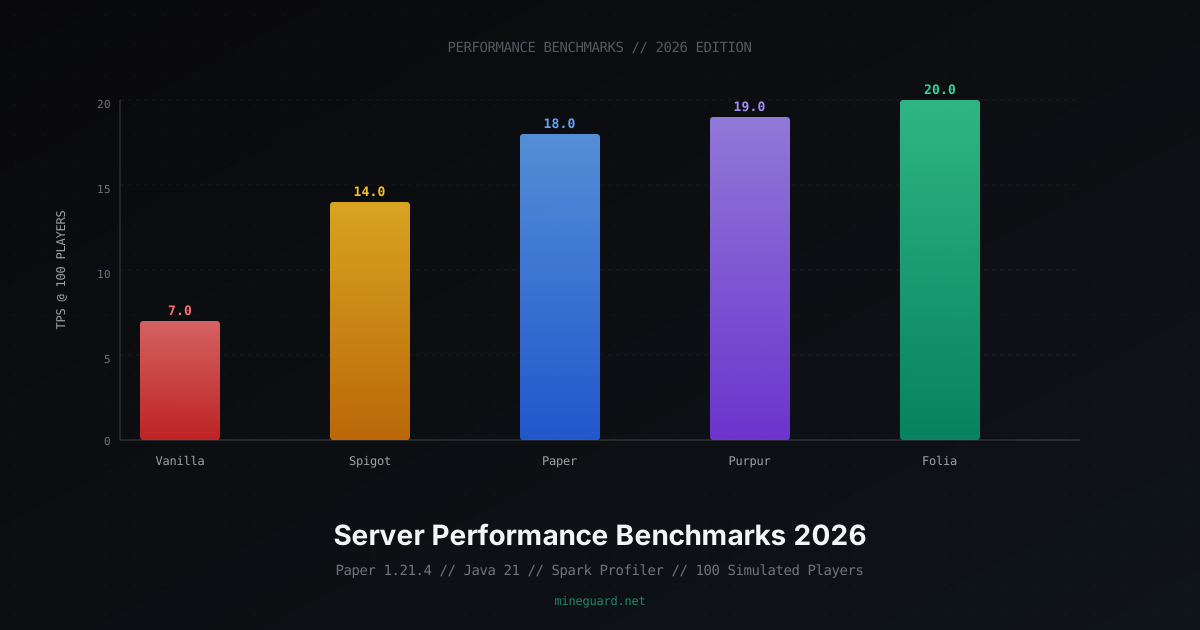
Minecraft Server Performance Benchmarks 2026: Vanilla vs Paper vs Folia
Detailed comparison of Minecraft server software by TPS, RAM usage, chunk loading speed. Java 17 vs 21 benchmarks, JVM flags, hosting comparison, and network requirements.
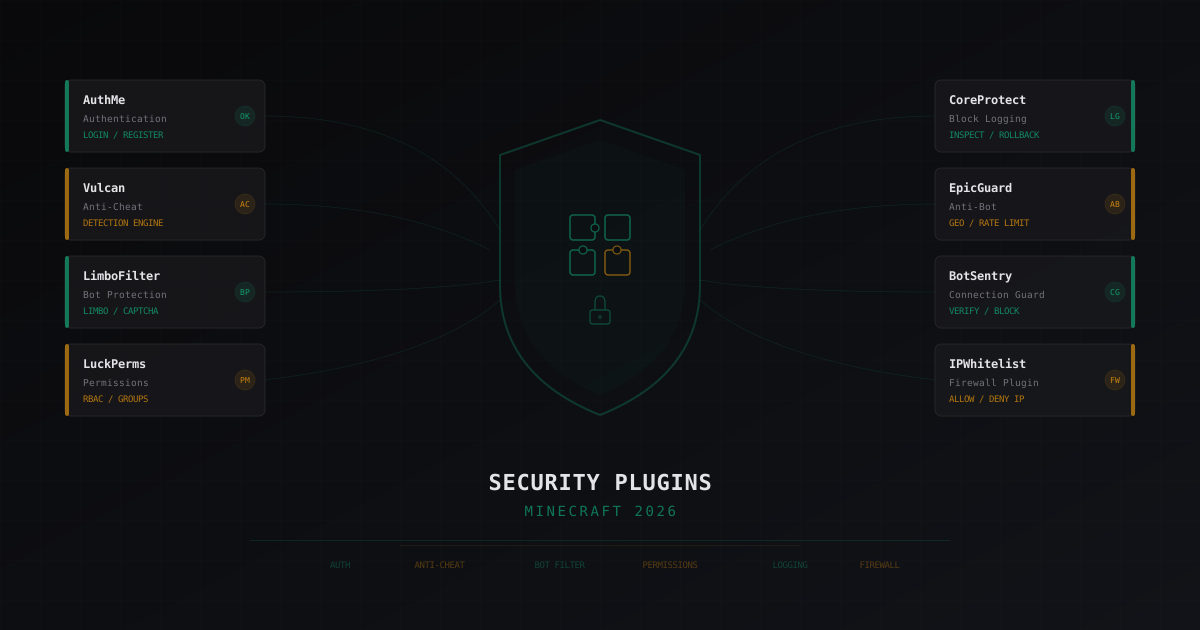
Best Security Plugins for Minecraft 2026: An Honest Review
Breaking down security plugins for Minecraft servers: authentication, anti-cheat, bot protection, permissions, logging. Honest pros and cons for each solution with configuration tips.