DiscordSRV: Discord Bot Setup for Minecraft Server
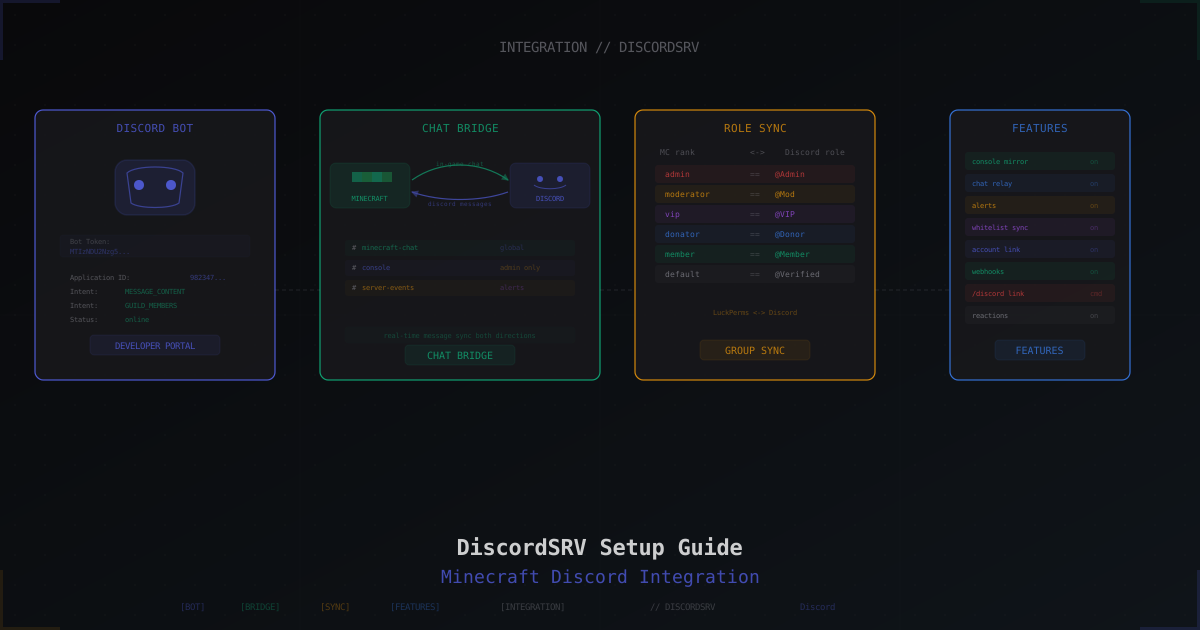
Discord has become the second home for most gaming communities. Players hang out there even when they are not in-game, so it makes sense for the server chat to be visible from the same place. DiscordSRV is the most popular plugin for bridging Minecraft with Discord. It gives you a two-way chat bridge, mirrors the console into a channel, syncs roles, links accounts, and sends alerts about server events.
This guide covers the whole path: from creating a bot in the Developer Portal to fine-tuning group sync and webhook messages. Instructions are for Paper/Spigot/Purpur, but most of it also applies to other forks.
What DiscordSRV does
The main features that make people install it:
- Chat bridge: in-game chat shows up in a Discord channel and vice versa
- Console channel: the server console is mirrored to a private channel, and you can run commands from Discord
- Alerts: player join/leave, deaths, advancements, server start/stop
- Account linking: tie a Minecraft nickname to a Discord account via a code
- Group sync: LuckPerms groups automatically map to Discord roles and back
- Webhook messages: in-game messages appear in Discord with the player's head avatar, not as the bot
- Addon API: many plugins extend DiscordSRV (reactions as emoji, per-channel chat, moderation)
Alternatives
A quick look at the competitors so you are not guessing.
- DiscordIntegrator - simpler, lighter, no group sync or console. Good if you only need a basic chat bridge
- EssentialsDiscord - part of EssentialsX, plugs into that ecosystem. No group sync, limited features
- DiscordChat - minimal, chat only
- UltimateChat with Discord addon - paid, polished, overkill for most
DiscordSRV is the de facto standard. Active community, regular updates, supports all current Minecraft versions from 1.8 to 1.21+. The rest of this guide sets it up.
Installing the plugin
- Open the plugin page on SpigotMC or GitHub Releases
- Download the latest
.jarfor your Minecraft version - Drop the file into the server's
plugins/folder - Restart the server (full restart, not reload)
After startup plugins/DiscordSRV/ appears with configs: config.yml, messages.yml, alerts.yml, synchronization.yml, linking.yml. Do not touch them yet, create the bot first.
Verify the plugin is loaded:
/plugins
DiscordSRV should be there in green. If it is red, check the console. Usually it is a Java or Minecraft version mismatch.
Creating a Discord bot
Step 1: create an application
- Open Discord Developer Portal
- Click New Application in the top right
- Pick a name (e.g.
MyServer Bot) and accept the terms - On the General Information tab you can set the icon and description. This is what players will see in Discord
Step 2: create the bot user
- Pick Bot from the left menu
- Click Add Bot -> Yes, do it!
- Set the bot nickname and avatar (different from the app name)
Step 3: grab the token
On the same Bot page, click Reset Token -> Yes, do it!. You will see something like:
MTIzNDU2Nzg5MDEyMzQ1Njc4.Xy7Z_A.abcdefghijklmnopqrstuvwxyz
Copy it right now. Discord does not show the token again, only lets you reset. Never publish the token, never commit it to git, never show it in screenshots. If it leaks, reset it immediately on the same page.
Step 4: enable privileged intents
This step is critical. Without it, the bot will not see user messages.
On the Bot page find Privileged Gateway Intents and enable:
- PRESENCE INTENT (optional, for statuses)
- SERVER MEMBERS INTENT (required for group sync)
- MESSAGE CONTENT INTENT (required for chat)
Click Save Changes.
Step 5: invite the bot
- Go to OAuth2 -> URL Generator
- In Scopes tick:
bot,applications.commands - In Bot Permissions tick at minimum:
- View Channels
- Send Messages
- Embed Links
- Attach Files
- Read Message History
- Manage Messages (for edit/delete)
- Manage Roles (for group sync)
- Manage Webhooks (for nice avatar-based messages)
- Add Reactions
- Copy the generated URL at the bottom
- Open the URL in your browser, pick your Discord server, confirm
The bot will appear in the members list, but still offline.
Getting channel and guild IDs
DiscordSRV works with numeric IDs, not channel names. To get them, enable Developer Mode in the Discord client:
- User Settings -> Advanced -> Developer Mode: On
- Right-click your server (guild) -> Copy Server ID - this is the guild ID
- Right-click a channel -> Copy Channel ID - this is the channel ID
IDs look like 948273194820394820. Save the IDs for the channels you need: #minecraft-chat (global chat), #console (if mirroring console), #server-events (for alerts).
Configuring DiscordSRV
Open plugins/DiscordSRV/config.yml. The essential settings:
BotToken
BotToken: "MTIzNDU2Nzg5MDEyMzQ1Njc4.Xy7Z_A.abcdefghijklmnopqrstuvwxyz"
Paste the token from the Developer Portal. Without it, the bot will not start.
Channels
This maps DiscordSRV's in-game channels to Discord channels. global is the default one for general chat.
Channels:
  global: "948273194820394820"
  staff: "948273194820394821"
The left value (global, staff) is the DiscordSRV channel name, the right value is the Discord channel ID. Multiple channels let you split staff chat from public chat.
Console channel
A separate section for mirroring the console:
DiscordConsoleChannelId: "948273194820394822"
DiscordConsoleChannelUsageLog: true
DiscordConsoleChannelBlacklistedCommands:
  - "?"
  - "op"
  - "deop"
  - "stop"
The channel must be private and accessible only to admins. Anyone who can post in the channel can run commands on the server.
MinecraftChatToDiscordMessageFormat
Format of in-game messages sent to Discord, edited in messages.yml:
MinecraftChatToDiscordMessage:
  Content: "%message%"
  Webhook:
    Enable: true
    AvatarUrl: "https://mc-heads.net/avatar/%uuid%/128"
    Username: "%username%"
Webhook mode makes messages look like normal Discord messages: with the player's head avatar and their nickname, instead of posting as the bot. Recommended.
DiscordChatChannelMinecraftMessage
Format for the reverse direction: from Discord to Minecraft.
DiscordToMinecraftChatMessageFormat: "&b[Discord] &r<%username%> %message%"
DiscordToMinecraftChatMessageFormatNoPrimaryGroup: "&b[Discord] &r<%username%> %message%"
Colors use &-codes. %username% is the Discord nickname, %message% is the message text.
Minimal working config.yml:
BotToken: "YOUR_TOKEN_HERE"

Channels:
  global: "948273194820394820"

DiscordConsoleChannelId: "948273194820394822"
DiscordConsoleChannelUsageLog: true

DiscordChatChannelPrefixRequiredToProcessMessage: ""

MinecraftDiscordAccountLinkedConsoleCommands:
  - "lp user %player% parent add verified"

MinecraftDiscordAccountUnlinkedConsoleCommands:
  - "lp user %player% parent remove verified"
Save, in-game run /discord reload and the plugin will pick up changes without restarting the server.
Account linking
For DiscordSRV to know which Discord user is which in-game player, you need linking. Without it, group sync and personal avatars do not work.
Linking flow
- The player types
/discord linkin Minecraft - The plugin returns a 4-digit code, e.g.
4829 - The player DMs the bot in Discord with:
link 4829 - The bot replies with a confirmation, the link is saved
The code is one-time and expires (15 minutes by default). To unlink: /discord unlink in-game or unlink in DM.
Auto-assigning a role on link
linking.yml configures auto-role assignment:
MinecraftDiscordAccountLinkedRoleNameToAddUserTo: "Verified"
MinecraftDiscordAccountLinkedConsoleCommands:
  - "lp user %player% parent add verified"
  - "say %player% linked their Discord!"
The player gets the Verified role in Discord and the verified group in LuckPerms right after linking. Useful for separating verified users from random visitors.
Forcing linking
You can lock the server behind Discord linking. In config.yml:
Require linked account to play:
  Enabled: true
  Subtract from online count: true
  Kick message: "Link Discord: /discord link | Invite: discord.gg/yourserver"
  Whitelisted players bypass check: true
Only linked players get in. Whitelisted players can bypass.
Group sync
One of the most useful features. Configured in synchronization.yml.
GroupRoleSynchronizationGroupsAndRolesToSync:
  "admin": "948273194820394830"
  "moderator": "948273194820394831"
  "vip": "948273194820394832"
  "donator": "948273194820394833"
  "member": "948273194820394834"

GroupRoleSynchronizationOneWay: false
GroupRoleSynchronizationCycleTime: 10
Left is a LuckPerms group (or permission), right is a Discord role ID. By default sync is two-way: get admin in LuckPerms, get @Admin in Discord, and vice versa.
OneWay: true makes DiscordSRV only read from Minecraft and write to Discord, without touching LuckPerms in reverse. Safer if you do not want someone with Discord permissions accidentally gaining server permissions.
CycleTime: 10 is the interval in minutes for recalculating sync. It also triggers on events (join, role change).
Role hierarchy
The bot can only assign roles that are lower than its own in the Discord hierarchy. In Discord server settings, drag the bot role above all synced roles. Otherwise you get Missing Permissions in the console.
Alerts
File alerts.yml. Lets you send any server event to a channel as custom messages.
Alerts:
  - Trigger: "PlayerJoinEvent"
    Async: true
    Channel: "server-events"
    Content: ":green_circle: **%player%** joined the server"

  - Trigger: "PlayerDeathEvent"
    Async: true
    Channel: "server-events"
    Content: ":skull: %player% died: `%event.deathMessage%`"

  - Trigger: "PlayerAdvancementDoneEvent"
    Async: true
    Conditions:
      - "event.advancement.display != null"
    Channel: "server-events"
    Content: ":trophy: **%player%** earned **%event.advancement.display.title%**"
Triggers are any Bukkit event. Conditions let you filter, for example skip hidden advancements.
For server events (start, stop, crash) there are built-in ones in config.yml:
DiscordChatChannelServerStartupMessage: ":green_circle: Server started"
DiscordChatChannelServerShutdownMessage: ":red_circle: Server stopped"
Webhook messages for nicer look
If you enable in messages.yml:
MinecraftChatToDiscordMessage:
  Webhook:
    Enable: true
    AvatarUrl: "https://mc-heads.net/avatar/%uuid%/128"
    Username: "%username%"
In-game messages show up as separate "users" in Discord, each with their own avatar, the player's Minecraft head. Visually much better than the bot posting everything with one name.
Important: the bot needs Manage Webhooks in the channel, otherwise nothing works. Discord also rate-limits webhook messages per minute. On small servers this is fine, but with 100+ online you may hit limits. In that case disable webhook or batch.
Whitelist via Discord
You can gate server access on a Discord role. For example, the @Member role should grant whitelist.
Via group sync: map @Member to the whitelisted LuckPerms group, which has essentials.whitelist.bypass, or just add to whitelist.json via custom commands:
MinecraftDiscordAccountLinkedConsoleCommands:
  - "whitelist add %player%"

MinecraftDiscordAccountUnlinkedConsoleCommands:
  - "whitelist remove %player%"
Or write a custom alert on DiscordSRV's RoleAddEvent via an addon plugin. For most servers the simple group sync combo is enough.
Troubleshooting
"No such channel" at startup
Plugin logs say Could not find Discord channel by ID.... Causes:
- Channel ID copied wrong (extra spaces, letters instead of digits)
- Bot not invited to the server where the channel lives
- Bot has no View Channel permission
- Channel is a category or voice channel, DiscordSRV expects a text channel
Check: Discord channel settings -> Permissions, find the bot role, make sure View Channel is on.
"Missing Permissions" when assigning roles
WARN: Tried to assign role but lacks permissions
Two causes:
- Bot role is lower in the Discord hierarchy than the role being assigned. Fix: drag the bot role up in Server -> Roles
- Bot has no Manage Roles permission. Fix: Server Settings -> Roles -> bot role -> enable Manage Roles
Messages do not send from Minecraft to Discord
- Check
globalinChannels:points to the right ID - Check the bot is online (
/discordin-game shows status) - Look at the server console for JDA errors (the library DiscordSRV uses)
Messages do not send from Discord to Minecraft
Almost always: Message Content Intent is not enabled in Developer Portal. This is a Discord policy since 2022, without this intent the bot cannot see message content. Enable it, restart the server, check again.
Webhook messages not working
- Bot lacks Manage Webhooks in the channel
- Discord's per-channel webhook limit (10) is reached
- Proxy/CDN is blocking outgoing webhook requests from the Minecraft server
Bot stuck at "Connecting..."
- Token is wrong or was reset, generate a new one
- Token has a trailing space or newline
- Hosting blocks outgoing connections to gateway.discord.gg
Group sync not working one direction
Check GroupRoleSynchronizationOneWay. If true, sync only goes MC -> Discord. Set to false for two-way.
Also verify the LuckPerms groups exist (/lp group <name> info).
Security and best practices
- Console channel is admins only. Anyone who can post there can run commands on the server. Grant access only to trusted people
- Back up the token in a password manager. Reset immediately on leak
- Separate channels per role:
#minecraft-chatpublic,#staff-chatprivate for moderation,#server-eventsfor alerts,#consolefor admins - Avoid webhook for chat on 200+ online. Discord webhook rate limits can start misbehaving
- Bot role above sync roles. Saves hours of debugging
- Use alerts with restraint. A channel with 100 alerts per minute is noise nobody reads
- Keep DiscordSRV updated. Discord changes their API regularly, old plugin versions drift
Final checklist
- DiscordSRV plugin in
plugins/, server started, plugin green - Bot created in Developer Portal, token saved
- Three privileged intents enabled (SERVER_MEMBERS, MESSAGE_CONTENT, PRESENCE)
- Bot invited to Discord via OAuth2 URL with correct permissions
- Developer Mode on, channel IDs copied
config.ymlhasBotToken,Channels,DiscordConsoleChannelIdfilledsynchronization.ymlset up for group sync (if needed)- Bot role above all synced roles in Discord hierarchy
- Console channel is private
- Account linking tested via
/discord link - Messages flow both directions
If every box is ticked, DiscordSRV is production-ready. From here add addons: DiscordSRV-Reactions for emoji reactions in-game, DiscordSRV-Voice for voice channel display, SRVLinker for extended linking, and turn your server into a full ecosystem.
Protect Your Server from DDoS Attacks
Free protection with 5-minute setup. 1 TB bandwidth included.
Try for FreeRelated Articles
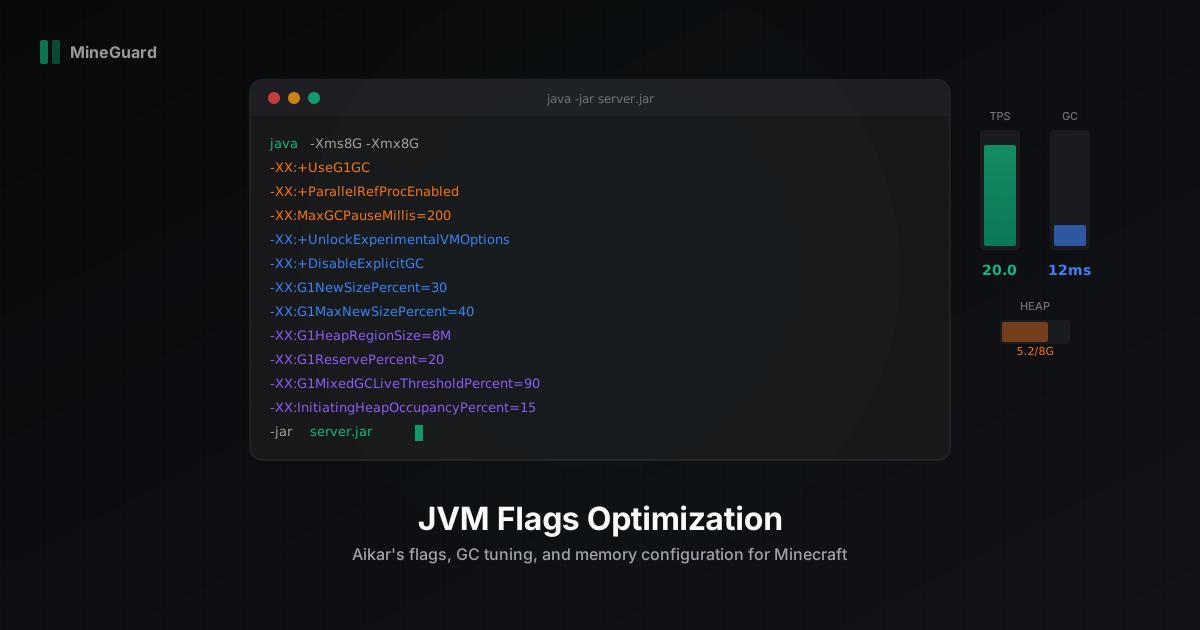
Java JVM Flags Optimization for Minecraft Servers: The Complete Guide
Master Aikar's flags, understand G1GC vs ZGC, configure memory correctly, and get copy-paste ready flag sets for any server size. A practical guide to JVM optimization for Minecraft.
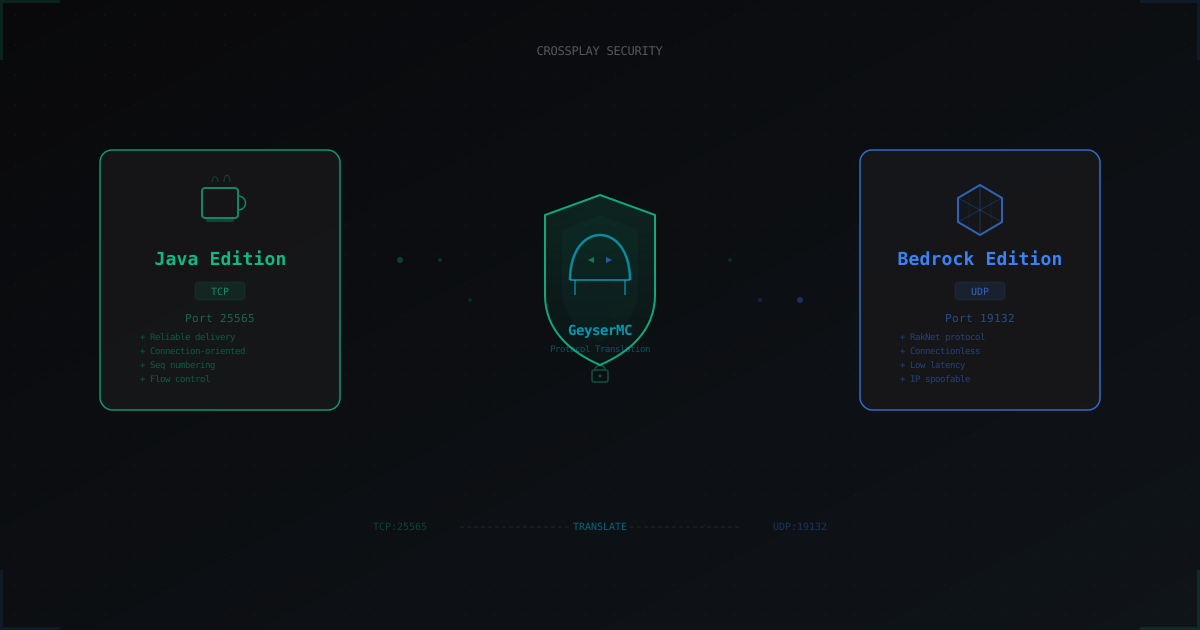
GeyserMC and Crossplay: How to Secure a Server with Bedrock Players
GeyserMC opens the door for mobile and console players, but adds a UDP port, new attack vectors, and authentication headaches. We break down crossplay risks and how to mitigate them.
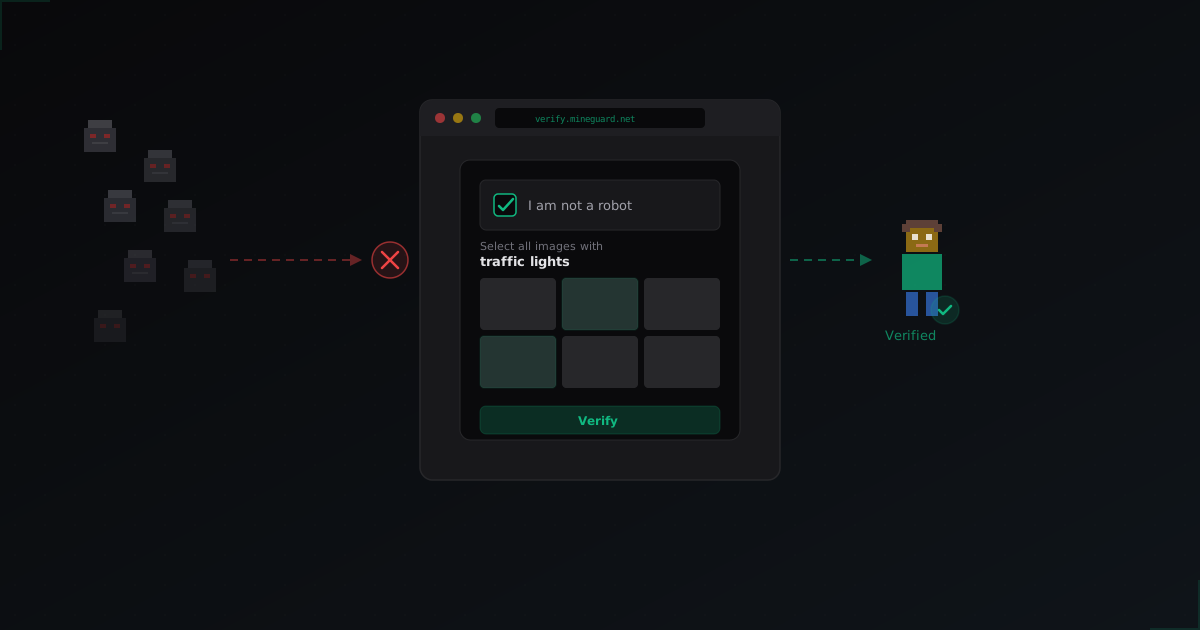
Why MineGuard Web Captcha Cannot Be Auto-Solved by Bots
We explain why in-game captchas are useless against modern bots, and how MineGuard web captcha creates an insurmountable barrier for automated attacks on Minecraft servers.